 Als Preview
User Guide
Welcome to Als Preview
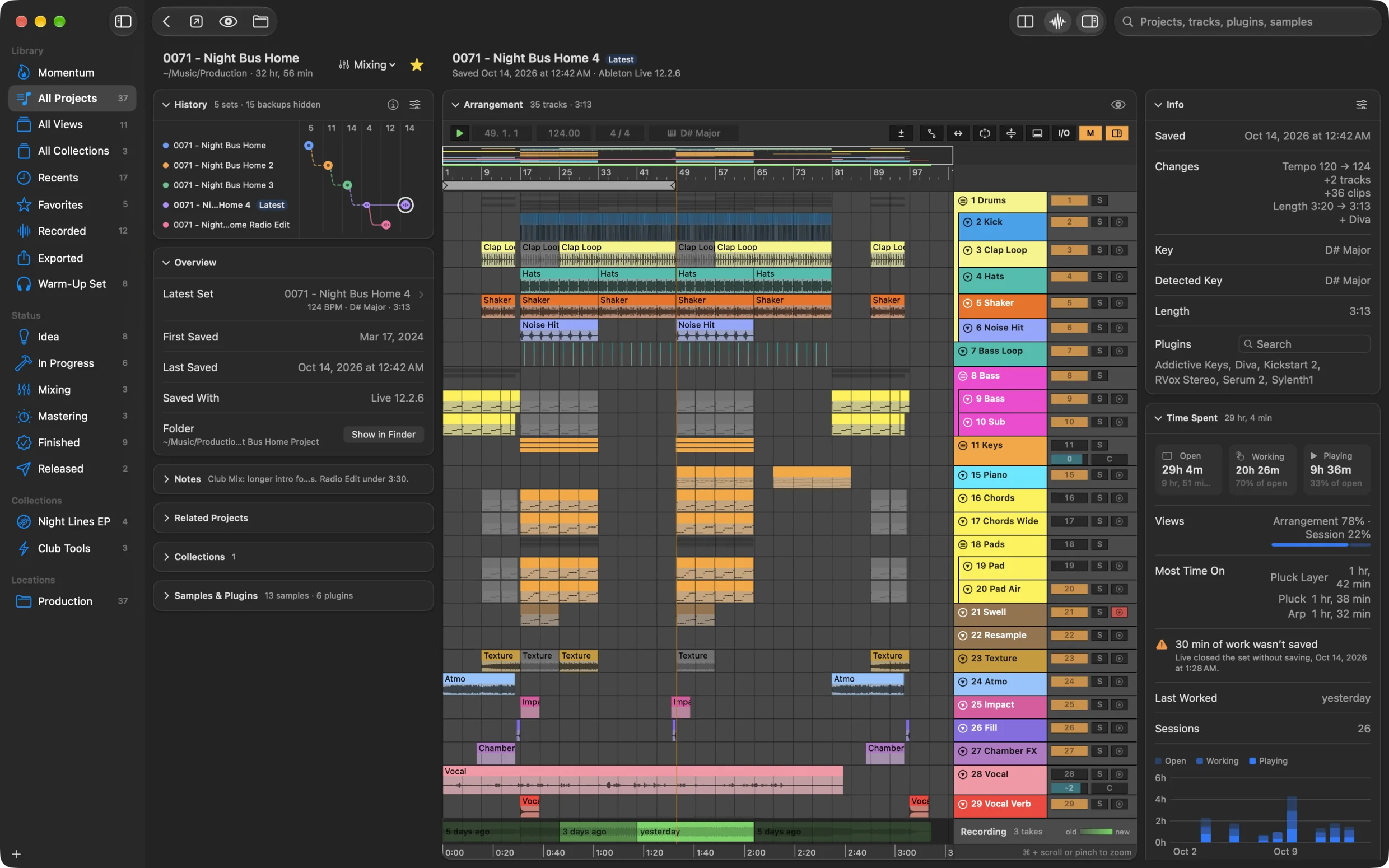
Als Preview keeps every Ableton Live Set on your Mac in one searchable library. Find a set by what’s in it, see its arrangement, hear it from any bar and follow it from the first idea to the final mix, without opening Live.
New here? Start with these
Set up Als Preview
Add the folders with your projects. Als Preview finds every set and keeps the library up to date.
Set up the plugin in Live
One plugin on the Main track records what you play, tracks your time and finds your exports.
Search and filters
Type a plugin, a sample or a track name, or narrow it down by tempo and key.
How recording works
The ring buffer, takes, newest takes on top, latency and solos, explained.
What Als Preview does
- Finds any set
- It reads tempo, key, tracks, plugins and samples of every Live Set in your folders, Live’s backups included, and searches all of them as you type. Search and filters
- Shows the arrangement
- Select a set and see it as Live does: track colors, clips, MIDI notes, waveforms and automation. Live doesn’t open and no plugin loads. The arrangement
- Plays what you played
- With the plugin on the Main track, each set records itself while you work in Live. Play it from any bar, no bouncing needed. Als Preview also renders a preview of what the plugin hasn’t heard. Listening to a set, Approximate previews
- Keeps every save in order
- Your sets, their Save As copies and Live’s backups line up in one history. Compare any two and see every track, clip, note and knob that changed. Versions and history, Comparing saves
- Knows where the hours went
- The plugin notes how long each set is open in Live and how long it plays. The Remote Script does it for every set, and tells how long you worked and on which tracks. Time tracking
- Keeps you going
- Momentum, the first item in the sidebar, shows what you made, shaped and finished this week, month or year as three rings against goals of your own. It also points at projects that are stuck and old ones worth another listen. Momentum
- Keeps it in order
- Give projects a status, star your favorites, group them in collections and keep notes, and see which samples and plug-ins a set misses before Live asks. Save any search as a view in the sidebar, arrange the sidebar in sections and name your own statuses. Status, views and collections
- Finds your exports
- Files you export from a set show up with it, even after you rename or move them. Exports
- Works outside the app
- Press Space on a Live Set in Finder, find a project from Spotlight, or look at a set’s history, status and notes in the plugin’s window in Live. Quick Look, Spotlight and Shortcuts
How this compares with Live’s own browser and with other apps: Als Preview and other tools.
A few words used in this guide
- Set
- A Live Set, the
.alsfile Live saves. - Project
- A song: a Live project folder with its sets and backups, or a family of loose sets with the same name (“Song”, “Song 2”, “Song final”).
- Main set
- A project’s newest set that isn’t a backup. Tempo, key and length in the project list come from it.
- Save
- One saved state of a set: the set itself or one of Live’s backups of it. The History shows every save.
- The plugin
- The Als Preview Audio Unit that comes with the app. On a set’s Main track it records what you play and tracks your time.
- The Remote Script
- A small script for Live that comes with the app. It tells the plugin when a track is soloed and tracks your time in every set. Set up the Remote Script
- Take
- One stretch of playback the plugin recorded, from Play to Stop or to the next jump.
- Approximate preview
- Audio Als Preview renders from a set’s clips and samples, without Live. It plays where the plugin recorded nothing.
Requirements
- A Mac with macOS 15 Sequoia or later.
- Als Preview reads sets saved with Ableton Live 10, 11 and 12. Live doesn’t have to be installed to search and preview them.
- The plugin needs Live 11.2 or later, with Audio Units v3 turned on.
- The Remote Script tracks your time in Live 11.3.25 or later.
Something not working, or a question this guide doesn’t answer? See Troubleshooting, or write to contact@als-preview.de.