 Als Preview
Your library
Momentum
Momentum is the first item in the sidebar, and the page the library window opens on. It shows how much you made, started, shaped and finished this week, month or year, against goals you pick, which projects could use a push, and which old ones are worth another listen. Everything on it comes from what Als Preview already knows: your time in Live, the dates of your saves, your exports and your statuses.
The short version
- Click Momentum in the sidebar, the first item under Library. The window opens on it. The window’s subtitle says This week, This month or This year.
- The Week, Month and Year picker in the toolbar sits where the view picker is elsewhere, and sets the span the rings, the streak and the status moves look at.
- A ring for each goal you pick with Goals…, up to six of fourteen. It starts with Make, Shape and Finish; others count new projects, days in the studio, time in Arrangement View, loops laid out as songs and more. Each ring fills toward a weekly goal you set, and a streak counts the weeks or months in a row you reached them.
- Below them: the projects you worked on last, up to three Next Moves for projects that are stuck, old projects to listen to again, your projects by status, and six Awards.
- Click a project anywhere on the page to open it, on its own page or beside Momentum in the side-by-side layout. Go › Back returns to Momentum. Typing in the search field takes you to All Projects, since Momentum has no list to search.
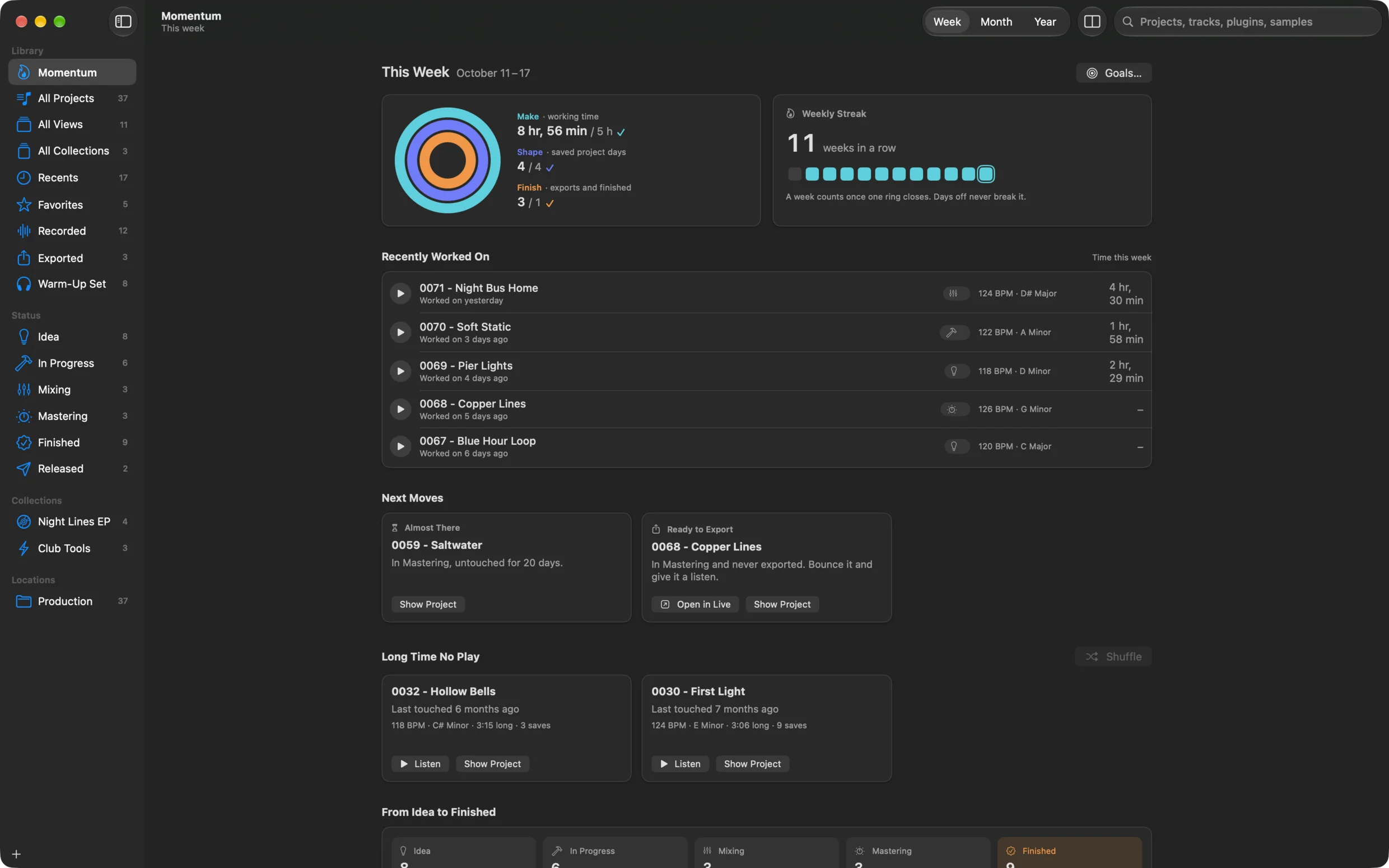
Rings and goals
The rings at the top show where you stand in the span you picked, one ring for each goal, the first outermost. Each ring fills toward its goal, the legend beside them shows the number against the goal, for example 3 / 4, and a checkmark appears when a ring is closed. Hold the pointer over a goal’s name for how it counts.
There are fourteen goals in three groups. Most count project days rather than every save or export, so saving a project fifty times in an evening fills Shape no more than saving it once.
Time in Live
- Make working time
- The time you worked in Live, as the Remote Script or the plugin tracked it: the Working measure in Time tracking, shown like 4 h 10 min / 5 h. Each stretch of time counts once. Until any working time has been tracked, a note under the rings says Make counts your working time in Live and offers Open Settings: install the Remote Script, or put the plugin on a set’s Main track. The note names every goal you picked that needs working time.
- Show Up days in the studio
- Each day you worked a quarter of an hour or more, or saved a project. Works without time tracking too, from your saves.
- Focus hour-long sessions
- Each day you worked an hour or more on one project counts once for it. An hour spread over three projects doesn’t count.
- Arrange in Arrangement View
- Working time with Arrangement View in front, as the Remote Script saw it.
- Jam in Session View
- Working time with Session View in front, as the Remote Script saw it.
- Record recording
- The time Live recorded while you worked, as the Remote Script saw it.
- Polish mixing and mastering
- Working time on projects while their status was Mixing or Mastering, or a status of yours that counts like them. Which status a project had at the time comes from the log of status changes (see below).
Projects
- Start new projects
- Each project you started, on the day of its first save or its first tracked working time. Since Live keeps only ten backups of a set, the first saves of a project are gone after a while; the day Als Preview first had the project in its library then counts instead, if that is earlier.
- Shape saved project days
- Each day a project was saved counts once for that project, however often you saved it that day. Als Preview goes by the dates of your sets and of Live’s backups of them, so saves from before you installed it count too, as far as the files are still there.
- Revisit old projects picked up
- Each day you worked on or saved a project after a month or more without it, a new version saved from an old set included. Only gaps Als Preview can be sure of count: Live keeps the last ten backups of a set, so a set with ten may have had older saves that are gone, and a gap in front of its oldest backup doesn’t count. Als Preview remembers each return it found, so it still counts once the backups that showed it are gone. Goes well with Long Time No Play.
- Explore different projects
- The projects you worked on for five minutes or more in the span, or saved, each once.
- Lay Out loops laid out as songs
- Each project whose arrangement got to two minutes after it was a loop: a save with an arrangement shorter than a minute, then a later one of two minutes or longer. It counts once per project, on the day of that save. Als Preview remembers the day, since the loop’s save goes once Live has made ten more backups. The other side of Stuck in the Loop.
Progress
- Finish exports and finished
- Each day a project was exported counts once for it, and so does each day you marked it Finished, or a status of yours that comes after Finished. Exports are the ones the plugin logged (see Exports), and only exports of a minute or longer count: a loop bounced for sampling isn’t a finish. A project exported twice and marked Finished on the same day counts once.
- Advance status moves
- Each day a project’s status moved on toward Finished counts once for it: from Idea to In Progress, from Mixing to Mastering, and so on. A project without a status counts as an idea, so giving one the status Idea isn’t a move, but giving it Mixing is. Moving a project back doesn’t count.
Picking your goals
Click Goals… at the top right of the page. A sheet lists all fourteen goals in their three groups, each with a checkbox, its name, what it counts and, on the right, how much the span you picked holds so far, like 3 h 10 min this week. That helps to set a goal you can reach. The rings at the top of the sheet show your picks.
- Tick up to six goals. With six picked, the others are dimmed until you untick one; the last goal picked can’t be unticked.
- Each goal you picked gets a stepper for its weekly goal, like 5 h a week or 1 new project a week.
- A goal that can’t count yet says why under its name: the ones that need working time until it is tracked, and Arrange, Jam and Record until the Remote Script is installed.
- Standard Goals goes back to Make, Shape and Finish with their usual goals. Done closes the sheet; changes apply as you make them.
| Goal | You can set per week | Starts at |
|---|---|---|
| Make | 1 to 60 hours | 5 h |
| Show Up | 1 to 7 days | 3 days |
| Focus | 1 to 14 sessions | 2 sessions |
| Arrange, Jam, Polish | 1 to 40 hours | 2 h |
| Record | 15 minutes to 10 hours, by the quarter hour | 30 min |
| Start | 1 to 14 new projects | 1 |
| Shape | 1 to 50 saved project days | 4 |
| Revisit | 1 to 10 old projects | 1 |
| Explore | 1 to 30 projects | 3 |
| Lay Out | 1 to 10 songs | 1 |
| Finish | 1 to 20 finishes | 1 |
| Advance | 1 to 20 moves | 2 |
Goals are weekly. A month’s and a year’s goals follow from the weekly ones: a span has as many weeks’ worth as it has days divided by seven, so a 31-day month asks for 31/7 times the weekly goals, with the standard goals 22 hours, 18 saved project days and 4 finishes. No span asks for less than one of anything that is counted, and Show Up never asks for more days than the span has. Your goals are kept in Als Preview’s settings on your Mac.
Streaks and the Steady award are worked out with the goals you have picked now, so changing your goals changes how your earlier weeks count.
The heading above the rings names the span: This Week with its dates, like 12–18 October; the month, like October, with 16 days left or Last day; or the year, like 2026, with Week 42 of 53. Weeks start on the day your Mac’s calendar starts them.
Streaks and active weeks
Next to the rings, the card changes with the span:
- Week: Weekly Streak
- The number of weeks in a row, like 6 weeks in a row, and a square for each of the last twelve weeks, filled for the ones that counted, the current week last and outlined. A week counts once one ring closes. Days off never break a streak, only a whole week with no ring closed does. The week still running doesn’t break it: until it counts, the card shows the weeks before it and says Close a ring this week to keep it going. (With a single goal, Close the ring this week to keep it going.)
- Month: Monthly Streak
- The same for months, like 3 months in a row. A month counts once all its rings close, since a month has room for all of them. With three goals the card says Close all 3 rings this month to keep it going. while the month hasn’t counted yet.
- Year: Active Weeks
- No streak for the year. The card counts the weeks of the year so far in which anything happened, like 31 of 42 weeks, and draws a bar for each week of the year: darker for more working time, and empty for a week with nothing. Hold the pointer over a week for its date and what it held, for example 12 October: 4 h 10 min, 3 saved, 1 finished.
Recently Worked On
The five projects you last worked on or saved, newest first. The project open in Live right now comes first and says Open in Live now, with the green dot. Each row has a play button, the project’s name, Worked on 2 days ago or Saved yesterday, its status, tempo and key, and on the right the time you worked on it in the span you picked (a dash if under a minute). The column’s title, Time this week, follows the picker. With nothing yet, the section says Projects you work on show up here.
Click a row to open the project. Control-click it for Show Project, Open in Live and Show in Finder.
Next Moves
Up to three cards, one for each of these, each about the project that fits best. The section is left out when none does. The rules look at what is in your projects, never at their names:
- Stuck in the Loop
- A project with the status Idea or In Progress, or none, that you touched in the last 30 days and whose arrangement is still shorter than a minute, although a lot of work went into it: two hours or more, five saves or more, or an hour or more, mostly in Session View as the Remote Script saw it. The card tells how much and how far the arrangement is, for example 3 h 20 min mostly in Session View, and the arrangement is still 16 bars. Lay it out as a song. Buttons: Open in Live and Show Project.
- Almost There
- A project in Mixing or Mastering that has been left alone for a week or more, up to about four months. Mastering comes before Mixing, then the more recently touched. The card says In Mixing, untouched for 12 days. and, where the plugin logged exports, how many there are to compare. Button: Show Project.
- Ready to Export
- A project in Mastering that was never exported and that you touched in the last half year: In Mastering and never exported. Bounce it and give it a listen. Only projects with the plugin on a set can be told never to have been exported, since the plugin logs exports. Buttons: Open in Live and Show Project.
Long Time No Play
Three old projects picked for another listen: projects you haven’t touched for half a year, last worked on or saved, with real work in them. That means worked on for half an hour, saved at least three times, or an arrangement of a minute and a half. Each card shows the name, Last touched 8 months ago, and what the project holds: tempo and key, how long the arrangement is, how long you worked on it and how many saves it has. Buttons: Listen and Show Project.
- The three are picked at random each time you come back to Momentum after a quarter of an hour or more, passing by the ones suggested lately, so different projects come up. Projects with more work in them come up a little more often, finished ones less. Back from a project you showed from here, the same three wait for you. Shuffle, at the top right of the section, picks three others. It needs more than three old projects to choose from.
- Control-click a card for Show Project, Open in Live, Show in Finder and Don’t Suggest Again. Als Preview remembers that, and the project doesn’t come up here again.
- With no old projects yet, the section says Projects you haven’t touched for half a year show up here, for a listen.
From Idea to Finished
One tile for each status, Idea, In Progress, Mixing, Mastering and Finished, with the number of projects in it. A green +2 beside the number counts the projects that moved into that status in the span you picked. Click a tile to see its projects.
The tiles follow your statuses, in your order, with your names and icons; up to five sit in a row, and more wrap. A status you added counts like the nearest of the five above it in your list: one after Finished counts as finished here, for the Finish ring and for the awards, and one after Mixing is looked at like Mixing by Next Moves.
Under the tiles, 38% of projects with a status are finished, and how many projects have no status yet. If none has one, the section suggests giving your projects one from their context menu, and follow them from idea to finished here.
The moves come from the log of status changes described below, so they show changes made since Als Preview started keeping it.
Awards
Six awards for the whole library, not only the span you picked. An earned award is colored and says what it takes; one you haven’t earned yet has a dashed outline and shows how far you are. Hold the pointer over one for what earns it.
| Award | Earned by | Shows meanwhile |
|---|---|---|
| Finisher | 5 finished in a month. Counted like the Finish ring, in the calendar month with the most. | Best month: 3 of 5 |
| Deep Session | 3 hours in one session. Working time in one session, one time a set was open in Live. | Longest: 2 h 10 min |
| Steady | 8 weeks in a row that counted for the weekly streak, with your current goals. | Best: 5 of 8 weeks |
| Key Explorer | Projects in 12 keys. The key stored in the set, or the detected key where it has none. | 7 of 12 keys |
| Take Collector | 100 recorded takes, over all projects. | 40 of 100 takes |
| Revival | Back to a project after half a year: worked on or saved again after six months without either, counted like the Revisit goal. | Not yet |
Listening from the page
Rows and cards have a play button, so you can hear a project without leaving Momentum. It plays what is there:
- The newest export Als Preview found for the project. See Exports.
- Without one, the takes the plugin recorded from the project’s main set, back to back, with the approximate preview rendered from the set filling in where they don’t play. See Recording.
- Without takes, the approximate preview of the project’s main set. If it hasn’t been rendered yet, Listen renders it first: the button shows the progress and Rendering…, and the project plays once it’s done. Click again to stop waiting. If rendering is turned off in Settings › Previews, such a project can’t be played from here.
- A project with neither an export nor a main set has a crossed-out play button.
A bar appears at the bottom of the page while a project plays:
- Back 15 Seconds, play and pause, and Forward 15 Seconds. The play button has the color of what you hear: green for an export or a take, blue for the approximate preview.
- The project’s name and what plays, Export · Night Bus Home.wav, Recorded, approximate in between or Approximate preview of the main set.
- The waveform, in the same colors: green where an export or takes play, blue where the approximate preview does, so you see where to skip to hear what you recorded. Click or drag in it to move the playhead there. Beside it, the time, like 0:42 / 3:23.
- Show Project opens the project; the close button stops the player and puts the bar away.
One project plays at a time, and playing stops when you leave the page. Playing a set in its arrangement, or an export in the Exported tab, pauses it, and playing here stops them.
Where the numbers come from
Momentum is worked out on your Mac from what Als Preview keeps anyway, and nothing is uploaded or shared:
- Make, Focus and Polish use your tracked time: see Time tracking. Arrange, Jam and Record use what the Remote Script saw of it: which view was in front, and when Live recorded.
- Shape, Start, Show Up, Explore and Revisit use the dates of your sets and Live’s backups, and your tracked time where there is some. Lay Out also uses the arrangement length of each set and backup.
- Finish uses the exports the plugin logged and the log of status changes; Advance and Polish use that log too.
- Rediscovering and Next Moves use the same, plus each project’s status, arrangement length and number of saves.
The library keeps a project’s status but not when it changed, so Als Preview also notes every change: the project, the old and the new status, and when. It is a small file in Als Preview’s own folder, Application Support/Momentum/Status Changes.json, which for the App Store version is ~/Library/Containers/de.marvinvogel.ableton-preview/Data/Library/Application Support/Momentum/Status Changes.json. It notes changes whoever makes them: the browser’s menus, a project’s page or the plugin’s window. Two changes to the same project within ten minutes count as one, so a status picked by mistake and put back isn’t a move. Projects that already had their status when Als Preview first looked are only noted: they don’t count as finished that day.
Live keeps ten backups of a set, so the saves that show a project was still a loop, or was left alone for a while, are gone after a time. Als Preview therefore notes what it found, in Application Support/Momentum/Milestones.json next to the status changes: the day each project was laid out as a song, and the days projects were picked up again with how many days they had been left alone. Nothing else.
Your goals, the span you picked and the projects you told Momentum not to suggest again are kept in Als Preview’s settings, also on your Mac. See Your data and disk space and the app privacy policy.