 Als Preview
Your library
Search and filters
Type what you remember: a plugin, a sample, a track name, a word from the title. Als Preview searches every set in your library, Live’s backups included, and narrows the list as you type.
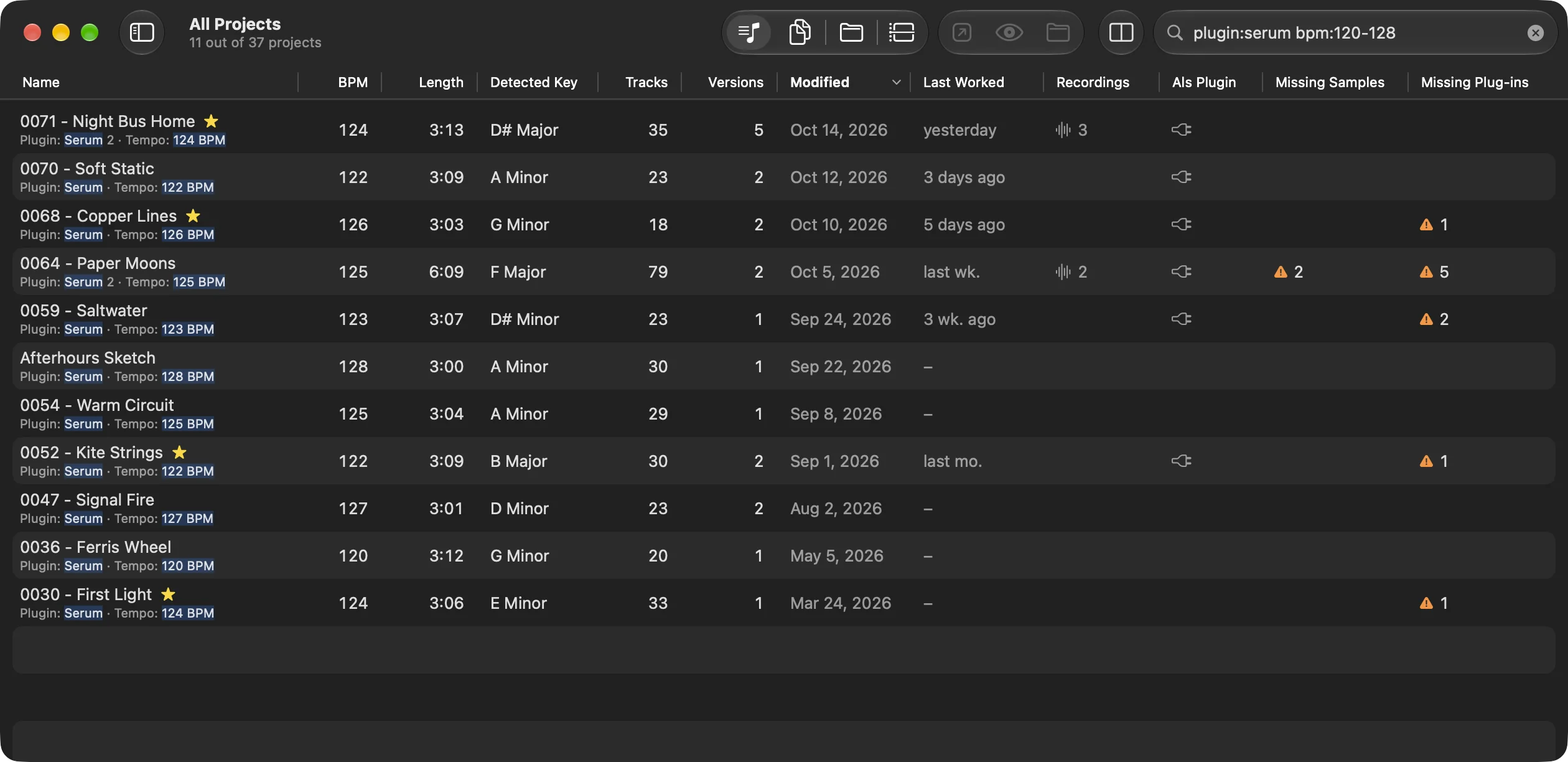
Searching with words
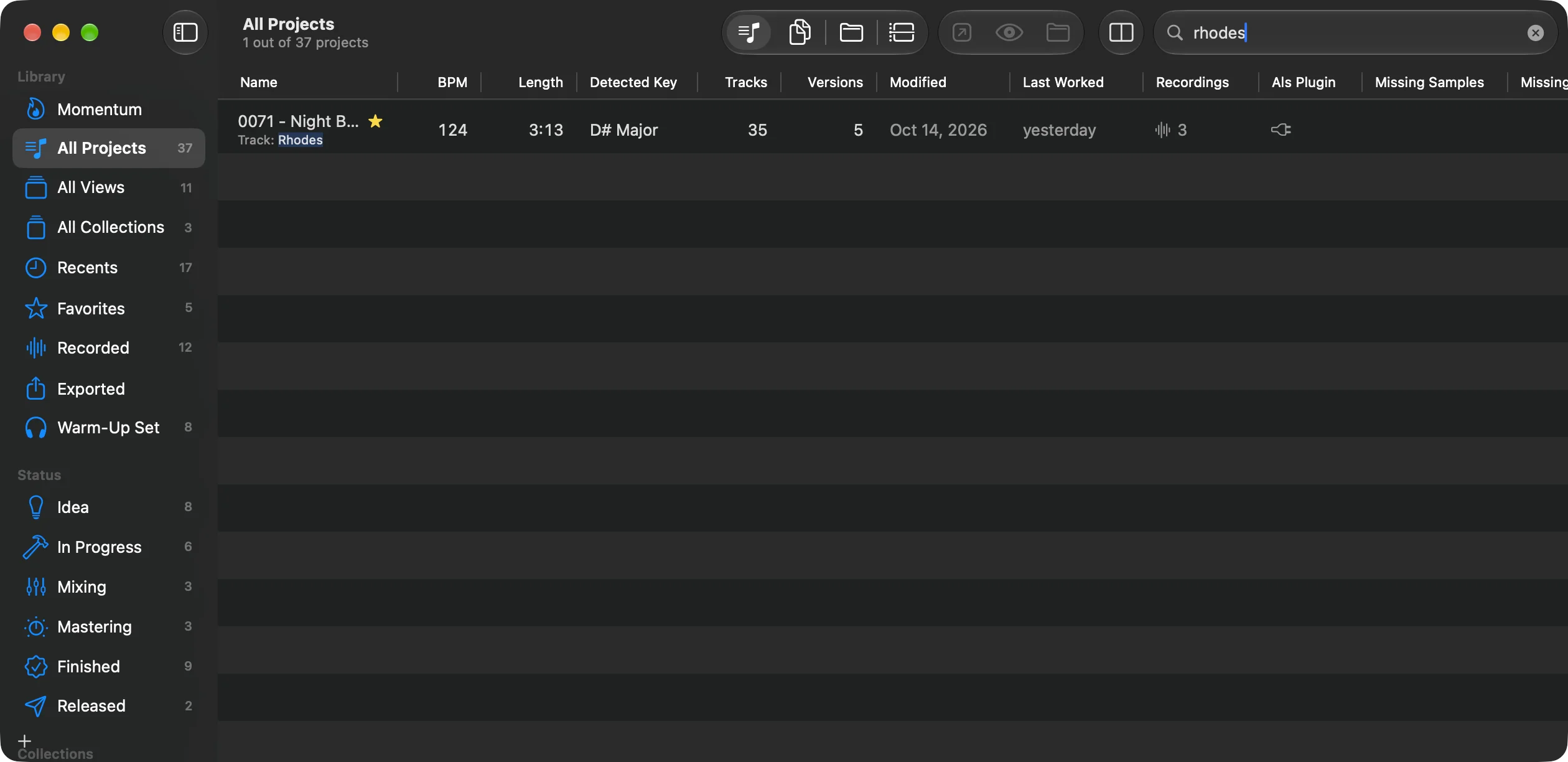
Click the search field in the toolbar, or press ⌘F, and type. Words are looked for in:
- the project’s name and the names of its sets,
- the names of all tracks,
- the names of all plugins,
- the file names of all samples,
in every set of the project, Live’s backups included. A word matches anywhere inside a name, so rhod finds a track called “Rhodes Low”. With more than one word, a project must match all of them.
Results are sorted by how well they match: the project’s own name first, then set names, tracks, plugins and samples; whole names before names that only start with the word. Click a column title to sort differently.
Filters
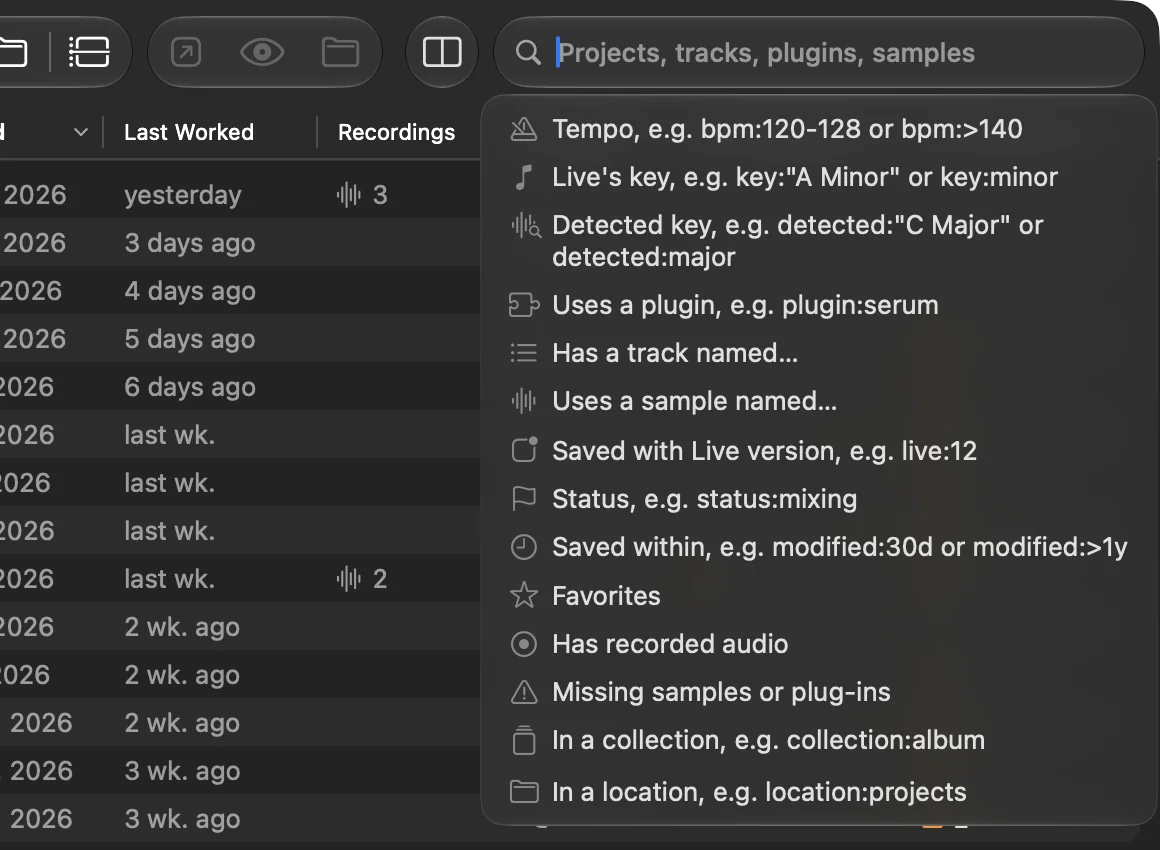
A filter is a word with a colon: bpm:124, key:minor, plugin:serum. Click into the empty search field to see them all, and pick one to start typing it.
All filters
| Filter | Finds | Examples |
|---|---|---|
bpm: | Tempo: one value (±0.5), a range, at least or at most. Also tempo:. | bpm:124 bpm:120-128 bpm:>140 bpm:<90 |
key: | The key stored in the set. minor or major alone finds every key of that kind. | key:minor key:am key:"A Minor" key:f# |
detected: | The detected key, written the same way. Also detectedkey:. | detected:"D# Major" detected:minor |
plugin: | A plugin used anywhere in the project. Also vst: and au:. | plugin:serum plugin:pro-q |
track: | A track name. | track:vocal |
sample: | A sample’s file name. | sample:kick sample:"vox chop" |
live: | The Live version a set was saved with. Also version:. | live:12 live:11.3 |
status: | The project’s status by its name, your own statuses included. The beginning of the word is enough, and a status that doesn’t exist finds nothing. | status:mixing status:idea status:"in progress" |
modified: | When the project was last saved, as in the Modified column; in the set layout, each set’s own date. A time alone means within it, > longer ago, < within, and two times a span between. Units: h hours, d days, w weeks, m months, y years; a number alone counts days. Also saved:. | modified:30d modified:>1y modified:<2w modified:7d-30d |
is:favorite | Projects you starred. Also is:favourite and is:starred. | |
is:recorded | Projects with the Als Preview plugin on a set. | |
is:missing | Projects with a set that misses samples or plug-ins; in the set layout, the sets that miss them. | |
collection: | Projects in a collection. Also in:. After the colon, your collections are suggested. | collection:album in:"Club Tools" |
location: | Projects in one of the folders Als Preview watches (Locations in the sidebar), by the folder’s name. After the colon, your locations are suggested. | location:projects location:"Ableton Projects" |
- Keys are matched with their whole root:
key:afinds A Major and A Minor, but not A#. Writeam,a min,amajor"A Minor", as you like. Scales like Harmonic Minor count as minor. - Sets without a tempo never match a
bpm:filter. - Upper and lower case don’t matter, anywhere in the search.
- Unknown filters, like
foo:bar, are searched as a plain word.
Combining and quoting
Everything you type must match: plugin:serum bpm:120-128 status:mixing finds projects that use Serum, run at 120 to 128 BPM and are being mixed. Words and filters mix freely: night plugin:diva.
Put text with spaces in quotes: key:"A Minor", sample:"vox chop", "radio edit".
Projects or sets
In the Projects view, tempo, key, detected key and Live version come from each project’s main set, while words, tracks, plugins and samples are looked for in all of its sets. So plugin:serum also finds a project whose old version used Serum.
In the Sets and Folders views, each set is matched on its own. Use them to find exactly which version had the 128 BPM or the vocal take.
The same goes for a view in the sidebar: shown as Sets or Folders, its search matches each set on its own.
Keys and shortcuts
| ⌘F | Go to the search field. |
| Return | Search now, without waiting for the pause after typing. |
| ↓ / ↑ | Go from the field to the first or last result. |
| Esc | Clear the search. |
Plugin names are links too: click one in a project’s Info or Samples & Plugins card to search all projects for it, or Shift-click it to add it to the search you’ve typed. In the arrangement, Control-click an audio clip for Search Library for its sample.
Saving a search
A search you use often can become a view: choose File › New View… (⌥⌘N) while it’s typed. The view keeps the search together with the place you searched in and how it was shown. It appears in the sidebar and always shows what matches now. With a view shown, Control-click it and choose Add Search to View to narrow it by what you typed. See Views.
You can also find projects from Spotlight, by name, tempo, key or plugin. See Spotlight.