 Als Preview
Preview and listen
The arrangement
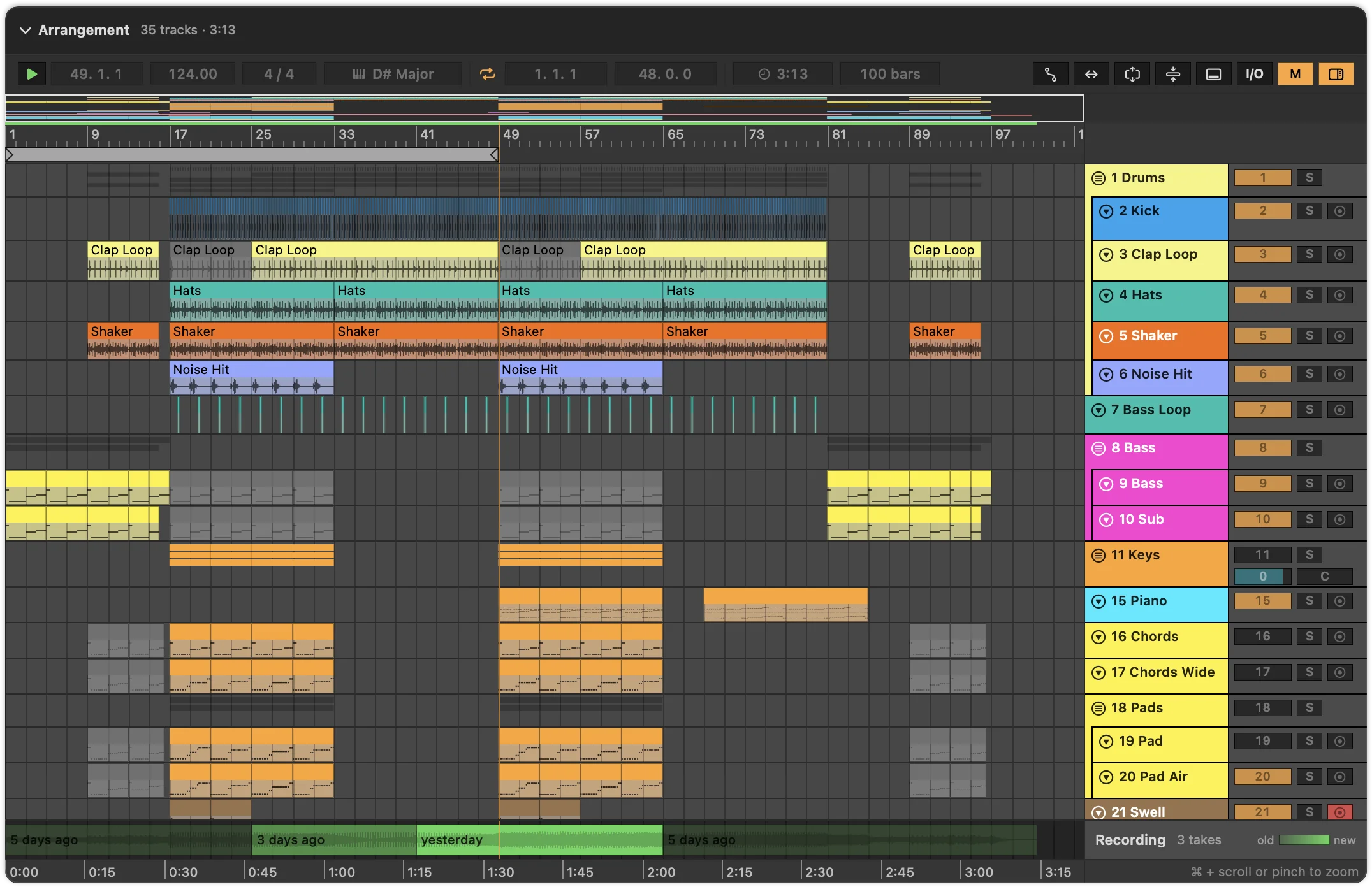
Select a set and its Arrangement View is right there: track colors, clips, MIDI notes, waveforms and automation, drawn from the file. Live doesn’t open and no plugin loads.
What you see
- Tracks and groups with Live’s colors and names, groups indented like in Live.
- Clips with their names: MIDI clips with their notes, audio clips with their waveforms.
- Track headers on the right, with number, name and fold button; optionally the mixer and the in/out section.
- Return tracks and the Main track at the bottom, if you show them.
- The Recording lane with what the plugin recorded, and an approximate preview rendered from the set where nothing was recorded. See Listening to a set.
- Rulers in bars on top and in minutes and seconds at the bottom, both following tempo changes.
Everything here is read-only: you look, Live edits.
The bar above the tracks
On the left, the set’s facts as Live shows them: tempo (with a mark when it’s automated), time signature, key, loop on or off with its start and length, the length up to the last clip and in bars. On the right, buttons:
| Button | Does |
|---|---|
| ± Compare | Shows what changed since another save. See Comparing saves. |
| Automation | Shows automation lanes under the tracks. Also A. |
| Zoom to fit | Fits the whole arrangement into view. |
| Unfold all / Fold all | Opens or closes all groups and tracks. |
| Returns | Shows or hides the return tracks and the Main track. |
| I/O | Shows the in/out section of the track headers. |
| M | Shows the mixer section: volume, pan, sends, solo and arm. |
| Track headers | Shows or hides the headers on the right. |
When the arrangement is narrow, fields and buttons that don’t fit move out of the way; the headers hide by themselves.
Zooming and scrolling
- Pinch on the trackpad, or hold ⌘ and scroll, to zoom around the pointer.
- Scroll to move through tracks and time.
- The overview strip at the top shows the whole song; click or drag in it to jump.
- Zoom to fit shows everything again.
Tracks, groups and the mixer
Groups start folded or unfolded as they were when the set was saved in Live. Click the fold button in a header to change that.
The mixer and the returns are hidden at first, so the clips get the space. The mixer shows each track’s volume, pan, sends, monitoring, solo and arm as saved in the set.
Automation
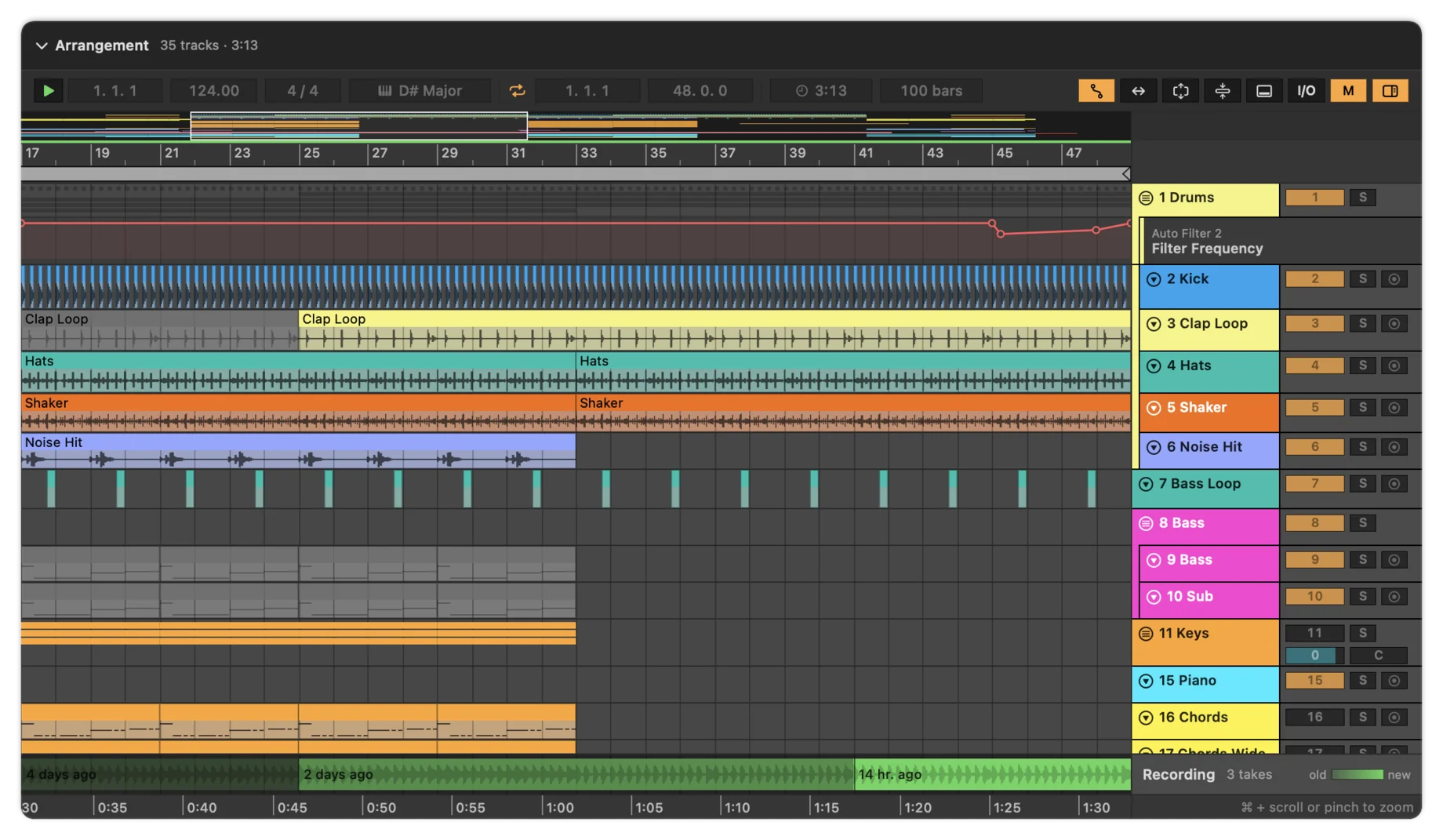
Press A with the pointer over the arrangement, or click the automation button, to show the automation lanes under their tracks, with the device and parameter each one controls. Press A again to hide them.
Taking a track into Live
Found the bassline you need in an old project? Drag the track’s header from Als Preview into Live.
- Drop it into the empty area below the tracks in Live’s Arrangement View (in Session View: to the right of the tracks), and Live adds the track with its devices and clips.
- Drop it onto an existing track, and Live takes only the clips.
- A group comes with all its tracks, devices and clips.
- Control-click a track and choose Copy Track to put it on the clipboard as a small Live Set, for example to paste into Live’s User Library in Finder.
Control-click an audio clip for Search Library for its sample, or a track for Search Library for Sample, to find every project that uses it.
Waveforms
Audio clips show the waveform of their sample when Als Preview may read it: samples inside your library folders, and in your sample folders. Live’s Packs and sample libraries elsewhere need a sample folder. Waveforms are made once and kept in a cache, which Settings › Storage can clear.