 Als Preview
Time and exports
Time tracking
Als Preview notes how long each set is open in Live and how long it actually plays, and adds it up per set, per project and per week, without you starting or stopping anything. The Remote Script tracks every set you open in Live; the plugin tracks the sets it’s on.
Remote Script or plugin
Two things can track your time, and you can use both:
- The Remote Script
- Set it up once in Live and it tracks every set Live opens, with or without the plugin. It also sees when you work in a set, in which view and on which tracks, when you record, and whether you used Save As or Save a Copy. Needs Live 11.3.25 or later. See Set up the Remote Script.
- The plugin
- Tracks the sets it’s on the Main track of, and records what they play. It measures playing time from the audio itself. See Set up the plugin in Live.
Where both watch the same set, its time counts once: the plugin’s open and playing time, with what the Remote Script adds. Sets tracked by neither have no tracked time; the Timeline estimates theirs from how close together their saves are.
What is counted
- Open
- Time the set is open in Live. The plugin checks in every 15 seconds, the Remote Script every 5; when Live quits or the Mac sleeps, the gap isn’t counted.
- Working
- Time you work on the set. With the Remote Script, that’s the time you do something in Live, like selecting, editing, recording, saving or starting playback, with pauses under 5 minutes counted in. Playback counts for up to 15 minutes after you last did something, so a loop left playing while you’re away doesn’t. With only the plugin, it’s the time the set plays, with pauses under 5 minutes in between. Momentum’s Make ring counts it.
- Playing
- Time Live’s transport runs. The plugin measures it from the audio that passes through it, so it’s exact to the second; the Remote Script notes when Live starts and stops. Soloed playback counts too; exports count as work on the set, but not as playing.
- Session
- One time the set is open in Live, from opening to closing. Opening a set for a few seconds doesn’t count: a session is kept when the set was open for at least a minute or played. The Remote Script leaves out sets that were never saved, since their time has no file to go to.
- Last worked
- When you last had a set of the project open or playing.
Time Spent cards
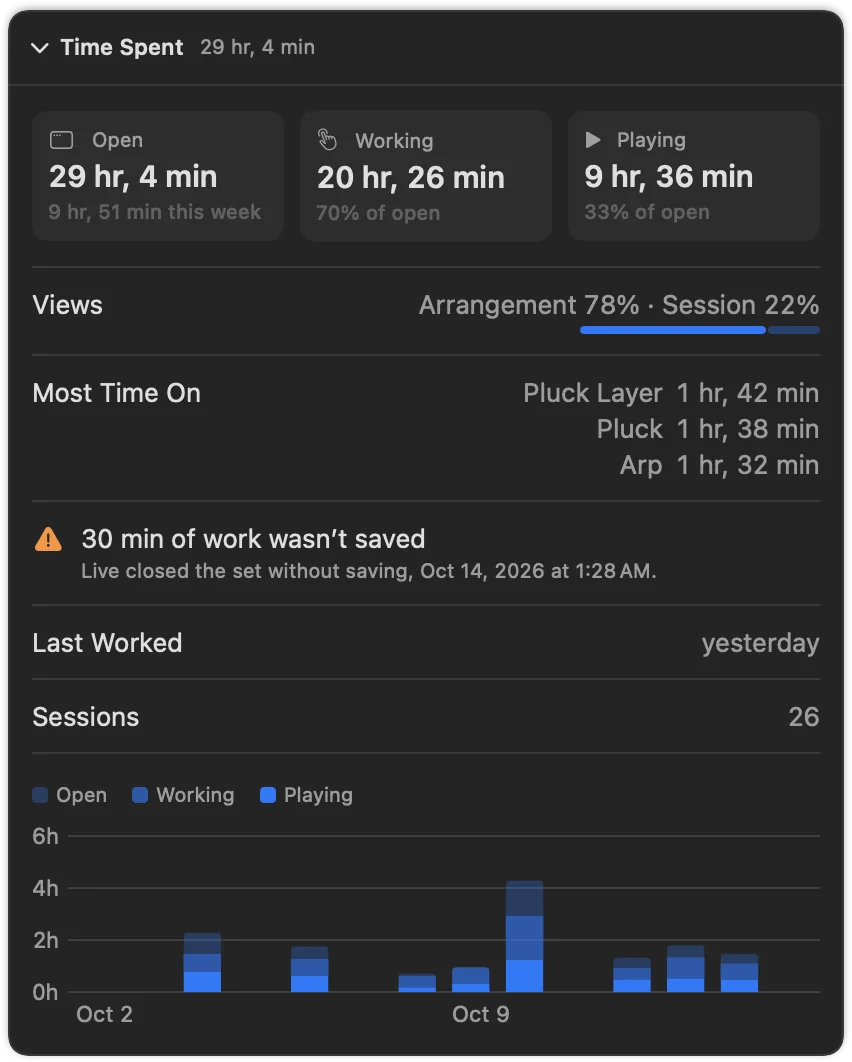
A set’s details and a project’s cards have a Time Spent card:
- Open, Working and Playing, with this week’s open time and how much of the open time was worked and played.
- Last Worked and the number of Sessions.
- A chart of the last 14 days: the full bar is open time, the middle shade working time, the solid part playing time.
- On a project, a row per set; click one to show it.
The project’s header shows its total open time, and the list can show Open, Played and Last Worked columns.
Select several projects or sets side by side to add up their time: see Several projects at once.
What the Remote Script adds
Live tells a Remote Script more than it tells a plugin. Where the script watched, the Time Spent cards also show where your working time went, and what Live is doing now:
- Views
- How your working time split between the Arrangement View and the Session View, for example Arrangement 62% · Session 38%.
- Most Time On
- The three tracks you worked on longest, going by the track selected in Live.
- Recording
- Time Live played with recording on.
- Open in Live
- The set Live has open now, and since when; Playing in Live while it plays. A dot marks its project in the list and its lane in the History, and Momentum lists it first.
- Work that wasn’t saved
- When Live closed a set without saving it, or stopped unexpectedly, the set’s card says how long you worked after its last save, for example 25 min of work wasn’t saved. If Live stopped, it offers to recover unsaved work the next time it starts. The note goes away once you save the set again, and after two weeks.
In the History, a save’s tooltip tells the same for the time up to that save, for example Mostly on Drums, Bass · in the Arrangement.
Momentum
The sidebar’s first item, Momentum, turns your time into a weekly habit. Its Make ring fills with your working time, as the Remote Script or the plugin tracked it, against a weekly goal you set; month and year scale the goal. Recently Worked On lists the projects you last worked on, with the time each took in the week, month or year you picked, and the project open in Live comes first. See Momentum.
A project’s open, working and playing time are on its Time Spent card, and your time over the years is on the Timeline below.
Timeline
The Timeline (⌘4) puts every project on one real time axis, from a single day to all the years a song took.
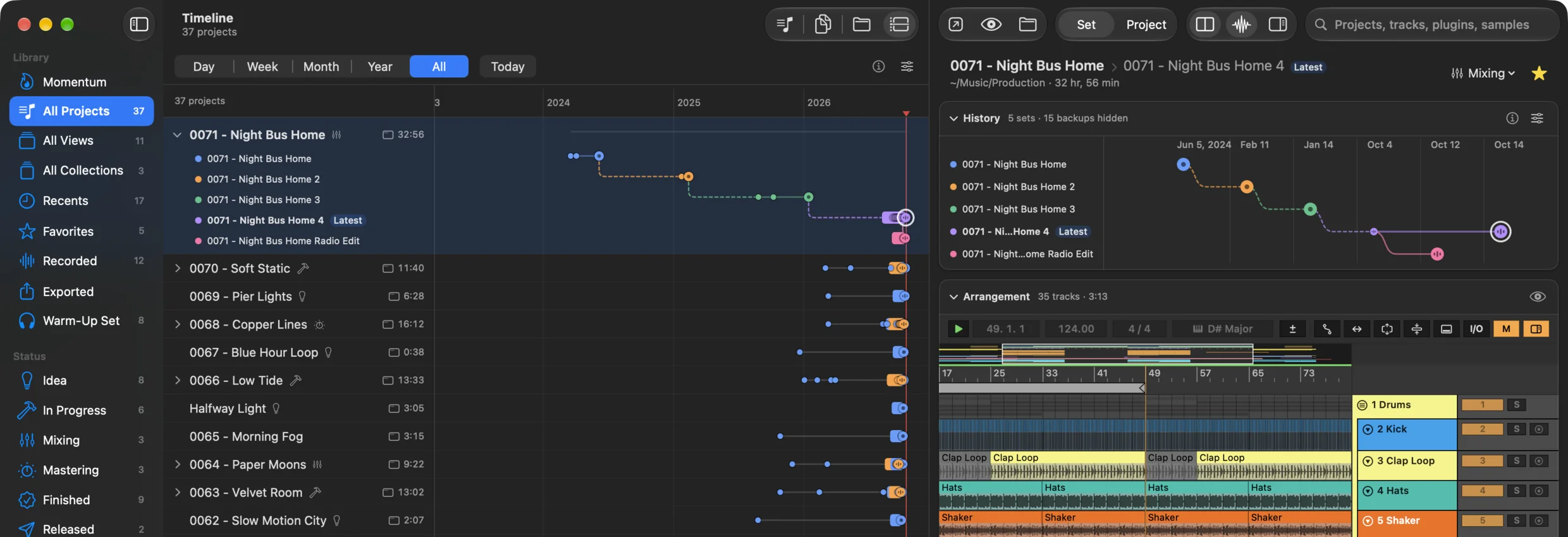
- Dots are saves (big) and backups (small). Bars are tracked time, by the Remote Script or the plugin, faded while open and solid while playing. Outlined bars estimate time for sets nothing tracked, from saves less than 90 minutes apart.
- Day, Week, Month, Year and All zoom to that span; pinch or ⌘-scroll to zoom freely; scroll sideways or drag to move in time; Today jumps to now.
- Click the arrow on a row to show each set in its own lane (⌥-click for all projects).
- Click a save to see its details; double-click or Return opens them; Esc closes them.
- The options menu sorts by Recent Activity, Start or Name, and shows or hides backups and the estimated time between saves.
Which file the time belongs to
The Remote Script knows which file Live has the set saved as, so the time it tracked goes to the file you worked in: up to each save, to the file you saved, and after Save As, to the new file. Save a Copy leaves Live in the set you had open, so the time stays with that one. The History links the new files the same way; see Where a save came from.
Time the plugin tracked goes by the saves it noted: Save As copies the plugin’s ID into the new file, so the plugin also notes each save. Time up to a save counts for the file that was saved; time after the last save for the file still open in Live. After Save As or Save a Copy, the plugin’s time counts for both until your next save shows which file you kept working in.
Time whose set can’t be told shows as Unknown Set. The Remote Script notes every set Live opens; Als Preview shows the time of those in your library folders, and of the others once you add their folder.
Stays on your Mac
The plugin writes your time into Als Preview’s folder on your Mac. The Remote Script writes it into a Sessions folder next to itself in Live’s User Library, where Als Preview reads it; once Live has closed a set, its time moves into Als Preview’s folder. Nothing is uploaded or shared. Even after the free trial, the plugin and the Remote Script keep tracking, so no time is lost.