 Als Preview
Get started
Set up Als Preview
Three things and you’re done: start the free trial, tell Als Preview where your projects are, and put the plugin on your sets in Live. The welcome that opens on the first launch walks you through all of it.
Install and unlock
- Download Als Preview from the Mac App Store. The plugin and the Quick Look preview for Finder come with it; there is nothing else to install.
- Open Als Preview and click Start 14-Day Free Trial. For two weeks everything works, with nothing to pay and no subscription.
- To keep using it after that, click Buy Lifetime: one purchase, for all your Macs with the same Apple Account.
Details on the trial, buying, restoring and redeeming a code are on Free trial and purchase.
The welcome
On the first launch a welcome opens over the library window. It has six pages: what Als Preview does, your project folders, export and sample folders, the plugin in Live, the optional Remote Script, and a few keys to remember. Use Continue and Back to move through it.
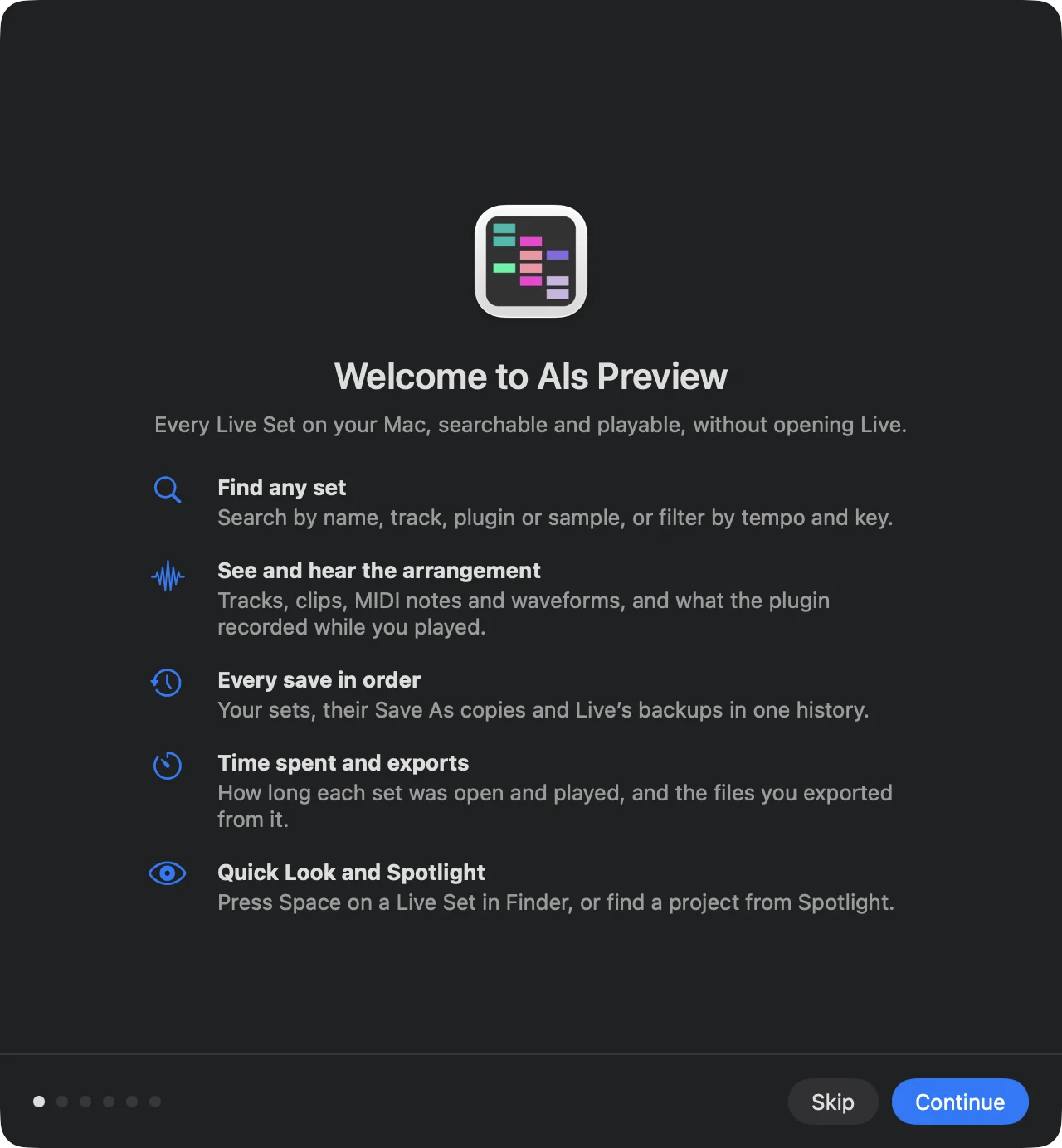
The welcome can’t be closed until your library has at least one folder; everything after that is optional. On its last page, Take the Tour highlights the parts of the window one at a time. The tour is in the Help menu too.
Add your project folders
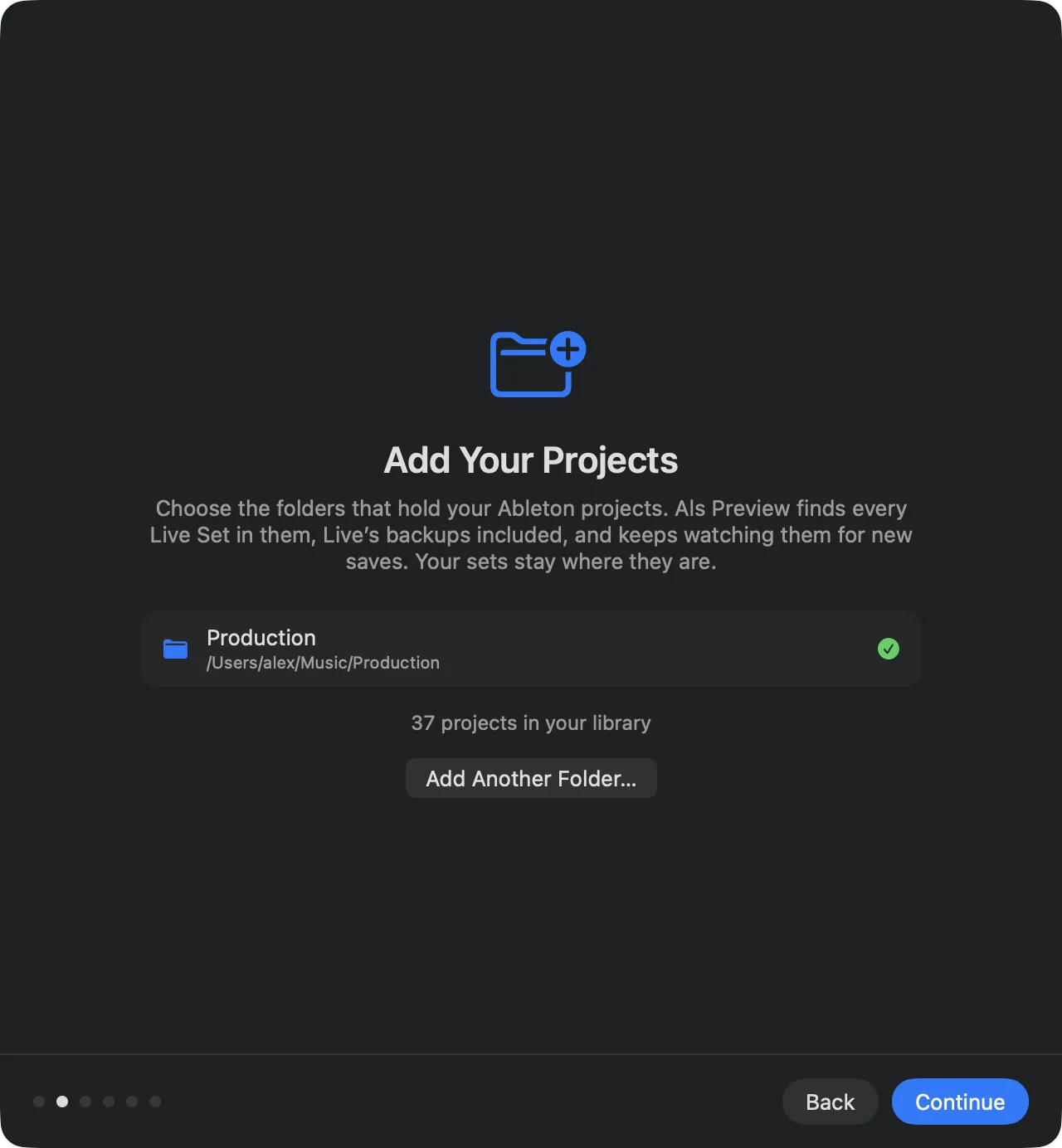
Als Preview reads the Live Sets in the folders you choose and keeps watching them. Choose the folders that hold your projects, for example ~/Music/Ableton/Projects or a folder on an external drive.
- On the welcome’s Add Your Projects page, click Add Folder…. Later you can do the same with File › Add Folder to Library… (⇧⌘O) or in Settings › Locations.
- Pick one or more folders and click Add to Library. You can pick several at once.
- Als Preview starts reading right away. The welcome shows how many projects it has found so far.
- Your files are never changed. Als Preview reads your sets but doesn’t write to them, move them or rename them.
- Live’s backups count too. Every set in a project’s
Backupfolder is read, so you can look at and compare older states of a song. - Folders inside folders are fine. Adding a folder that is already inside a library folder does nothing; adding the folder around an existing one takes it over, and its projects keep their status, notes and collections.
- External drives work. When the drive isn’t connected, its projects wait; connect it and choose File › Rescan Library (⌘R).
Export and sample folders
The welcome’s third page asks for two more kinds of folders. Both are optional, and you can add them later in Settings › Locations.
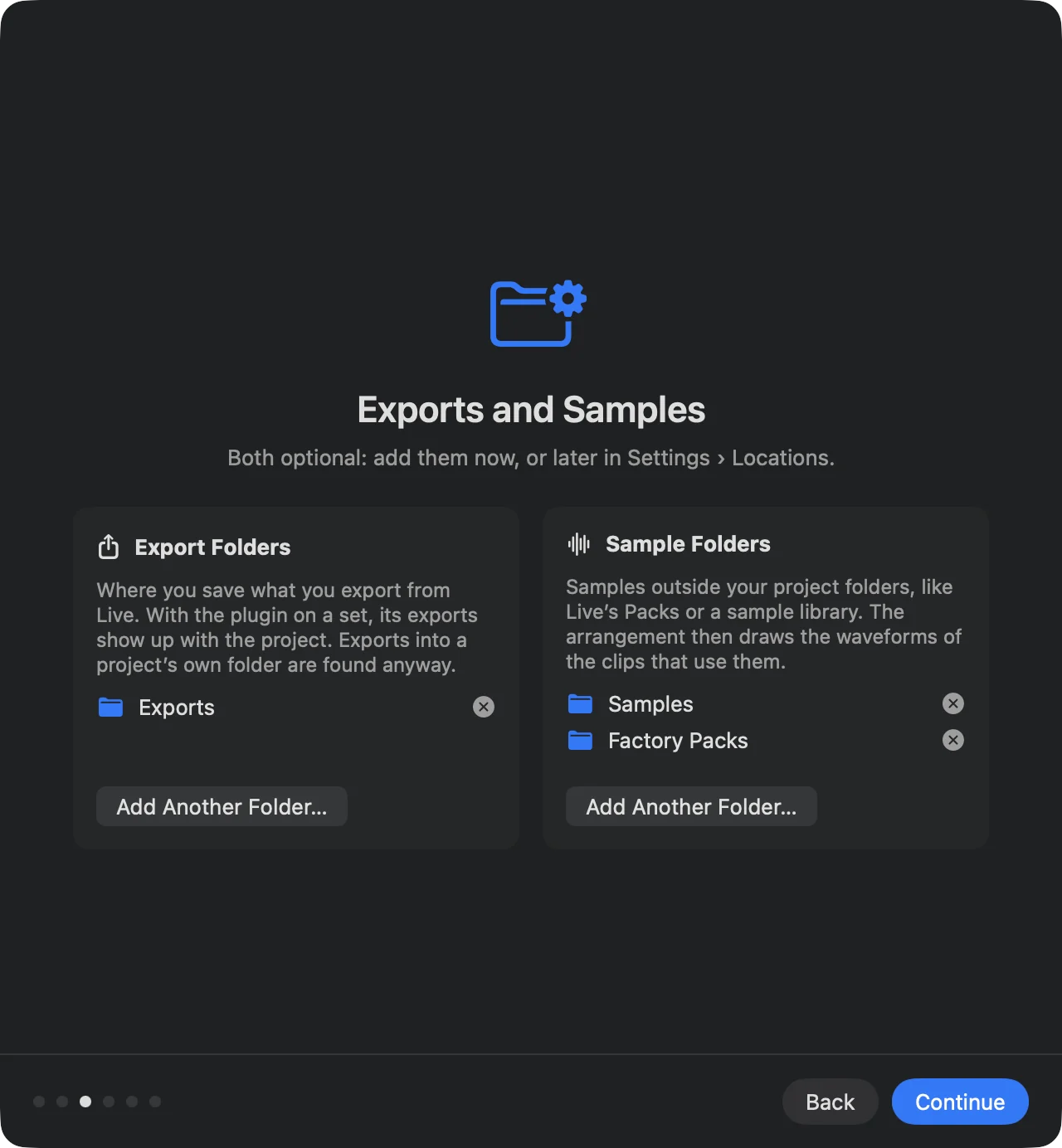
- Export folders
- Where you save what you export from Live. With the plugin on a set, the files you export show up with the set and its project. Exports saved into a project’s own folder are found without this. See Exports.
- Sample folders
- Folders with samples outside your project folders: Live’s Packs, a sample library, a folder of your own one-shots. The arrangement then draws the waveforms of clips that use them, and the missing files check can look there. Choose the folders that hold samples, not your whole home folder; Als Preview turns down folders that broad.
While your library is read
The first time, Als Preview reads every set in your folders: tempo, key, length, tracks, clips, plugins and samples. Current sets come first, Live’s backups after. Projects appear in the list as they are found, and you can search and preview right away.
While it works, the toolbar shows how far it got, for example 812 of 2,831 indexed. It continues where it left off if you quit in between. After that, Als Preview notices new and changed sets on its own: save in Live, and the set is up to date in Als Preview a moment later.
Next steps
- Set up the plugin in Live, so your sets record themselves while you play.
- Set up the Remote Script, so soloing a track doesn’t end up in the recording and your time is tracked in every set. Optional, but takes only a minute.
- Get to know the library window.