 Als Preview
Reference
Settings
Choose Als Preview › Settings… (⌘,). Its tabs: General, Locations, Previews, Plugin and Storage.
General
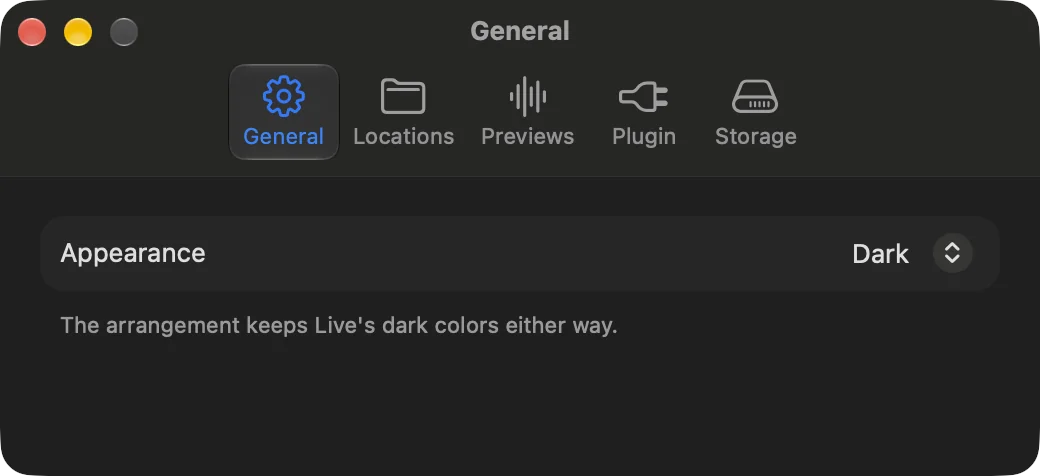
- Appearance Dark
-
System, Light or Dark, for all of Als Preview’s windows. Dark matches Live; System follows your Mac.
The arrangement keeps Live’s dark colors either way, and the plugin’s window in Live is always dark.
Locations
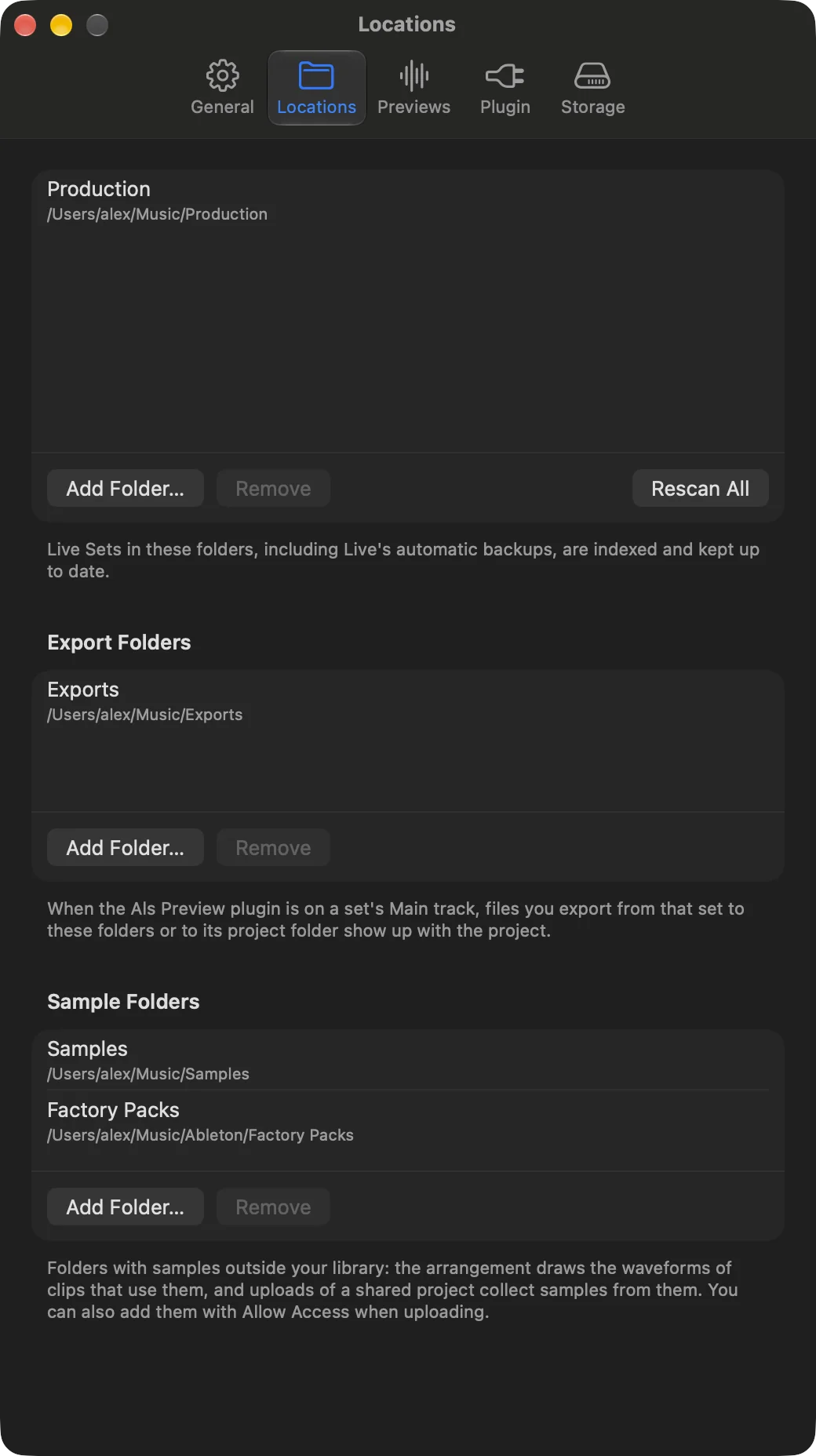
- Library folders
-
The folders Als Preview reads and watches. Each row shows when it was last scanned.
Add Folder… adds folders and scans them right away. A folder inside one already listed changes nothing; the folder around one takes it over, keeping its projects’ status, notes and collections.
Remove stops watching the folder and takes its projects out of the library, with the status, notes, favorites and collections you gave them. Your files stay where they are. There is no confirmation.
Rescan All reads every folder again now, and looks again for folders that weren’t there, like a drive you just connected.
- Export Folders
-
Where you save what you export from Live. With the plugin on a set, files exported from it into these folders, or into its own project folder, show up with the project. Subfolders count too. See Exports.
Removing a folder stops looking there; the files aren’t touched.
- Sample Folders
-
Folders with samples outside your library, like Live’s Packs or a sample library. The arrangement then draws the waveforms of clips that use them, and the missing files check looks there too. Als Preview only reads them.
Choose the folders that hold samples. The whole disk,
/Users, your home folder,/Volumesand~/Libraryare too broad; a drive of its own is fine. A folder that isn’t connected shows not available.
The library folders also have File › Add Folder to Library… (⇧⌘O) and File › Rescan Library (⌘R), and Control-clicking a location in the sidebar.
Previews
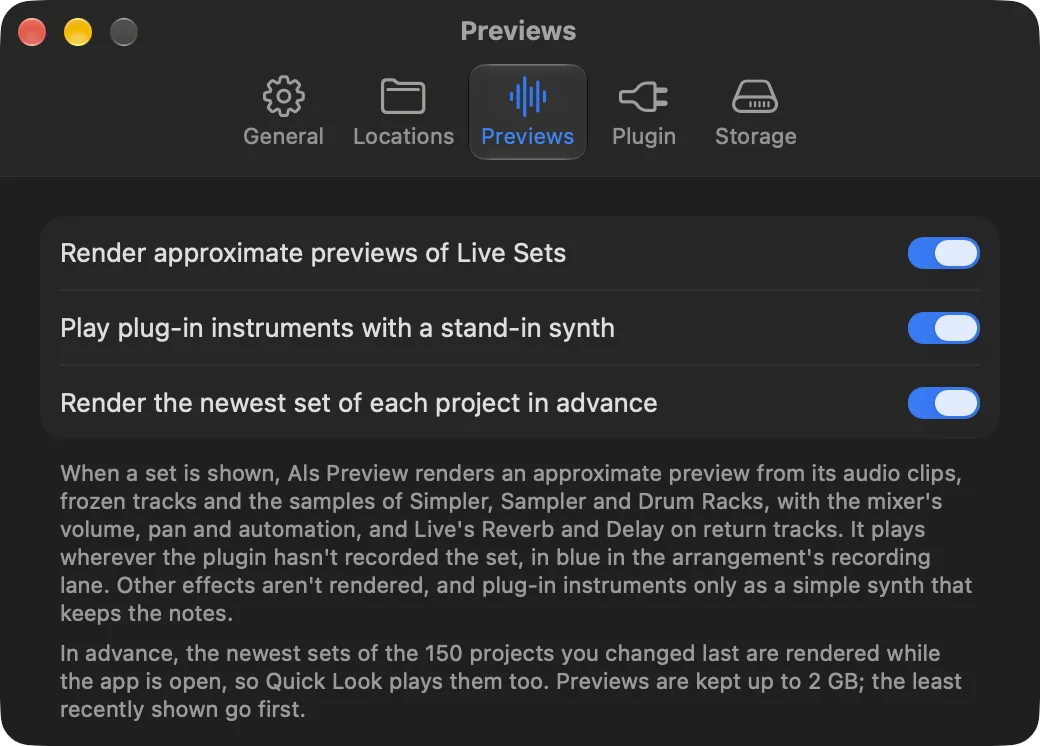
Als Preview renders a preview of each set from its audio clips, frozen tracks and sampled instruments, and plays it wherever the plugin hasn’t recorded the set. How that works: Approximate previews.
- Render approximate previews of Live Sets On
-
Renders a preview of each set that’s shown and has none yet. It plays in blue in the Recording lane.
Turned off, nothing more is rendered. Previews already made still play until you clear them under Storage.
- Play plug-in instruments with a stand-in synth On
-
Plays the notes of instruments a preview can’t render, plug-ins and Live’s synths like Operator or Wavetable, on a simple synth, so the melody and rhythm are there. Turned off, those tracks stay silent.
After you change it, each set is rendered again the next time it’s shown; until then its old preview plays.
- Render the newest set of each project in advance On
-
While Als Preview is open, it renders the main sets of the 150 projects you changed last, one at a time and at low priority, so they play right away, in Quick Look too. It pauses in Low Power Mode and while your Mac runs hot.
Turned off, sets are rendered only when they’re shown.
Plugin
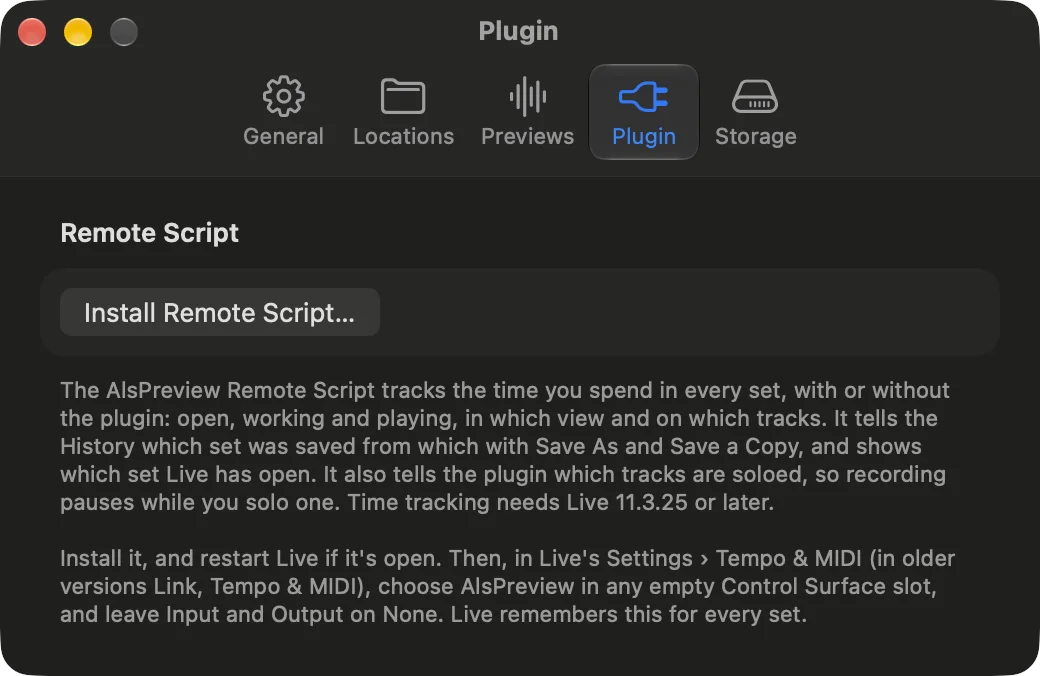
- Install Remote Script…
- Copies the AlsPreview Remote Script into the Remote Scripts folder of Live’s User Library, so recording pauses while you solo a track and your time is tracked in every set. Then restart Live and choose AlsPreview as a Control Surface. Step by step: Set up the Remote Script.
- Status
- Next to the button: Installed for the copy Als Preview installed, Installed. Restart Live right after installing, and An older version is installed when Als Preview has a newer one; then the button reads Update Remote Script…. No mark means Als Preview hasn’t installed the copy Live uses, for example one copied by hand: install it with the button, into the same folder, to track time.
- Last Heard from Live
- When the script last wrote what Live did, or Not yet. Tracking time needs Live 11.3.25 or later and AlsPreview chosen as a Control Surface.
The plugin itself needs no installing: it comes with Als Preview. See Set up the plugin in Live.
Storage
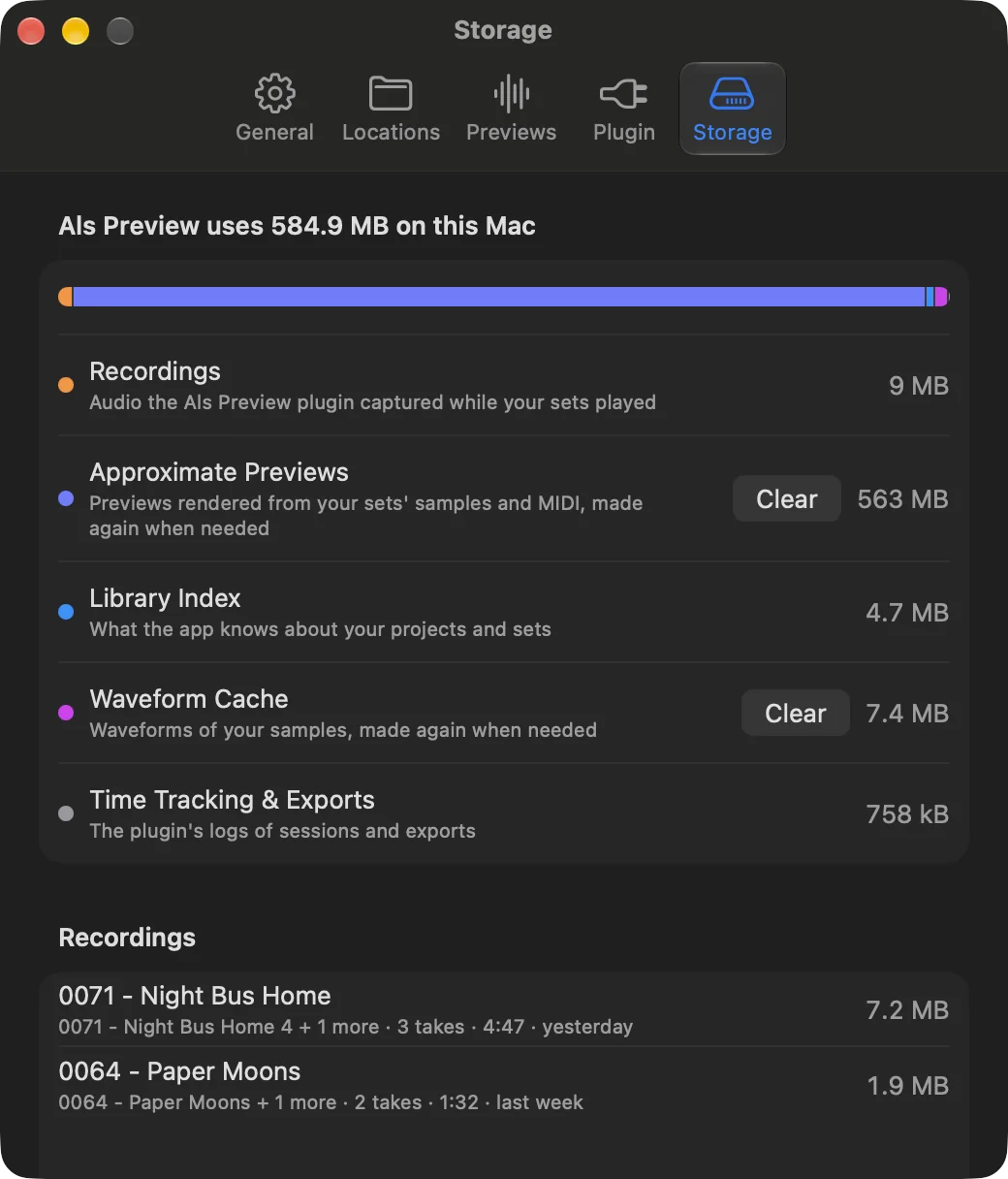
What Als Preview keeps on your Mac, measured when you open the tab:
- Recordings
- Audio the plugin captured while your sets played, about 85 MB per hour.
- Library Index
- What Als Preview knows about your projects and sets, and what you added: statuses, notes, collections.
- Approximate Previews
- Previews rendered from your sets, at most 2 GB. Clear deletes them; sets are rendered again when they’re shown. See Approximate previews.
- Waveform Cache
- Waveforms of your samples. Clear deletes them; they’re made again when needed.
- Time Tracking & Exports
- The logs of your sessions, from the Remote Script and the plugin, and of your exports. Small.
Recordings
The list shows each set’s recording, largest first: the project, the set (with “+ 1 more” when copies share it), how many takes, how long and when the last one was played.
- Select one or more and click Delete… or press Delete. Als Preview asks first and says how much space it frees. Deleted takes can’t be restored; the set records again the next time it plays.
- Not in Library marks recordings whose set isn’t in your library any more, for example a deleted set. Select Recordings Not in Library selects all of them.
- Not Indexed Yet means the set may still turn up, because not every set was read since.
- Control-click a recording for Show in Finder.
You rarely need to clean up: takes that newer ones replace completely are deleted right away. More on Your data and disk space.
Settings in other places
Some choices are made right where they apply and remembered:
| Choice | Where |
|---|---|
| Projects, Sets, Folders, Timeline | View menu or the view picker (⌘1–4) |
| Show Backups | View menu (⇧⌘.), History options, Timeline options |
| Side by side or one page | View menu (⌥⌘B) |
| Preview and Inspector | View menu (⌥⌘P, ⌃⌘I), in the side-by-side layout |
| List columns | Control-click a column title |
| Info fields | The button in the Info card’s title |
| Card order and folding | Drag or click the cards’ titles |
| Automation, mixer, returns, headers | The buttons above the arrangement |
| Momentum’s span | The Week, Month, Year picker in the toolbar while Momentum is shown |
| Momentum’s goals | Goals… at the top of Momentum. See Momentum |
| Timeline order and what it shows | The Timeline’s options menu |