 Als Preview
History and changes
Comparing saves
What did you change between yesterday’s save and today’s? Compare marks it in the arrangement: new and deleted tracks, moved clips, edited notes, changed automation and every parameter you turned.
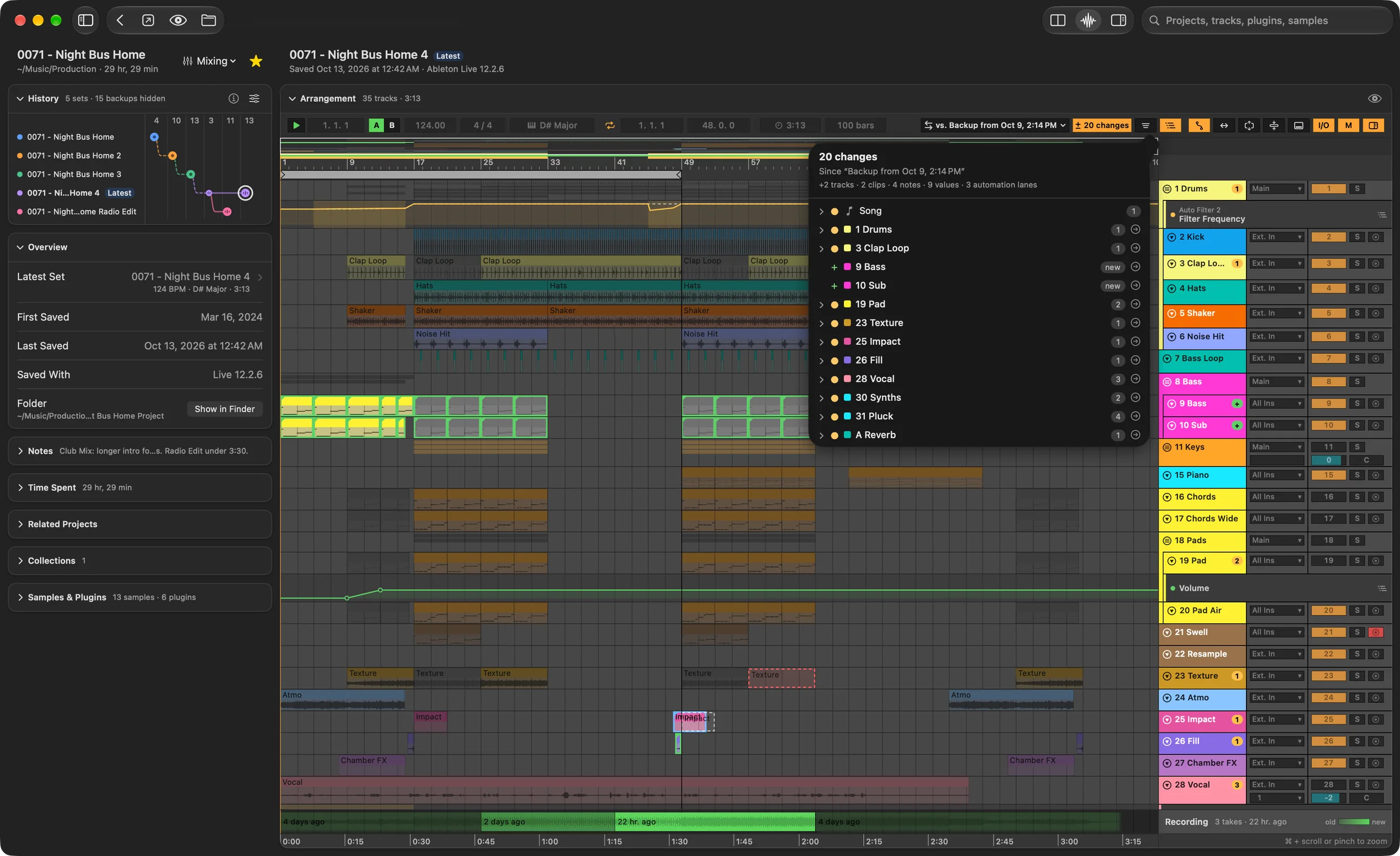
Starting a comparison
- Click ± Compare in the bar above the arrangement. The shown save is compared with the save it was saved over.
- Or ⌥-click another save in the History: comparing starts with that one.
Comparing stays on while you click through other saves and projects, until you click the change count or choose Stop Comparing.
What to compare with
The menu next to the button, labelled “vs.” and the other save’s name, picks what to compare with:
- Save Before: the save this one was saved over.
- Saves of This Project: any other set, with its backups in a submenu.
- Other Set…: any
.alson your Mac, also from another project. - Don’t Compare.
Your pick stays while you step through the project’s saves.
What the marks mean
| In the arrangement | Means |
|---|---|
| Dimmed clips | Unchanged. |
| Green outline | New: a clip or track that wasn’t there. |
| Amber outline | Changed: notes, sample, warping, clip settings. |
| Blue outline | Moved, with a faint ghost where it was. |
| Red dashed ghost | Deleted. Deleted tracks show as a tinted lane of ghosts. |
Track headers get a badge: + for new, − for deleted, or the number of changes. A hollow ? means a plugin’s settings changed, but the plugin stores them in a form that doesn’t say which.
The count above the arrangement says how many changes there are in all. Only tracks with changes hides the rest.
The list of changes
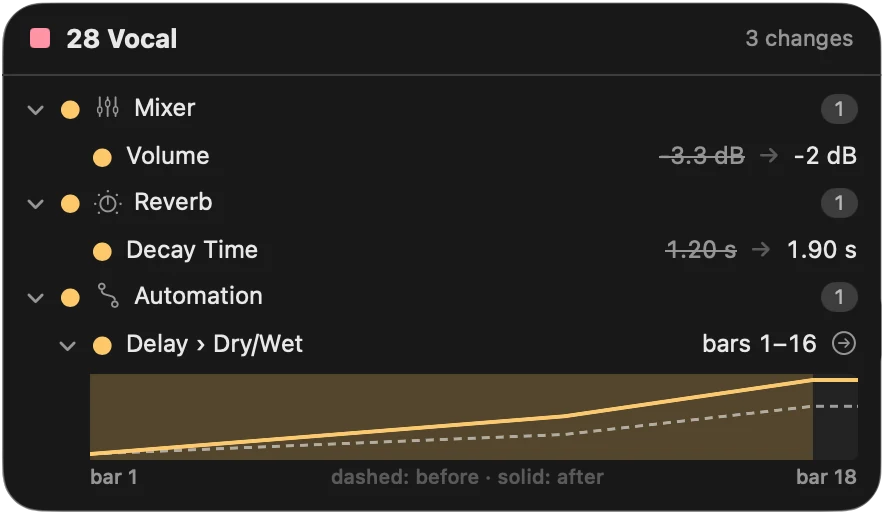
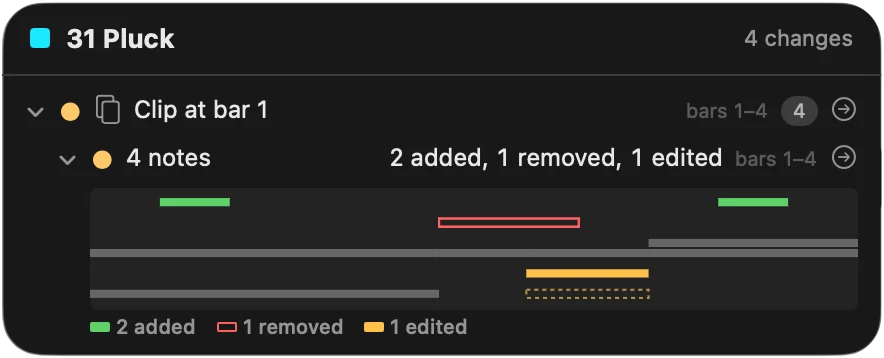
- Click a track’s badge for its changes: each device and parameter with its value before and after.
- Click a changed clip for what changed in it, with a small piano roll for notes.
- The list button above the arrangement lists every change of the set, from the song (tempo, Main track) to single knobs, with a summary like “+3 tracks · 120 clips · 54 notes · 12 values”.
- Click the arrow next to a change to show it in the arrangement.
Automation, before and after
Press A to show automation lanes while comparing. A changed lane draws the earlier curve dashed behind the new one and marks the bars that changed; its change dot opens the track’s list.
Listening to A and B
When either save has a recording from the plugin or a approximate preview, A and B appear above the arrangement. A plays the shown save, B the other, from the same beat. Switch while playing to hear exactly what your changes did.
A save without a recording plays its approximate preview, so A and B work for saves the plugin never recorded too. The compared save’s preview is rendered right after the shown one’s, and B can be chosen once it’s ready. Hold the pointer over A or B to see whether it plays a recording or a preview.
Good to know
- Compare works on the sets themselves; Live doesn’t have to be open.
- Many plugins store their settings as data without names. Als Preview then shows that something changed in the plugin, but not what.
- Comparing isn’t available in Quick Look.