 Als Preview
Your library
Projects and sets
A project is a song with all its sets and backups. Its page shows how the song grew, what’s in the set you pick, and everything you noted about it.
What counts as a project
- A Live project folder, the folder Live makes with an
Ableton Project Infofolder inside, is one project with all the sets in it and their backups. - Loose sets in an ordinary folder are grouped by name: “Song”, “Song 2”, “Song_03”, “Song v2”, “Song copy” and endings like final, old, new, alt, edit or wip make one project.
- The main set is the newest set that isn’t a backup. The project list shows its tempo, key and length.
The project page
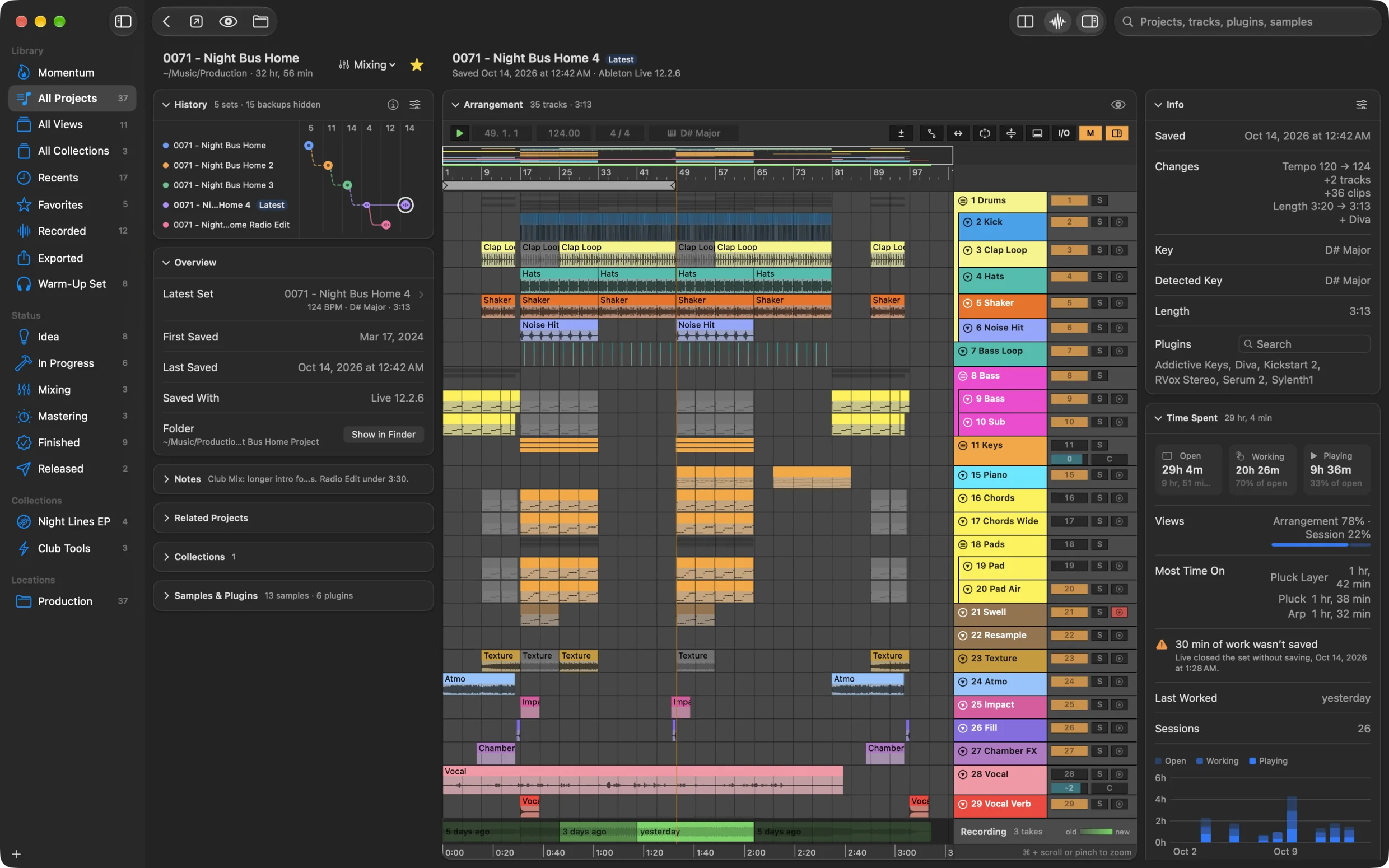
Double-click a project, or select it and press Return. Its page has three parts:
 1
2
3
4
5
1
2
3
4
5
- The project’s header: its name, folder and the time you spent on it, its status menu and the favorite star.
- History: every set and backup in the order you saved them. Click a save to show it; ← and → step through them. See Versions and history.
- The project’s cards: overview, notes, exports and more.
- The arrangement of the save shown, with its Recording lane. See The arrangement.
- The set’s details: what this save is and how it differs from the one before, and the time spent on it.
Above the arrangement, the set’s name, when it was saved and with which Live version. The buttons in the toolbar open it in Live (Open in Live), show it in Quick Look (⌘Y) or in Finder.
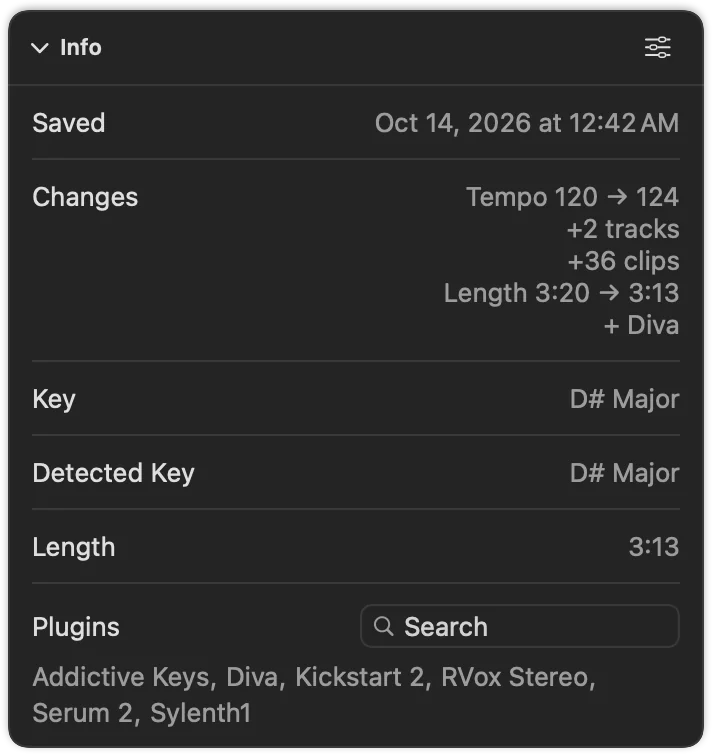
The set’s Info card
| Field | Shows |
|---|---|
| Saved | When this save was written. |
| Saved From | The save it came from, as a link. Probably From when Als Preview guessed it because the plugin wasn’t on the set yet. |
| Changes | What differs from the save before: tempo, tracks, clips, length, plugins and samples that came or went. |
| Tempo | The tempo, marked (automated) when it changes in the song. |
| Key, Detected Key | The key stored in the set, and the one its notes point to. |
| Time Signature, Length | The meter and the length up to the end of the last clip. |
| Tracks, Clips, Samples | Counts, with tracks split into audio, MIDI and return. |
| Plugins | The plugins used. Click one to find every project that uses it. |
| Saved With, Size | The Live version and the file size. |
The button in the card’s title picks the fields; Control-click a field to hide it. Tempo, Time Signature, Tracks, Clips, Samples, Saved With and Size are hidden at first.
Next to Info are the set’s Missing Files (see Missing files), its Time Spent (see Time tracking) and its Exports (see Exports), when it has any.
The project’s cards
These are about the whole project, not one save. Some only appear when they have something to show.
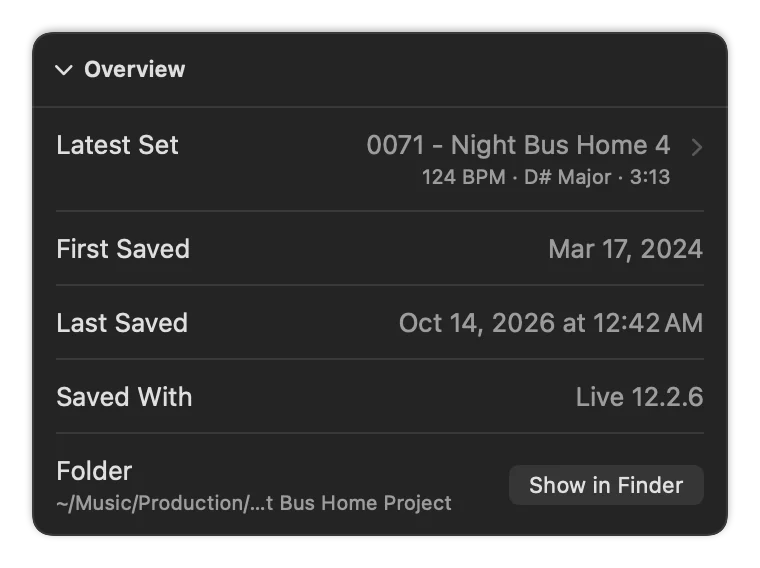
- Overview
- The latest set (click to show it), when the project was first and last saved, the Live version and its folder.
- Missing Files
- Samples and plug-ins the project’s sets need that aren’t on your Mac, and which sets miss them. Only shows when something is missing. See Missing files.
- Notes
- Your notes: ideas, to-dos, mix notes. Folded, the card shows the first line. See Notes.
- Time Spent
- Time the project’s sets were open, worked on and playing in Live, per set and over the last two weeks. See Time tracking.
- Related Projects
- Other projects that look like the same song. See below.
- Collections
- The collections the project is in, and Add to Collection….
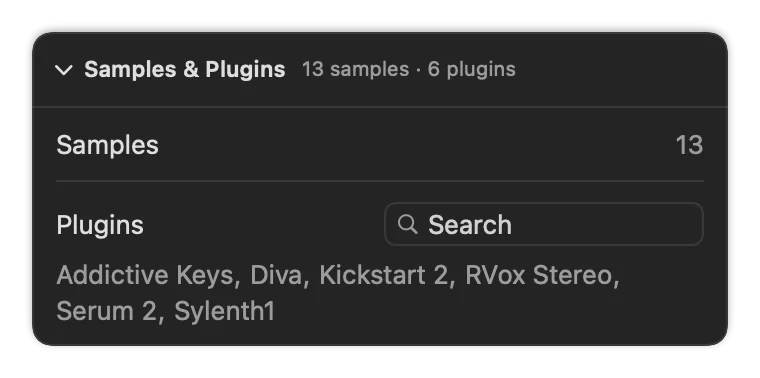
- Samples & Plugins
- How many samples the project uses and all its plugins. Type in the field to filter the list; press Return to search all projects for that plugin.
- Exports
- Every file exported from the project’s sets. See Exports.
Folding and moving cards
- Click a card’s title to fold or unfold it. Folded cards show a short summary.
- Drag a card by its title to move it. Control-click the title for Move Up, Move Down, Move to Left/Right Column and Reset Order.
- Wide enough, the cards sit in two columns.
- Notes, Time Spent, Related Projects, Collections and Samples & Plugins start folded.
Detected key
Live stores a key with every set, but it’s often just the default: C Major. Als Preview looks at the notes you actually played and finds the key they agree on.
- Each MIDI track estimates its own key, and the tracks that find one vote. Drum tracks, which find none, don’t count.
- With the plugin on the set, what it recorded votes too.
- When no key stands out, for example with only drums, very few notes or very chromatic parts, the field says so.
Search for it with detected:, for example detected:minor, and show it as a column in the project list.
Related projects
Songs wander: you start over in a new project, copy a drop into another set, rename the folder. Related Projects finds the other projects that are probably the same song:
- Same samples: projects that share samples with this one. Rare samples count more than the kick everybody uses.
- Same song name: projects with the same name, numbers and version words aside.
Each row says why it’s related and how much of the smaller project’s samples the other one has. Click a row to go there. The list’s Related column shows how many related projects each one has.