 Als Preview
Your library
The library window
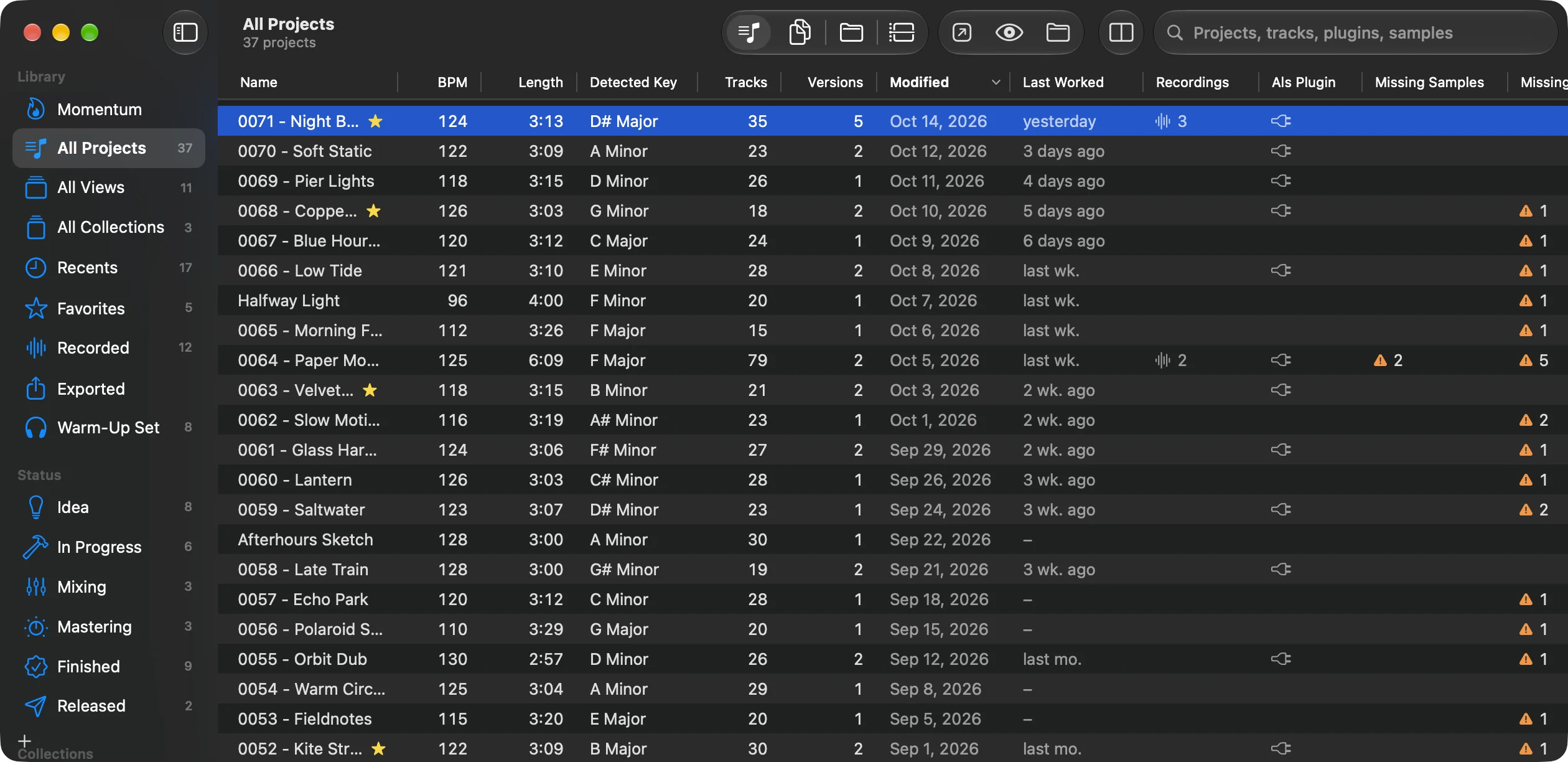
Everything happens in one window: the sidebar on the left picks what you see, the browser lists it, and a project opens on a page of its own or beside the list.
The window at a glance
 1
2
3
4
5
6
1
2
3
4
5
6
- Sidebar: your whole library, recent and favorite projects, projects by status, your own views, your collections and the folders Als Preview watches, in sections you arrange.
- View picker: list your projects, every set or your folders, or show the projects on a timeline (⌘1 to ⌘4).
- Open in Live, Quick Look, Show in Finder for the selected set.
- Side by Side: show a project beside the list instead of on its own page (⌥⌘B).
- Search: names, tracks, plugins and samples, plus filters for tempo, key and more. See Search and filters.
- The browser: here the project list. Double-click a project to open its page.
The window title says what you’re looking at and how many, for example All Projects · 37 projects, or 11 out of 37 projects while you search. While Als Preview reads new sets, the toolbar shows how far it got.
The sidebar
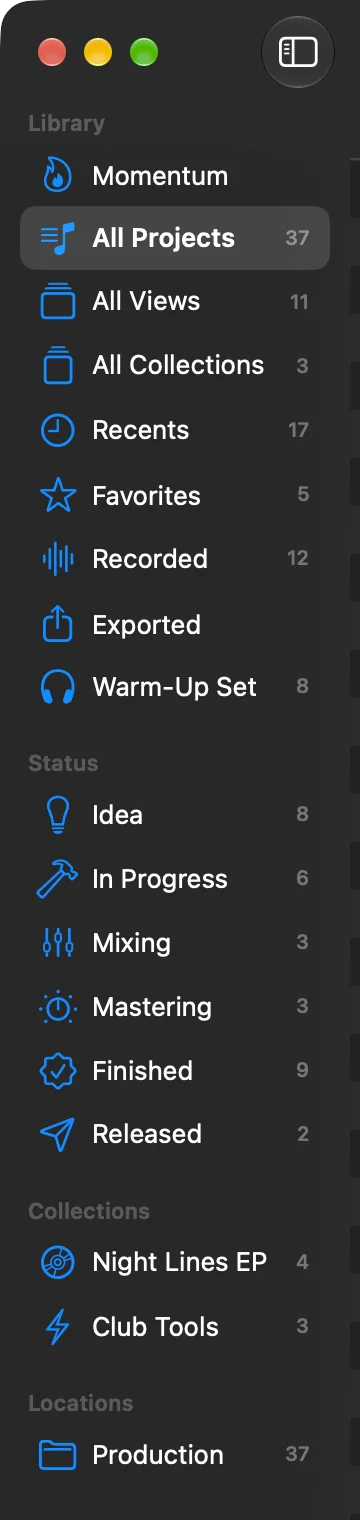
- Momentum
- The first item, and the page the window opens on: rings for what you made, shaped and finished this week, month or year, your streak, projects that could use a push and old ones to listen to again. The toolbar’s Week, Month and Year picker takes the view picker’s place there. See Momentum.
- All Projects
- Every project in your library folders.
- All Views
- Every view, in the sidebar or not. See All Views.
- All Collections
- Every collection, to browse like folders.
- Recents
- Projects saved in the last 30 days, Live’s backups included.
- Favorites
- Projects you starred.
- Recorded
- Projects with the Als Preview plugin on at least one set.
- Exported
- Every file you exported from a set with the plugin. See Exports.
Momentum, All Projects, All Views and All Collections stay at the top. Everything below them is yours to arrange: views, collections pinned to the sidebar, and sections to put them in. Each row shows how many projects it holds. The sidebar starts out like this:
- Library: Momentum, All Projects, All Views and All Collections, then Recents, Favorites, Recorded and Exported. Those last four are views, which you can change, move or delete like any other.
- Status: one view for each status.
- Collections: your pinned collections.
- Locations: the folders Als Preview watches. Control-click a location for Rescan, Show in Finder and Remove from Library.
More on statuses, views and collections on Status, views and collections.
Arranging the sidebar
- Move a view or a collection by dragging it up or down, into another section, or onto a section’s title. Or Control-click it and choose Move to. Remove from Sidebar takes it out; it stays in All Views or All Collections.
- Make a section with New Section… in the + menu, and give it a name. Control-click a section’s title for Rename Section…, Move Section Up, Move Section Down, New Section… and Delete Section…. Deleting a section that has rows in it asks first; its views stay in All Views, its collections in All Collections. The Library section always stays first.
- Fold a section with the arrow that appears when you hold the pointer over its title.
- Hide Locations if you don’t need it: Control-click its title and choose Hide Locations. Show Locations in the + menu brings it back, at the end.
Adding and dropping
- The + button at the bottom has New View…, New Collection, New Section…, Edit Statuses… and Add Folder to Library…, and Show Locations while Locations is hidden.
- Drop projects from the list, or
.alsfiles from Finder, onto a collection to add them. Drop projects onto a status’s view to give them that status, or onto Favorites to star them. - Hide or show the sidebar with View › Hide Sidebar (⌃⌘S).
Each place keeps its look
Every place in the sidebar remembers how you last showed it: All Projects, each view, collection and location keeps its own of the four views, its sort order, its columns and Show Backups. So a collection can stay on Timeline and a location on Folders while All Projects lists projects. A new view starts out the way the place you made it from looked.
Four views of your library
The view picker in the toolbar, or the View menu, shows the same library four ways:
- as Projects ⌘1
- One row per song. Tempo, key and length come from the project’s main set, its newest one that isn’t a backup.
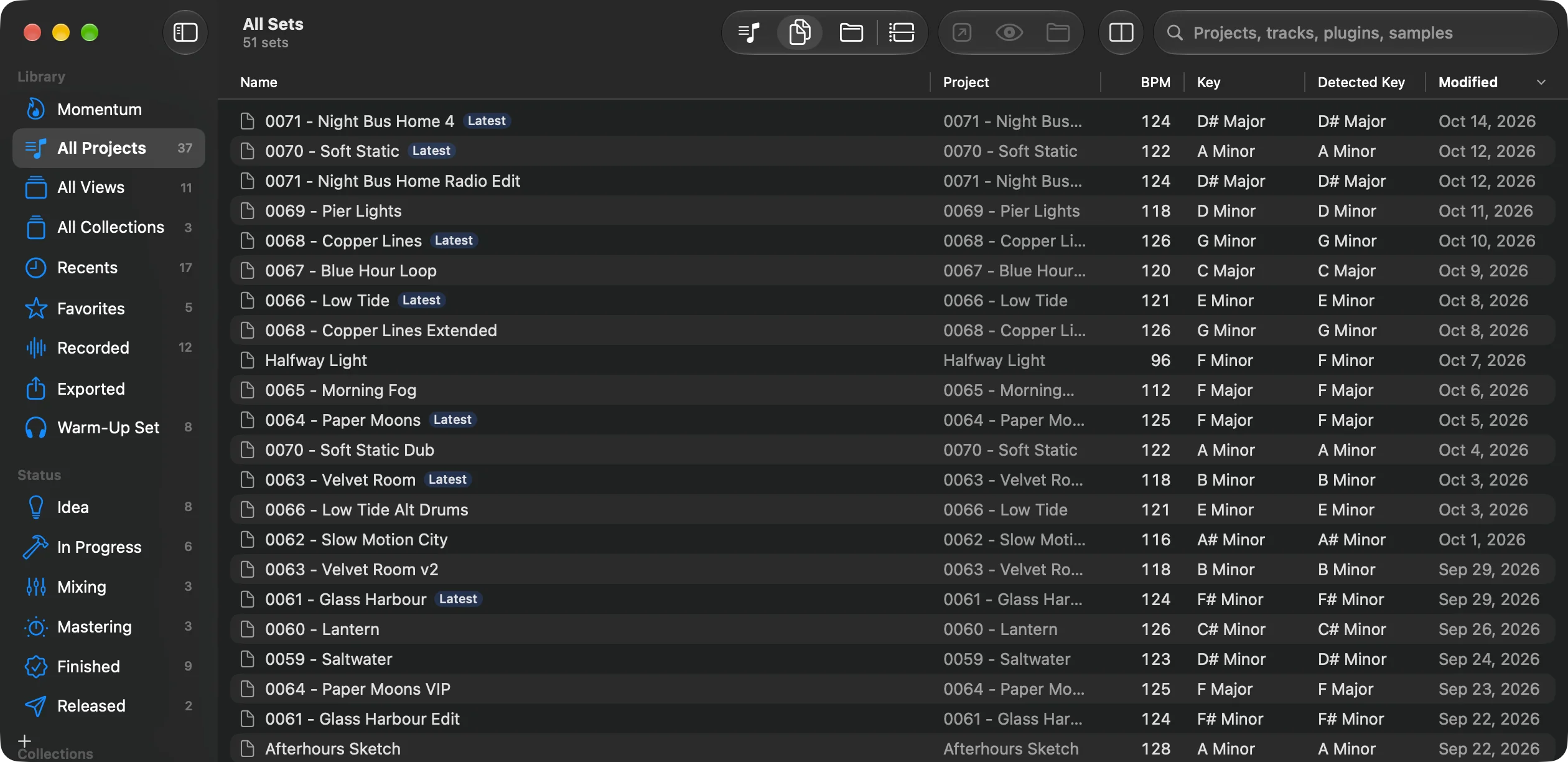
- as Sets ⌘2
- Every Live Set on its own, with the project it belongs to. Useful to find that one alternate version.
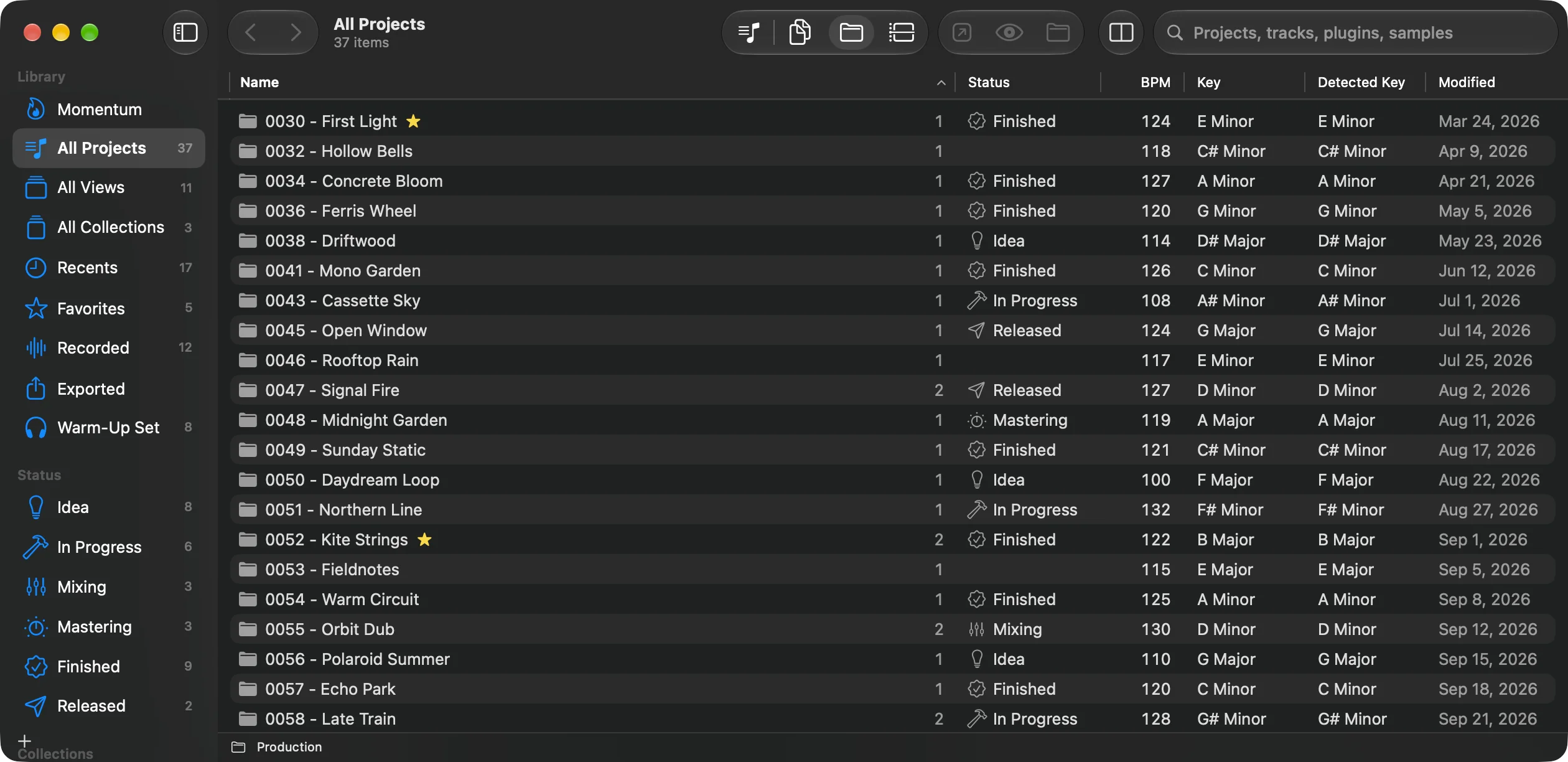
- as Folders ⌘3
- Your folders as they are in Finder. Double-click a folder to open it, use the path bar at the bottom or Go › Back (⌘[) and Go › Enclosing Folder (⌘↑) to move around.
- as Timeline ⌘4
- Every project on a real time axis, with its saves and the time you spent. See Time tracking.
Each place in the sidebar remembers which of the four you picked there: see Each place keeps its look. The views in the sidebar are something else: saved searches that keep one of these four along with them. See Views.
The project list
Columns
Control-click a column title to pick the columns. The list remembers them separately for the project page layout and for the side-by-side layout, where it’s narrower. It also remembers them for each place in the sidebar.
| Column | Shows |
|---|---|
| Name | The project, with a star for favorites. |
| Status | Idea, In Progress, Mixing, Mastering, Finished or your own statuses. Sorts in the order you put them. |
| BPM, Key | Tempo and the key stored in the main set. |
| Detected Key | The key the notes you played point to. See Detected key. |
| Length | From the start to the end of the last clip. |
| Tracks | Number of tracks in the main set. |
| Versions, Backups | How many sets and how many of Live’s backups the project has. |
| Related | How many other projects look like the same song. |
| Modified | When a set of the project was last saved. |
| Open, Played | Time the project’s sets were open and playing in Live (with the plugin). |
| Last Worked | When you last had a set of the project open in Live (with the plugin). |
| Live | The Live version the main set was saved with. |
| Recordings | How many takes the plugin recorded of the project’s sets, with a waveform. |
| Als Plugin | A plug when a set of the project has the plugin, whether or not it recorded anything yet. |
| Missing Samples, Missing Plug-ins | How many samples and plug-ins the project’s sets miss, with an orange triangle. |
Sorting and selecting
- Click a column title to sort by it, click again to reverse, a third time to go back to newest first. While you search by words, the best matches come first until you click a column.
- ↑ and ↓ move through the list from anywhere in the window. ← and → step through the saves of the selected project.
- Type the first letters of a name to jump to it.
- ⌘-click or ⇧-click to select several. Side by side, the right side then adds them up: see Several projects at once.
- Drag a project to Finder or Live to drag its main set.
- Space plays the selected set’s recording, or opens Quick Look when no preview is showing.
- Control-click a project for Open in Live, Quick Look, Show in Finder, favorites, status and collections.
One page or side by side
Als Preview starts with the browser across the whole window. Double-click a project, or press Return, and it opens on a page of its own: the History along the top, the project’s cards on the left, the arrangement and the set’s details on the right. Back in the toolbar, ⌘[ or Esc take you back to the list.
Prefer to see the list while you look at a project? Choose View › Browser and Project Side by Side (⌥⌘B). Then the project shows next to the list, with a Set | Project switch for the set picked in the History or the whole project.
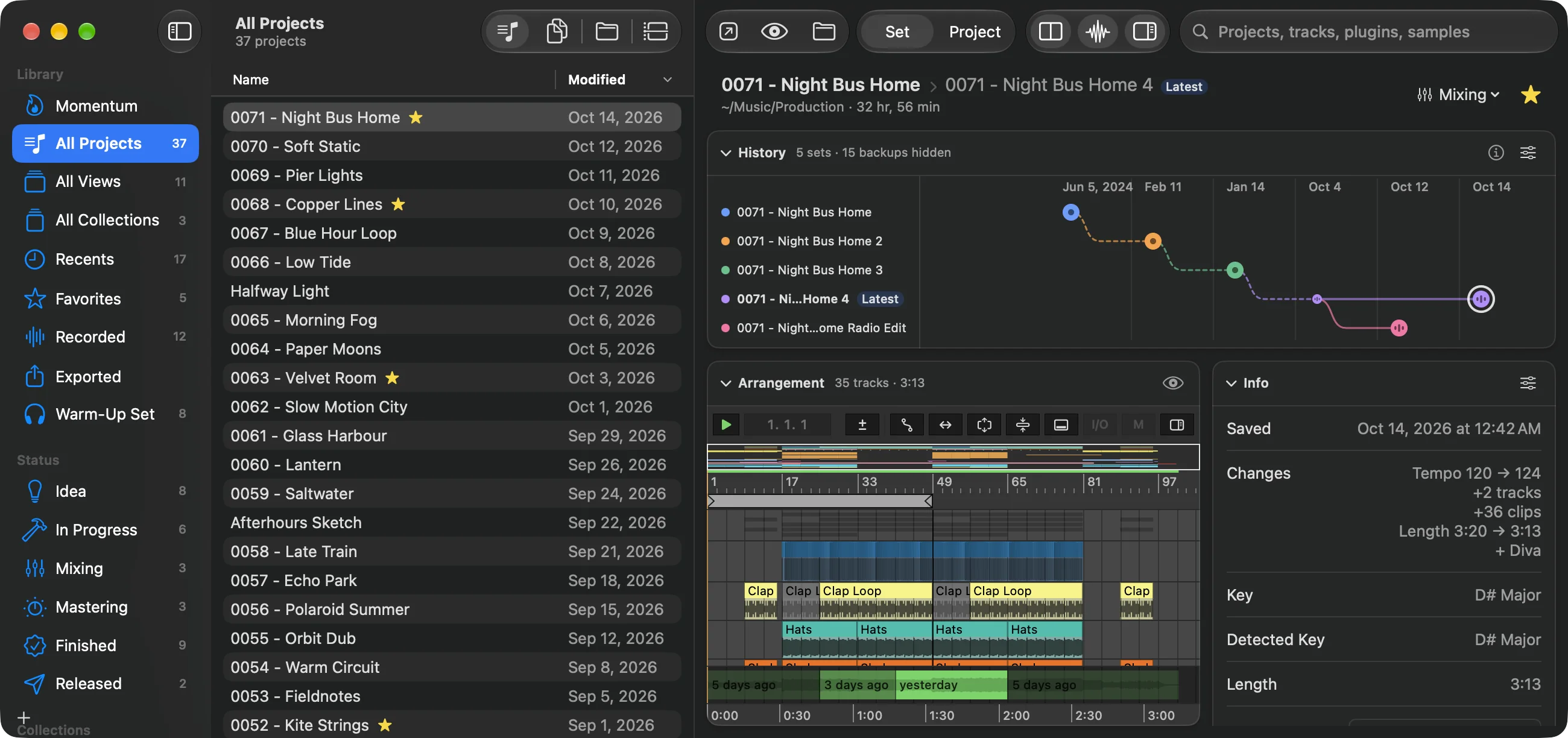
In both layouts you can drag the dividers between the parts, and fold or reorder the cards. More on the project page on Projects and sets.
Several projects at once
Side by side, select more than one project, set or folder, and the right side adds up what they have together instead of showing one project. With nothing selected, it adds up everything the list shows: the sidebar item you picked, the folder you’re in or the results of your search. A single folder or collection stands for what’s in it.
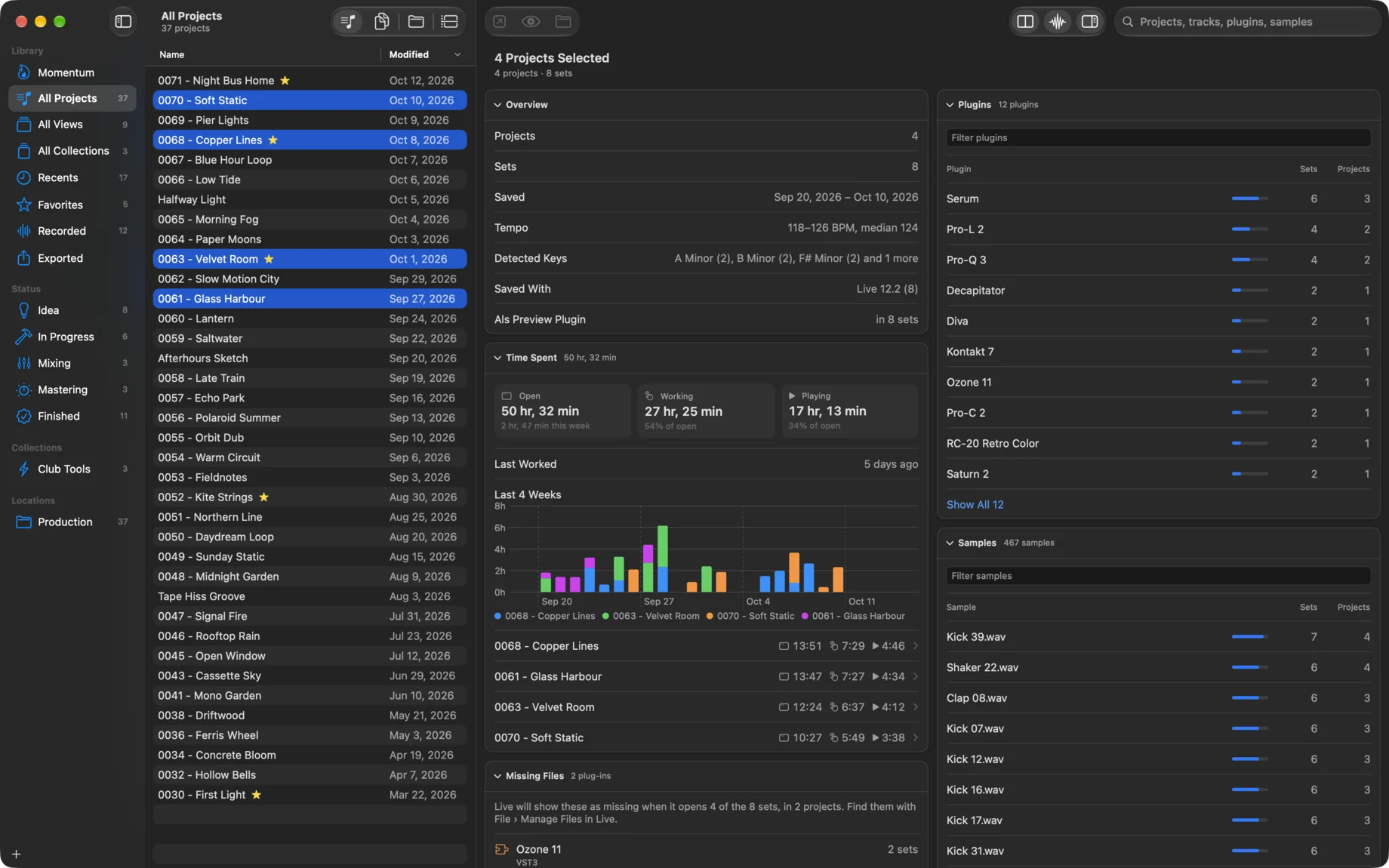
- Overview
- How many projects and sets, when they were first and last saved, their tempos, the keys they’re in, the Live versions they were saved with, and how many sets have the plugin.
- Time Spent
- Open, working and playing time, the last four weeks by project, and the projects with the most time; click one to show it. For sets you select, only the time in those sets counts, not the rest of their project. See Time tracking.
- Missing Files
- Every plug-in and sample Live won’t find, with how many of the sets and projects miss it. Only shows when something is missing. See Missing files.
- Plugins, Samples
- Every plug-in and sample the sets use, most used first, with in how many sets and projects. Type in the field to find one. Click a name to show the projects that use it, or Shift-click to add it to your search.
Projects and folders count their sets, not Live’s backups; a backup counts only when you select it in the list yourself.
Live’s backups
Every time you save, Live keeps the previous state of the set in the project’s Backup folder, up to ten per set. Als Preview reads them all: they show up in the History, in comparisons and in search, so a sample you removed months ago still finds the song.
In the lists they’re hidden, so they don’t crowd your sets. Show them with View › Show Backups (⇧⌘.) in the Sets and Folders views, and with Show › Backups in the History card’s options.
Opening a single Live Set
Double-click a .als file in Finder with Als Preview, or drop it on Als Preview in the Dock. If the set is in your library, its project opens with that set shown. If not, it opens in a window of its own, with its arrangement and comparing, but without the library around it.
File › Open Live Set… (⌘O) opens such a window too: click Open Live Set… in it or drop a set onto it. It reloads by itself when the set is saved again.