 Als Preview
Preview and listen
How recording works
The Als Preview plugin listens to everything that reaches Live’s Main track and keeps it, bar by bar, so the app can play your song from any bar later. Here is what happens from the moment you press Play.
The short version
- The plugin sits on the Main track and passes your audio through untouched. It has no knobs, adds no latency and changes nothing about how your set sounds.
- It records only while Live’s transport runs. Each stretch you play without stopping or jumping becomes one take.
- With every bit of audio it notes which bar and beat Live was playing, so each take knows exactly where in the arrangement it belongs.
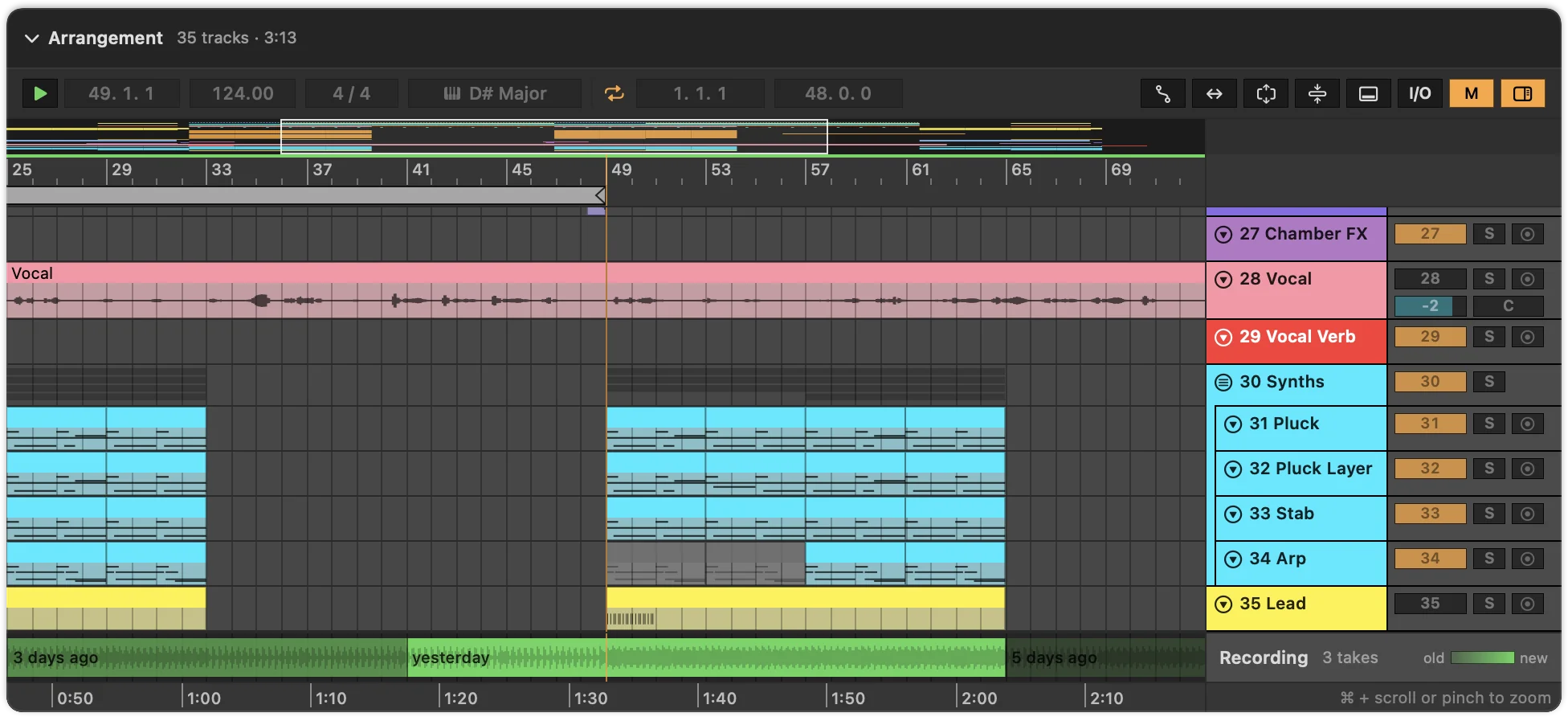
- The app lays all takes of a set onto its arrangement as the Recording lane. Where takes overlap, the newest one wins.
- Everything stays on your Mac, as compressed audio of about 85 MB per hour.
Where the plugin listens
Put the plugin on the Main track, after the devices that are already there. Then it hears exactly what comes out of your speakers: every track, every return, and your limiter or master bus processing. You can put it earlier in the chain, but then the preview is missing whatever comes after it.
One plugin per set is all it takes. It records in stereo at Live’s sample rate; a mono Main track is recorded on both channels. How to add it is on Set up the plugin in Live.
Recording without getting in Live’s way
Live computes your audio in small blocks, each a few milliseconds long, and has to hand every block to your audio interface on time. If anything in the chain takes too long, you hear a click or a dropout. That’s why a plugin must never wait for anything while it processes audio: not for the disk, not for memory from the system, not for another part of the program.
Writing a file can take unpredictably long. Your disk may be busy, another app may be saving. So the plugin splits the job in two:
- In Live’s audio thread, it only copies. When Live hands the plugin a block, the plugin passes the audio on and copies it into a ring buffer: a piece of memory reserved when the plugin starts, used round and round like a circular tape. Next to the audio it notes the bar and beat Live reports, the tempo, whether the transport is running, and whether Live is exporting. Copying a few kilobytes takes almost no time, and it never has to wait.
- A second thread, the writer, does the rest. Fifty times a second it wakes up, takes everything that has queued up in the ring, encodes it as AAC and adds it to the current take on disk.
The ring has room for 8 seconds of audio, while the writer empties it every 20 milliseconds, so it never comes close to full. If your Mac were ever so busy that the writer fell 8 seconds behind, the plugin would rather drop a block from the recording than make Live wait: your playback never stutters because of the recorder. The plugin window would then show how many blocks were dropped.
During an export, nobody is listening in real time, so there the plugin does wait for the writer instead of dropping anything. The exported recording is always complete.
What makes a take
A take is one stretch of playback that runs without a break. The plugin compares the position Live reports for each block with where it expected the block to be. If they don’t match, you jumped, and a new take begins.
| In Live you… | The recorder… |
|---|---|
| press Play | starts a take at the current position. |
| press Stop | finishes the take and saves it. |
| click elsewhere while playing | finishes the take and starts a new one at the new position. |
| play a loop | starts a new take each time the loop jumps back. The last pass ends up on top. |
| solo a track | pauses, if the Remote Script is installed (see Soloing a track). |
| export the arrangement | records the export as a take and logs it as an export (see Exports). |
| tap Play and Stop quickly | throws the take away. Takes shorter than half a second are never kept. |
Every take is two files: the audio, and a small file that maps the audio to the arrangement (four times a second it notes the beat Live reports). The small file is written last, after the audio is complete, so the app never sees a take that is still being written. While Live plays, the take that’s being recorded is not in the Recording lane yet; it appears when you stop.
Newest takes on top
You rarely play a song from start to finish. You loop the drop, play the intro, fix the bridge and play the drop again. The app puts all of these takes together into one lane, like layers of paper: the newest take lies on top, and older takes show through only where nothing newer covers them.
- Seams are crossfaded. Where a newer take starts on top of an older one, the two blend over a tenth of a second, so you don’t hear the cut. Where there is nothing to blend with, a five-millisecond fade keeps the cut from clicking.
- Slivers are dropped. A retake never lines up with the old one to the sample. Leftovers of an older take shorter than a quarter beat at the edge of a newer one are left out instead of playing as a tiny blip.
- Bars you never played are filled in. A approximate preview of the set plays them, in blue, and takes always win over it. Without a preview, playback jumps from one recorded stretch to the next, so a set with a recorded intro and drop plays as intro, then drop.
- Old takes that can no longer be heard are deleted. After every take, the plugin deletes the takes that newer ones now cover completely, in every version of the set they belong to. Only audio you can still hear stays on disk.
How to play the lane, move the start marker and listen to older versions is on Listening to a set.
In time with the arrangement
Tempo changes
Because each take notes the beat Live reports four times a second, the app doesn’t need to know your tempo map. Tempo automation, a change halfway through the song or a different tempo next week: every take still lines up with the bars it was played at, and the playhead runs along the clips at the right speed.
Latency
Devices with lookahead, like a limiter on the Main track, and Live’s delay compensation hold the audio back a little before it reaches the plugin. So when you press Play, the plugin first sees a few milliseconds of silence or of the tail of what played before, and then the music.
Each take that starts from a stop measures this delay: it looks for the first moment within a second that is clearly louder than everything before it. The app takes the middle value of all of a set’s measurements and shifts every take by it, so the takes stay aligned with each other even if one measurement was off, for example because a take started on a rest.
Sample rates
Takes are recorded at Live’s sample rate up to 48 kHz. At higher rates they are converted while recording: 88.2 and 176.4 kHz to 44.1 kHz, 96 and 192 kHz to 48 kHz. That keeps the files small, and you still hear the full audible range.
Soloing a track
When you solo the bass to fix it, the Main track only gets the bass. Recorded as usual, that solo would end up on top of your full mix in the Recording lane. Live doesn’t tell plugins which tracks are soloed, though. The optional AlsPreview Remote Script does:
- While any track or return is soloed, the plugin records nothing, and the full mix you recorded before stays in the lane.
- The message about a solo arrives a moment after Live applies it. The plugin cuts the take back to where the solo began, so not even those few milliseconds end up in the recording.
- When the last solo ends, recording resumes a tenth of a second later, after Live has brought back the full mix.
- Without the script, soloed playback is recorded like anything else. Playing that part again with all tracks replaces it.
Setting it up takes a minute and works for every set: Set up the Remote Script.
Exports
When you choose File › Export Audio/Video in Live, Live plays the arrangement through the plugin too, but as fast as it can rather than in real time. The plugin notices: if Live renders more than twice as fast as the clock, judged after the first second of audio, it’s an export.
- The plugin logs the export: when it started and finished, how long it is and which bars it covers. The app then finds the file Live wrote at that time with that length, and shows it with the set. More on Exports.
- The export is also saved as a take. After exporting the whole song, the Recording lane has all of it, rendered cleanly.
- Export time counts as time you worked on the set, but not as playing time.
Save As and versions
The plugin gives each set an ID, which Live saves inside the .als file as part of the plugin’s settings. That is how the app knows which takes belong to which set, even after you rename or move the file. Save the set once after adding the plugin, so the ID is in the file.
Save As copies that ID into the new file. To still tell the copies apart, the plugin also counts the saves: every time Live saves the set, it asks the plugin for its settings, and the plugin starts a new revision. Each take notes the revisions it was played on.
- A take belongs to the file you had open in Live, and to Live’s backups of it.
- A file saved later from that state, with Save As, inherits the takes played before it was saved. Nothing recorded in the copy plays with the original.
- Save As or Save a Copy? The plugin can’t tell the two apart. Until your next save shows which file stayed open in Live, new takes play in both files.
- Retakes in one version never delete audio another version still needs.
The same revisions let the History draw exactly which save each version came from. See Versions and history.
Where takes are kept
Takes are saved in Als Preview’s shared folder on your Mac, one folder per set ID:
~/Library/Group Containers/7Q88FGB2TN.de.marvinvogel.ableton-preview/Recordings/
- The audio is AAC at 96 kbit/s per channel, about 85 MB per hour in stereo.
- The app, its Quick Look preview in Finder and the plugin window in Live all read the same takes.
- If Live quits in the middle of a take, the unfinished audio is cleaned up after an hour.
- Nothing is uploaded. The plugin’s only connection is to the Remote Script, on your Mac.
- Settings › Storage shows how much space each set’s recording takes, and deletes recordings you no longer need. A deleted recording is made again the next time its set plays.
Your library and the other files Als Preview keeps are on Your data and disk space.