 Als Preview
Outside the app
The plugin window in Live
Open the plugin’s window on the Main track and you see the project as Als Preview knows it: its history, the set’s info, the time you spent and your notes, without leaving Live.
Opening it
Click the wrench icon in the title bar of the Als Preview device on the Main track. With Live’s Auto-Open Plug-In Windows on, it opens when you add the plugin. The window can be resized; from about 600 points wide its cards sit in two columns.
A set in your library
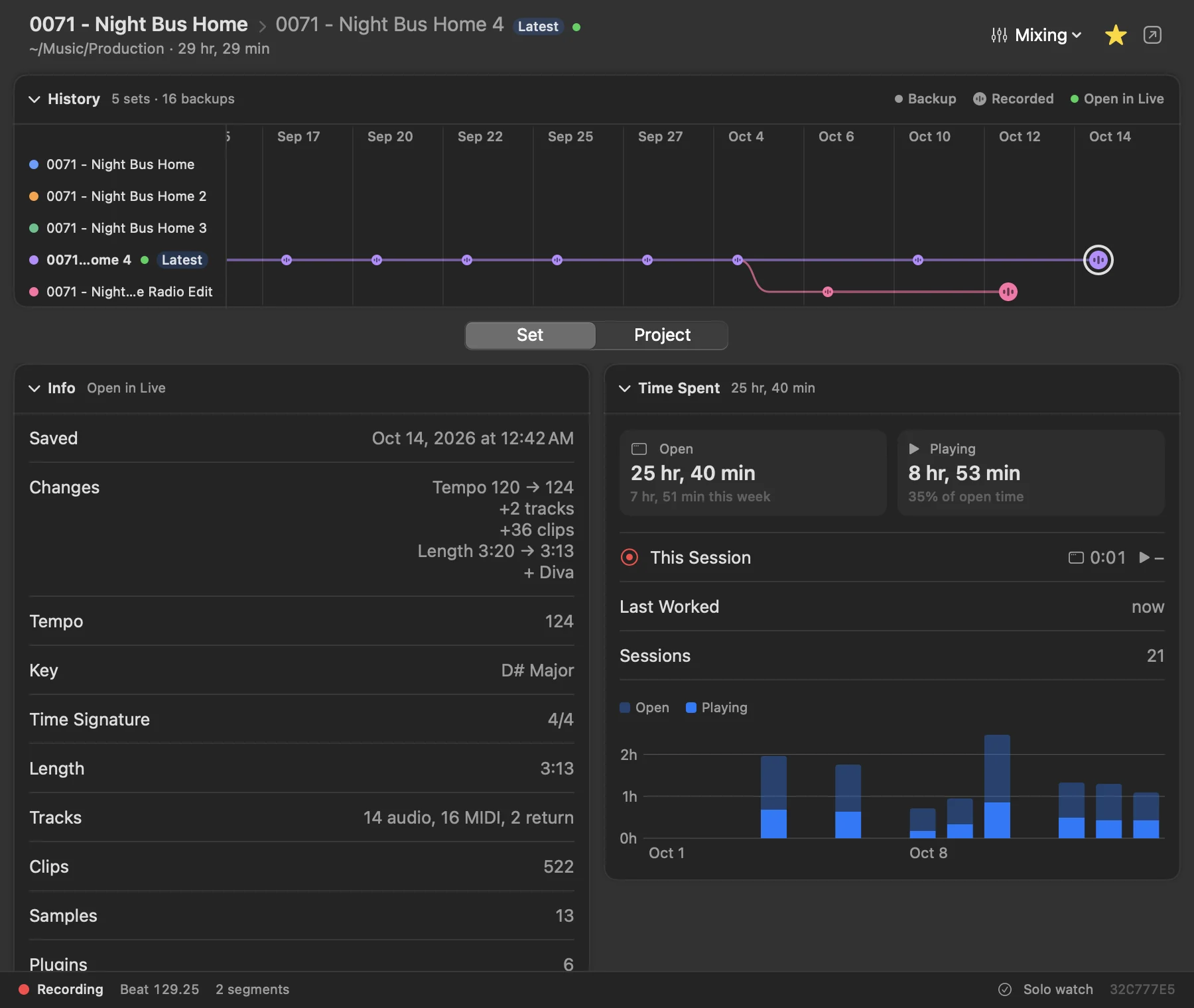
- The header names the project and the set, with Latest if it’s the newest and a green dot for the set open in Live. Below: its folder and the time spent on the project.
- History shows the project’s sets and saves like in the app; the set open in Live is marked. Click a save to see its info.
- Set and Project switch between the save picked in the History and the whole project.
- The Set tab has the save’s Info (when it was saved, what it was saved from, its changes, tempo, key, length, tracks and plugins) and its Time Spent, with This Session since Live opened the set.
- The Project tab has the Overview, your Notes, the project’s Time Spent and its Samples & Plugins.
- The button at the top right shows the set in Als Preview.
The window shows what Als Preview last knew about the project. Als Preview updates it within a few seconds after you save, as long as it’s open, and at least once a minute.
Status, favorite and notes
Change the status with the menu in the header, star the project, or write in its Notes card on the Project tab. The change shows right away and reaches Als Preview the next time it’s open. The menu lists your own statuses, in your order.
A set not in your library yet
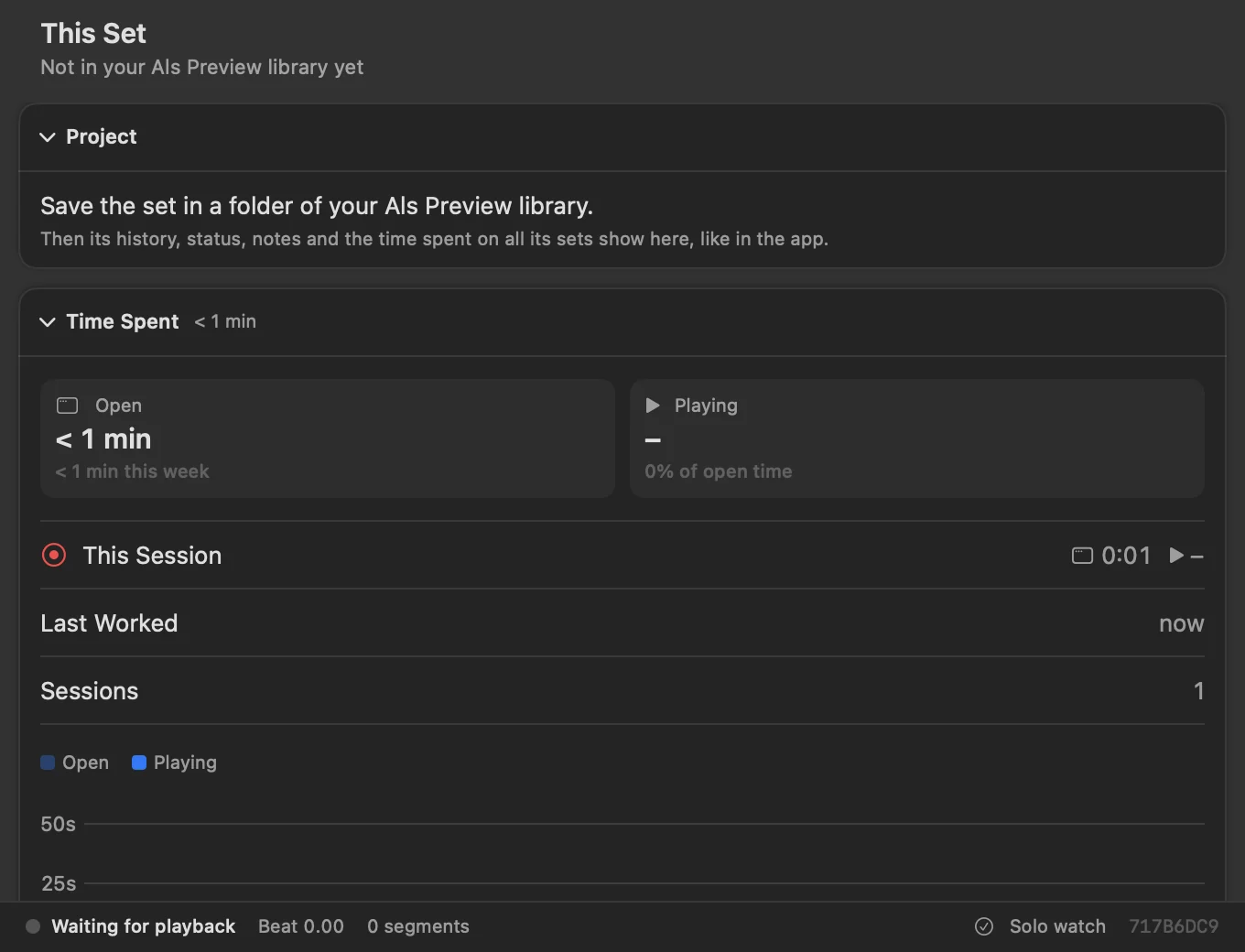
Right after you add the plugin to a new set, or for a set outside your library folders, the window says so and tells you what to do:
- Save the set in a folder of your Als Preview library. Then its history, status and notes appear here.
- Open Als Preview once… when Als Preview hasn’t shared anything with the plugin yet.
- Live can’t reach Als Preview’s files… when macOS didn’t allow Live to read them. Allow it when macOS asks, then open the set again.
The plugin records and tracks time either way.
The recorder bar
The bar at the bottom shows the recorder at work:
| Shows | Means |
|---|---|
| Red dot, Recording | Live plays and the plugin records. |
| Waiting for playback | Ready; nothing is playing. |
| Paused – track soloed | A track is soloed; recording waits until the solo ends. |
| Idle | Live isn’t passing audio through the plugin, for example when the device is off. |
| Beat 129.25 | The position Live reported last, in beats. |
| 2 segments | Takes recorded since the set was opened. |
| 3 dropped (orange) | Blocks of audio the recorder had to leave out because the Mac was too busy. Rare; see How recording works. |
| Nothing is saved (red) | The plugin can’t reach Als Preview’s folder on your Mac, so takes aren’t kept. Please write to support if you see this. |
| Solo watch / No solo watch | Whether the Remote Script is running. |
| An ID like 32C777E5 | The start of the set’s ID. Save the set to keep the link between set and recording. |
After the free trial
When the trial is over, the window says so and offers to open Als Preview. The plugin keeps recording and tracking time, and the bar keeps working; buy Lifetime and everything shows again.