 Als Preview
Your library
Status, views and collections
Mark where each song stands, star the ones that matter, group them, keep the ways you look at them, and write down what’s left to do. All of it lives in Als Preview’s library; your sets aren’t changed.
Status
A status says where a song stands. A project has one at a time, or none. Als Preview starts with five:
- Idea
- In Progress
- Mixing
- Mastering
- Finished
Set it with the status menu in the project’s header, with Status when you Control-click a project in the list, or in the plugin’s window in Live. You can also drop projects onto a status in the sidebar. The sidebar lists your projects by status, the Status column sorts them in this order, and status:mixing finds them in a search.
Momentum follows your projects from idea to finished, and marking a project Finished counts toward its Finish ring. Als Preview notes each change of status for that, on your Mac.
Your own statuses
The statuses are yours: rename them, give them other icons, put them in another order, add your own and delete the ones you don’t need. Choose Edit Statuses… at the end of a status menu, in the sidebar’s + menu, or when you Control-click a status in the sidebar.
- Add Status adds one at the end of the list, ready to be named. Click a status’s name to rename it, and its icon to choose another. The number beside it says how many projects have it.
- Drag the statuses into the order your songs go through them. The status menus, the Status column and Momentum follow that order.
- The minus button deletes a status. If projects have it, Als Preview asks first: they’ll have no status. Click Done when you’re finished.
- Each status has a view in the sidebar’s Status section. A new status gets one too, a renamed one renames its view, and a deleted one takes its view along.
status:finds your own statuses by their name, or by its beginning.
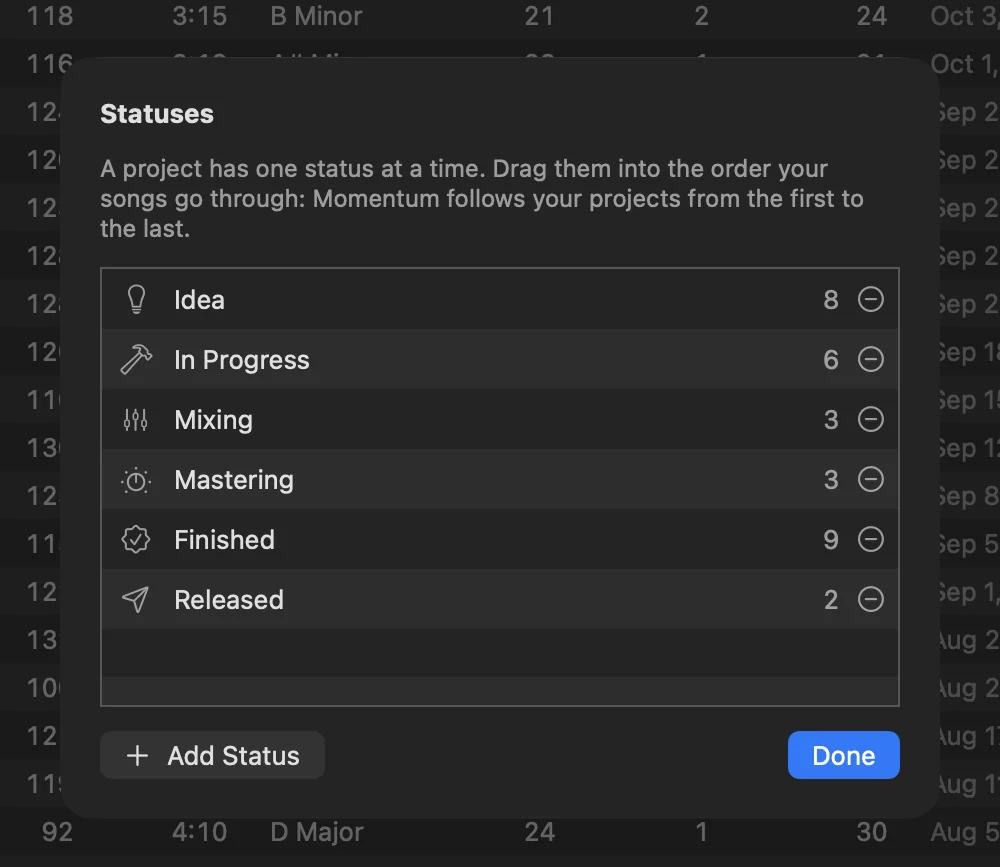
Momentum follows your projects from the first status to the last. A status you add counts there like the nearest of the five above it in the list, or like Idea at the very top: put “Released” after Finished, and its projects count as finished. Renamed, the five keep their meaning, so Finished counts as finished whatever you call it.
Favorites
Click the star in the project’s header, or Control-click a project and choose Add to Favorites. Favorites have a yellow star next to their name and their own view in the sidebar, Favorites: drop projects onto it to star them. is:favorite finds them in any search.
Collections
A collection groups projects however you like: an EP, the tracks for a live set, songs to send to a singer. A project can be in as many collections as you want.
- Make one with New Collection in the sidebar’s + menu, or by typing a new name in Add to Collection….
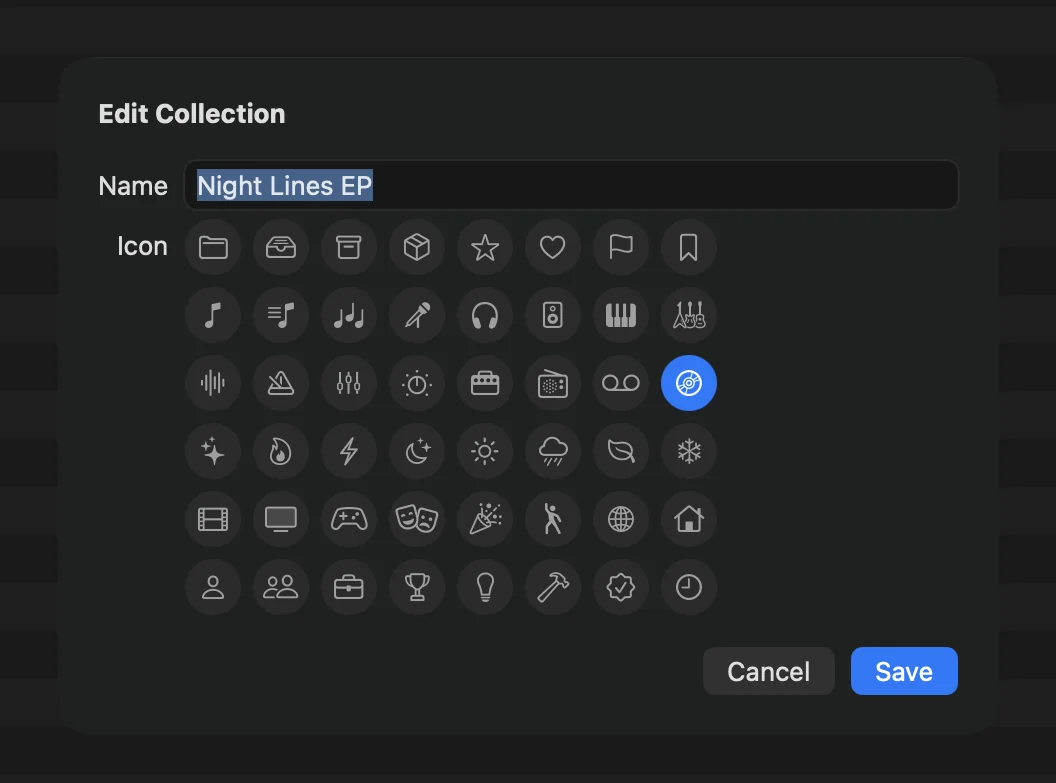
- Give it an icon: Control-click the collection and choose Edit Collection… to pick one of the icons and change its name. A collection made with New Collection asks for both right away.
- Add projects by dropping them onto a collection in the sidebar, with Add to Collection… when you Control-click them (works for several at once), or from the project’s Collections card.
- Remove a project in its Collections card, or Control-click it inside the collection and choose Remove from the collection.
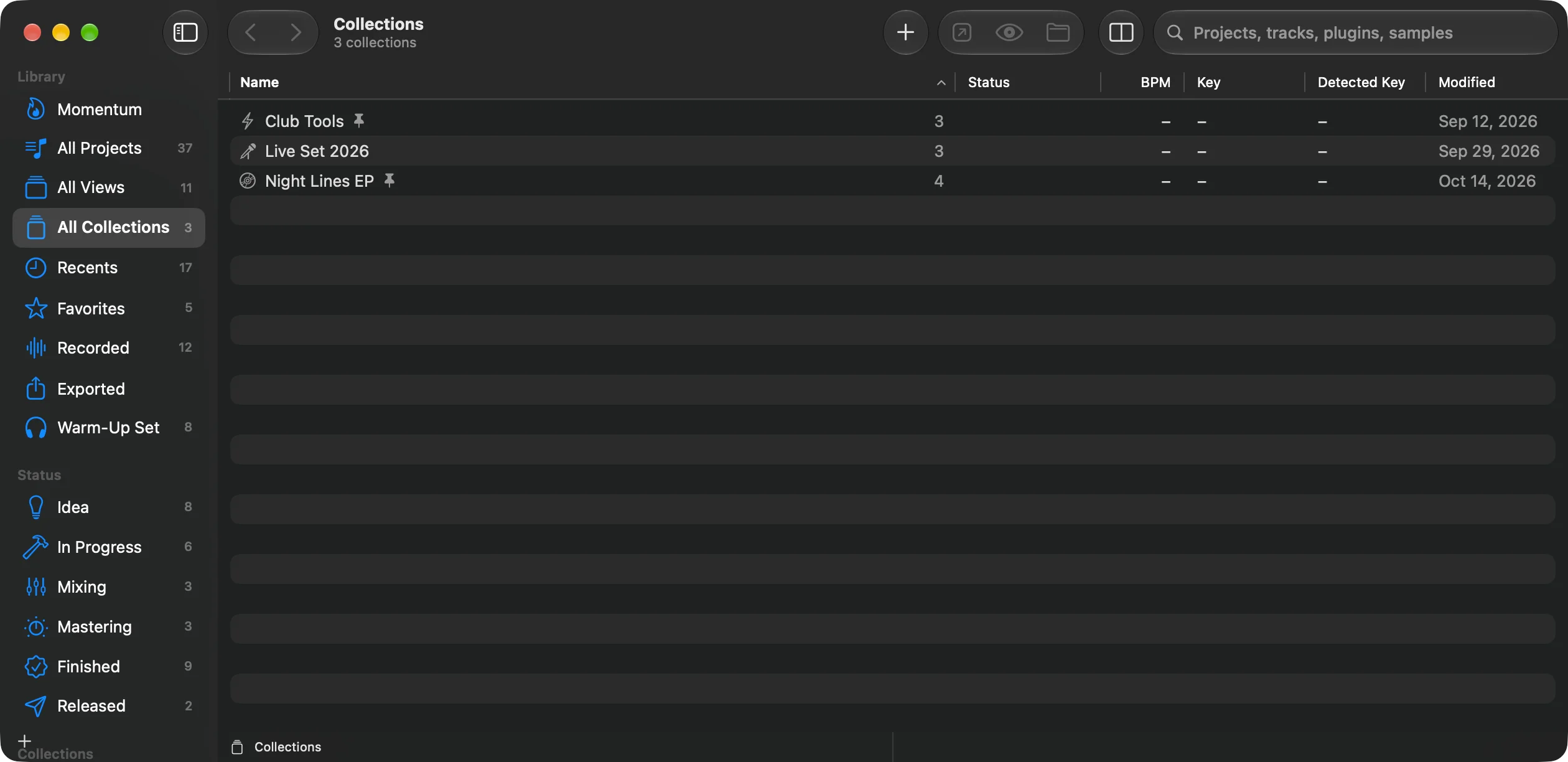
- All Collections in the sidebar browses them like folders: collection, project, sets. There you can pin a collection to the sidebar or unpin it, edit it and delete it. Deleting a collection never deletes the projects in it.
- Place it in the sidebar: a pinned collection can sit in any section, next to your views. Drag it there, or Control-click it for Move to and Remove from Sidebar. A view can list a collection’s projects too, narrowed by a search.
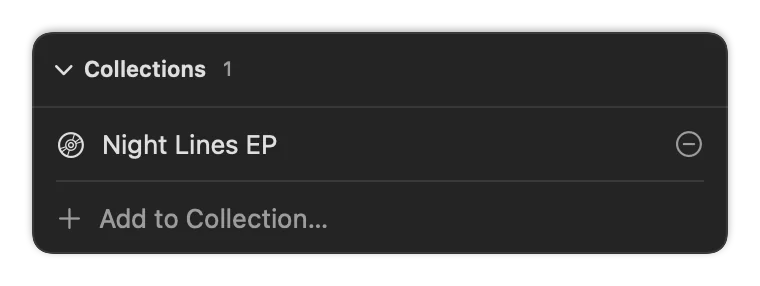
In Add to Collection…, type to find a collection or create one, use ↑ ↓ and Return to tick it. A dash means only some of the selected projects are in it.
Views
A view saves a way of looking at your library: what it lists, a search that narrows it, and how it shows the result. It sits in the sidebar and always shows what matches right now: everything you’re mixing, every song with missing files, what you saved this month, every project over 140 BPM.
The library starts with a few: Recents (modified:30d), Favorites (is:favorite), Recorded (is:recorded), Exported, and one for each status. Change them, delete them, or add your own.
Making a view
The quickest way is to show what you want to keep, then save it:
- Pick a place in the sidebar, type a search if you like, and show it the way you want: as Projects, Sets, Folders or Timeline, sorted by a column, with the columns you need.
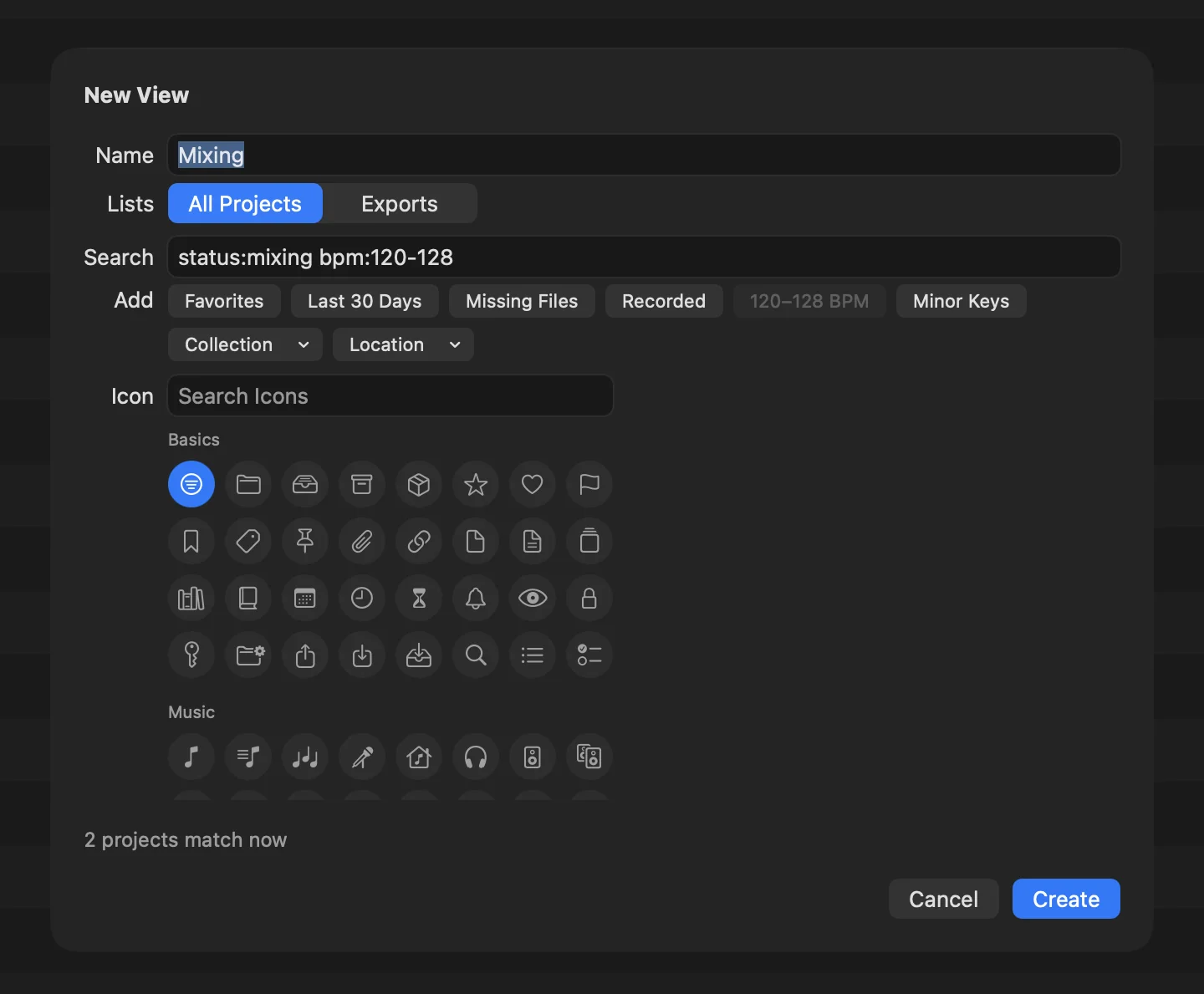
- Choose File › New View… (⌥⌘N), or New View… in the sidebar’s + menu. The sheet starts with what the window shows: its search and what you typed. Started on a collection or a location, the search starts with it, like
collection:album. - Check the name, pick an icon and click Create. The view opens, shown the way the place was. What you typed moves into the view, so the search field is empty again.
A new view goes into the sidebar right below the view or collection you started from, or at the end of the Library section.
- Name
- Suggested from the search until you type one.
- Lists
- What the view starts from: All Projects, or Exports, the files the plugin logged (see Exports). For a collection or a location, use the search:
collection:orlocation:. - Search
- Words and filters that narrow it, written as in the search field. Left empty, the view lists all of it.
- Add
- Filters to add with a click: Favorites, Last 30 Days, Missing Files, Recorded, 120–128 BPM and Minor Keys. Below them, the Collection and Location menus add one of yours, like
collection:"Night Lines EP". Rename a collection, and the views that name it follow. - Icon
- The same icons collections have.
Under the fields, the sheet says how many projects match now. When you edit a view, the button says Save.
How a view shows its projects
A view remembers how you last showed it: as Projects, Sets, Folders or Timeline, its sort order, its columns and Show Backups. Change any of it while the view is shown, and it stays that way. So Recents can list every set, newest first, while All Projects lists projects by name.
As Sets or Folders, a view’s search matches each set on its own, as a typed search does: Recents then lists the sets saved in the last 30 days. See Projects or sets.
With a view shown, what you type in the search field narrows it further. To keep that, Control-click the view and choose Add Search to View, or make a view of its own with New View….
Changing and arranging views
- Control-click a view in the sidebar for Edit View…, Duplicate View, Move to another section, Remove from Sidebar and Delete View. A status’s view also has Edit Statuses…. Hold the pointer over a view to see its search.
- Drag views up and down, or into another section. See The sidebar.
- Drop projects onto a status’s view to give them that status, or onto Favorites to star them.
- A view removed from the sidebar stays in All Views. Deleting a view never deletes projects.
All Views
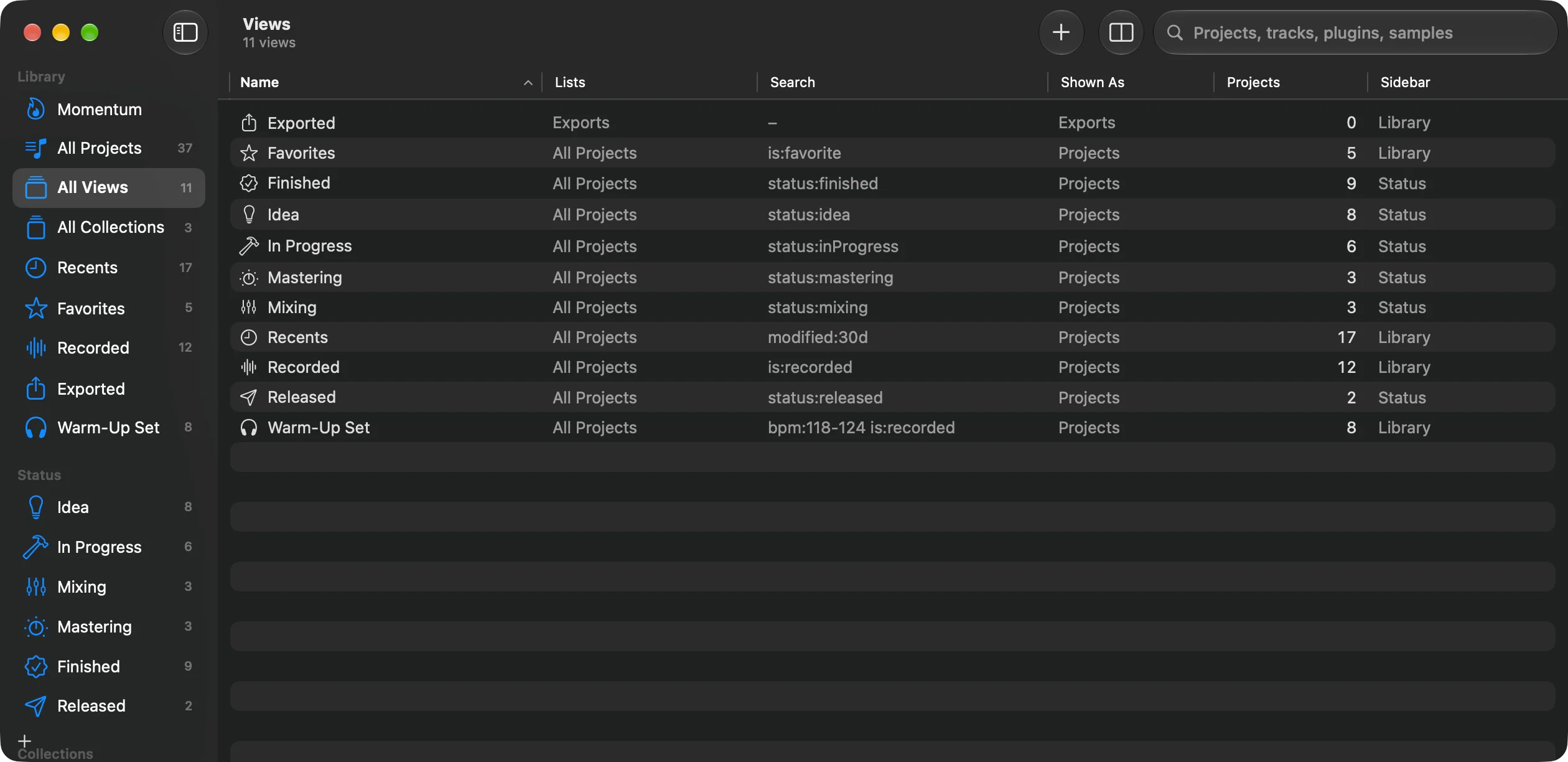
All Views, near the top of the sidebar, lists every view, in the sidebar or not, with what it lists, its search, how it’s shown, how many projects it has now and which section of the sidebar it’s in. Double-click a view to open it. Control-click for Open, Edit View…, Duplicate View, Add to Sidebar, Remove from Sidebar and Delete View; select several to put them into the sidebar or delete them at once. New View in the toolbar makes one. Typing in the search field there takes you to All Projects.
Notes
Every project has a Notes card for whatever you want to remember: the idea behind it, what the mix still needs, who sings on it. Type and it’s saved. Folded, the card shows the first line.
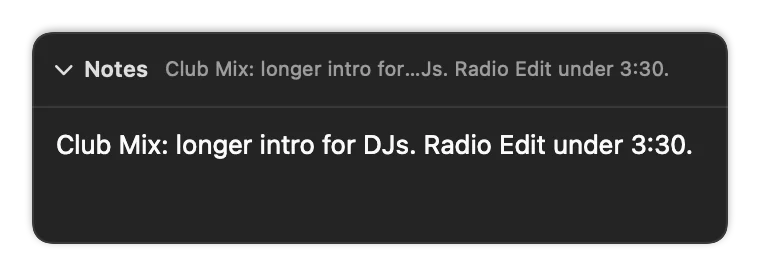
The same notes show in the plugin’s window in Live, where you can edit them too.
Missing files
Als Preview checks whether the samples and plug-ins each of a project’s sets needs are on your Mac, so you know before you open a set that Live will ask for them. Live’s backups aren’t checked.
- Projects with something missing get a Missing Files card and an orange triangle with a count in the Missing Samples and Missing Plug-ins columns.
is:missingfinds them all. - The project’s card lists the sets that miss something (click one to show it), then the missing samples with the folder they were in, and the plug-ins that aren’t installed, each once. A set’s own card, next to its Info, lists what that set misses. Find the samples with File › Manage Files in Live.
- Check Again looks once more, for example after you installed a plug-in or connected a drive.
- Select several projects side by side, or none, to see everything they miss together, with how many sets and projects miss each file. See Several projects at once.