 Als Preview
Preview and listen
Listening to a set
With the plugin on a set’s Main track, everything you play in Live ends up in the set’s Recording lane. Click a bar, press Space, and hear the song as it sounded in Live, in time with the arrangement.
The Recording lane
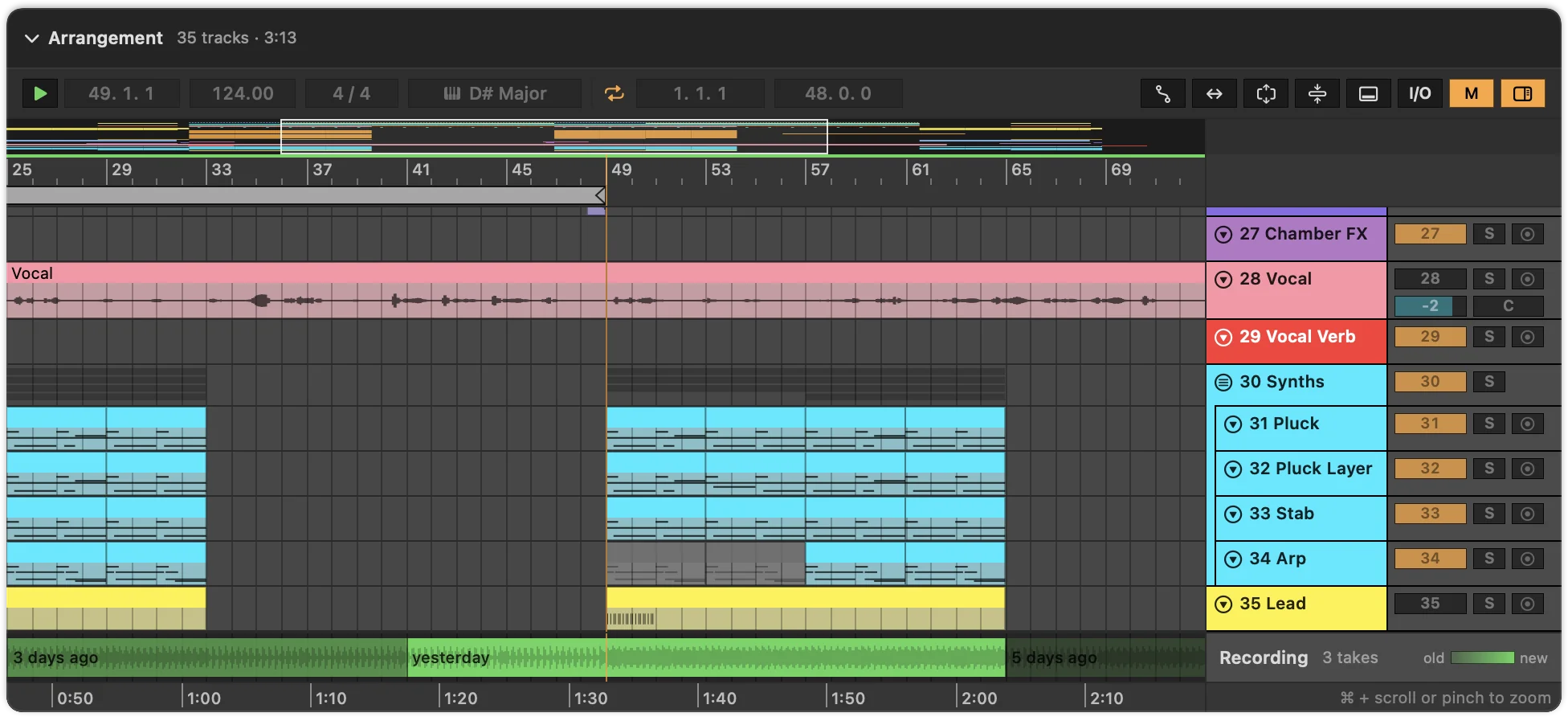
- Each take sits where it was played in the arrangement, with its waveform.
- Where takes overlap, you see and hear the newest. Older takes are paler; each piece says how old it is, like “2 days ago”, when there’s room.
- Takes don’t have to cover the whole song. The bars the plugin hasn’t recorded play an approximate preview rendered from the set, in blue. Takes always win over it.
How takes are made and put together is explained on How recording works.
Playing
- Click a bar in the arrangement, the ruler or the Recording lane. The orange start marker moves there.
- Press Space, or click the play button at the top left of the arrangement. The white playhead runs along the clips, through tempo changes too.
- Press Space again to stop. Playback goes back to the start marker, like in Live.
Click another bar while it plays, and it continues from there. Double-click a bar to start playing from there right away, and again to stop. The field next to the play button shows the start position in bars and beats.
Gaps and loops
- A approximate preview fills the bars no take covers, so playback runs through the song without skipping.
- Without a preview, playback skips bars that were never recorded and continues with the next recorded part. Clicking into a gap starts at the next recorded bar.
- When the set has its loop switched on, playback starts at the first recorded bar inside the loop.
- Where a newer take begins inside an older one, the two blend over a tenth of a second, so the seam is inaudible.
Older versions
Takes belong to the version of the set they were played on. Click an older save in the History, and its Recording lane plays what the song sounded like back then: the mix before you changed the drums, the arrangement before the second drop.
A copy made with Save As keeps the takes recorded before you saved it, and gets its own from then on. Details on How recording works.
A and B
When you compare two saves and either has a recording or a approximate preview, A and B buttons appear above the arrangement. Switch between them while playing: B continues from the same beat in the other save, so you hear exactly what your changes did.
Outside the library window
- Quick Look in Finder: select a set, press Space, then double-click the arrangement or click the play button to hear it. Finder keeps Space for closing Quick Look. See Quick Look.
- A single set in its own window plays the same way.
No Recording lane?
- The set needs the plugin on its Main track and has to have played in Live since. See Set up the plugin in Live.
- The set has to be saved after adding the plugin, so its ID is in the file.
- The take being recorded appears when you stop playback in Live.
- Takes shorter than half a second are not kept.
- A recording deleted in Settings › Storage starts over the next time the set plays.
- A set without takes gets a lane anyway, with a approximate preview, unless rendering is turned off or the set has nothing a preview can play.
More in Troubleshooting.