 Als Preview
History and changes
Versions and history
“Song 3”, “Song 3 final”, “Song 4 club mix” and forty backups: the History card puts every save of a project in order and draws where each one came from.

Reading the graph
- One lane per set file, each in its own color, named on the left. The project’s newest set is marked Latest.
- Big dots are saves of the set itself; small dots are Live’s backups of it.
- A waveform in a dot marks a save with recorded audio from the plugin.
- Curves between lanes show which save a set was saved from: solid when the plugin recorded it or the Remote Script saw it, dashed when Als Preview guessed it.
- A green dot after a lane’s name marks the set Live has open now, as the Remote Script tells.
- A lane name in italics means only Live’s backups of that set are left: the set itself was renamed or deleted.
The ⓘ button in the card’s title explains the marks. Hover over a save for its date, its changes, whether it has recorded audio and how long it was open in Live. Where the Remote Script watched, it also tells where that time went, for example Mostly on Drums, Bass · in the Arrangement.
Moving through saves
- Click a save to show it: the arrangement, the Info card and the Recording lane switch to that save.
- ← and → step to the save before or after.
- Click a lane’s name to show its newest save.
- ⌥-click another save to compare the one shown with it. See Comparing saves.
Only projects with more than one save have a History card.
Where a save came from
Live doesn’t write down which set a new one was saved from. Als Preview finds out in these ways, in this order:
- Recorded by the plugin solid curve
- The plugin counts every save of the set (see Save As and versions). A copy saved with Save As carries the same count, so Als Preview knows exactly which save it continued from. The Info card says Saved From.
- Seen by the Remote Script solid curve
- With Live 11.3.25 or later, the Remote Script sees which file Live has open when a set is first saved. After Save As, Live goes on in the new file; after Save a Copy, it stays in the set you had open. So Als Preview knows which set the new file came from, and how. The Info card says Saved From, and the tooltip Saved from “Song” or Saved as a copy of “Song”. A set the script saw start as a new set isn’t guessed to come from another.
- Guessed dashed curve
- Where neither tells, Als Preview compares the sets and picks the most similar earlier save, by tracks, clips, samples and plugins. The Info card says Probably From, and the tooltip how alike they are.
Click Saved From or Probably From in the Info card to jump to that save.
What changed
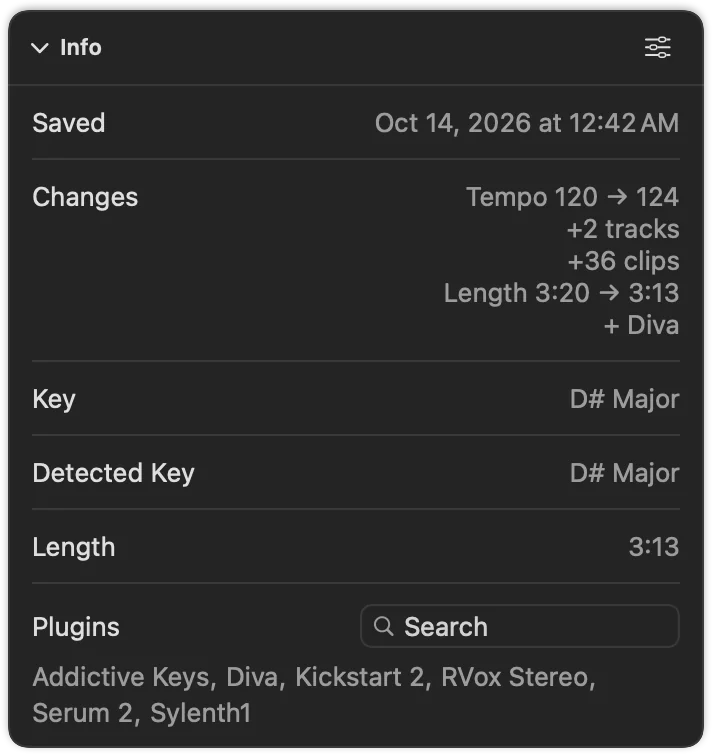
The Info card’s Changes sum up how the save differs from the one before it:
- tempo, e.g. 120 → 124
- tracks and clips added or removed
- the length
- plugins that came or went
- samples added or removed
For every track, clip, note and knob, use Compare.
Showing backups, zooming, resizing
- Backups are hidden at first. Turn them on in the card’s options, Show › Backups.
- Zoom in time by pinching or ⌘-scrolling over the graph. The zoom is kept for all projects.
- Resize the card by dragging its bottom edge; double-click the edge for the default height. Drag the edge of the names column to make it wider.
- Click the card’s title to fold it.
To see the history of all your projects at once, on one time axis, use the Timeline.