 Als Preview
Get started
Set up the Remote Script
Optional, and done in a minute. Live tells Remote Scripts things it doesn’t tell plugins. The AlsPreview Remote Script uses that to track the time you spend in every set, with or without the plugin. It also tells the plugin when you solo a track, so recording pauses and the preview keeps your full mix.
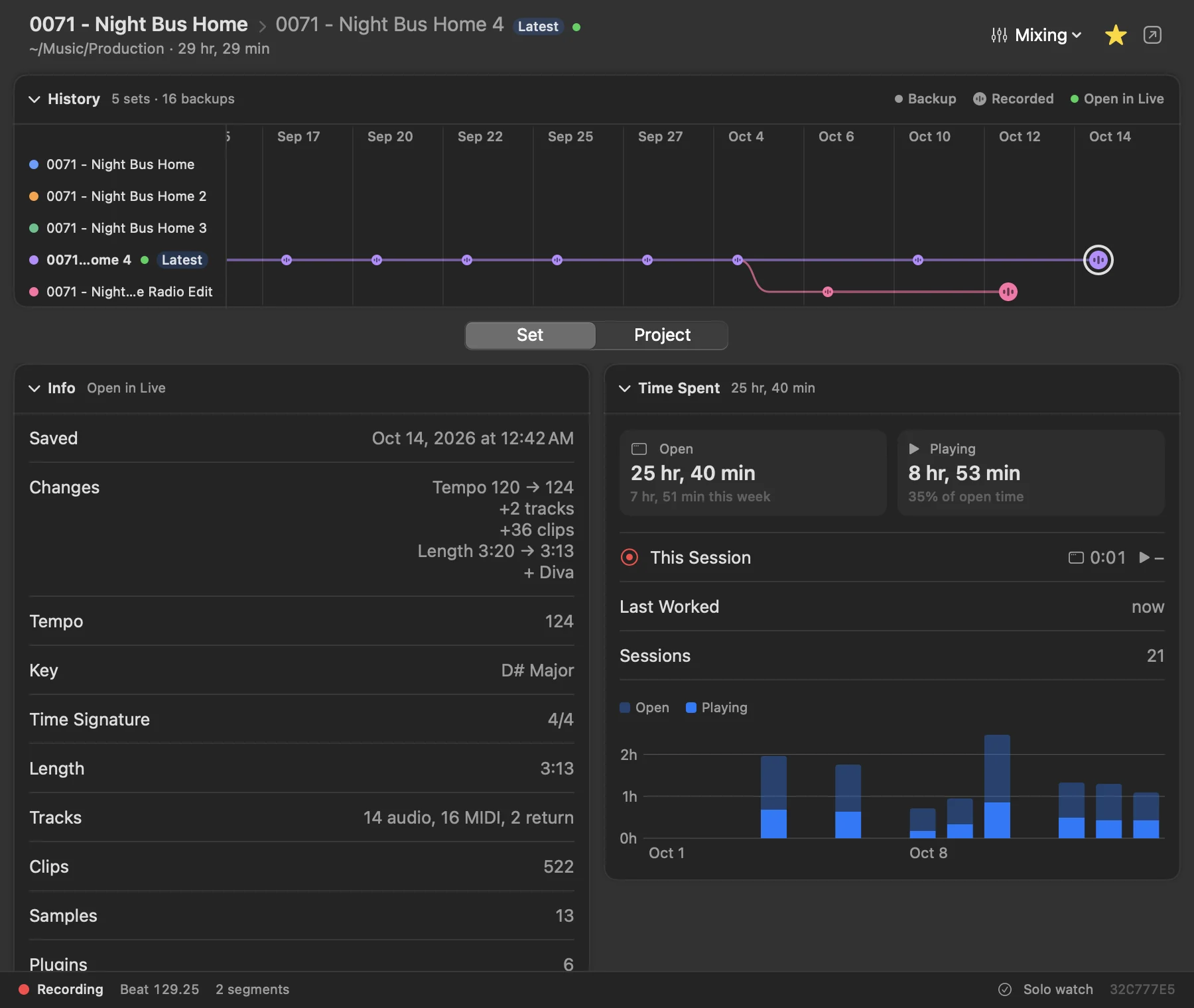
Time in every set
Live makes a new copy of the script for every set it opens, and from Live 11.3.25 on, tells it which file the set is saved as. So the script can follow every set you open, whether the plugin is on it or not:
- Open, working and playing time of each set. Working time is the time you do something in Live, so a set left open overnight doesn’t count as a night’s work.
- Where the time went: Arrangement or Session View, the tracks you spent the most time on, and how long you recorded.
- The set open in Live now, marked with a dot in the library and the History, and listed first in Momentum.
- Work that wasn’t saved, when Live closed a set without saving it.
- Save As and Save a Copy, as they happen. The History shows Saved from “Song” or Saved as a copy of “Song” instead of guessing from how alike the sets are, and the time goes to the file you kept working in.
The script writes what it notes to files in a Sessions folder next to itself, one per time a set is open. Als Preview reads them there, on your Mac. Where you see it all: Time tracking.
The plugin still matters: it records what your sets play, so you can listen to them in Als Preview, and measures playing time from the audio itself. With both, a set’s time counts once.
Recording pauses during solos
When you solo the bass to work on it, only the bass reaches the Main track, and that’s what the plugin would record. In the Recording lane, the newest take wins, so those bars would play as solo bass from then on, until you play them again with everything on.
With the Remote Script, the plugin knows when anything is soloed and records nothing during that time. It even cuts back the few milliseconds between your click and the message arriving. Without it, everything works the same, except that soloed playback is recorded too.
1. Install it from Als Preview
A Remote Script is a small folder that Live loads from your User Library. Als Preview puts it there for you:
- In Als Preview, choose Help › Set Up the Remote Script…, or open Settings › Plugin.
- Click Install Remote Script….
- A folder dialog opens at
~/Music/Ableton/User Library/Remote Scripts. Click Install. If your User Library is somewhere else, choose itsRemote Scriptsfolder, or the User Library itself. Live shows where it is in Settings › Library. - If Live is open, quit and restart it, so it finds the new script.
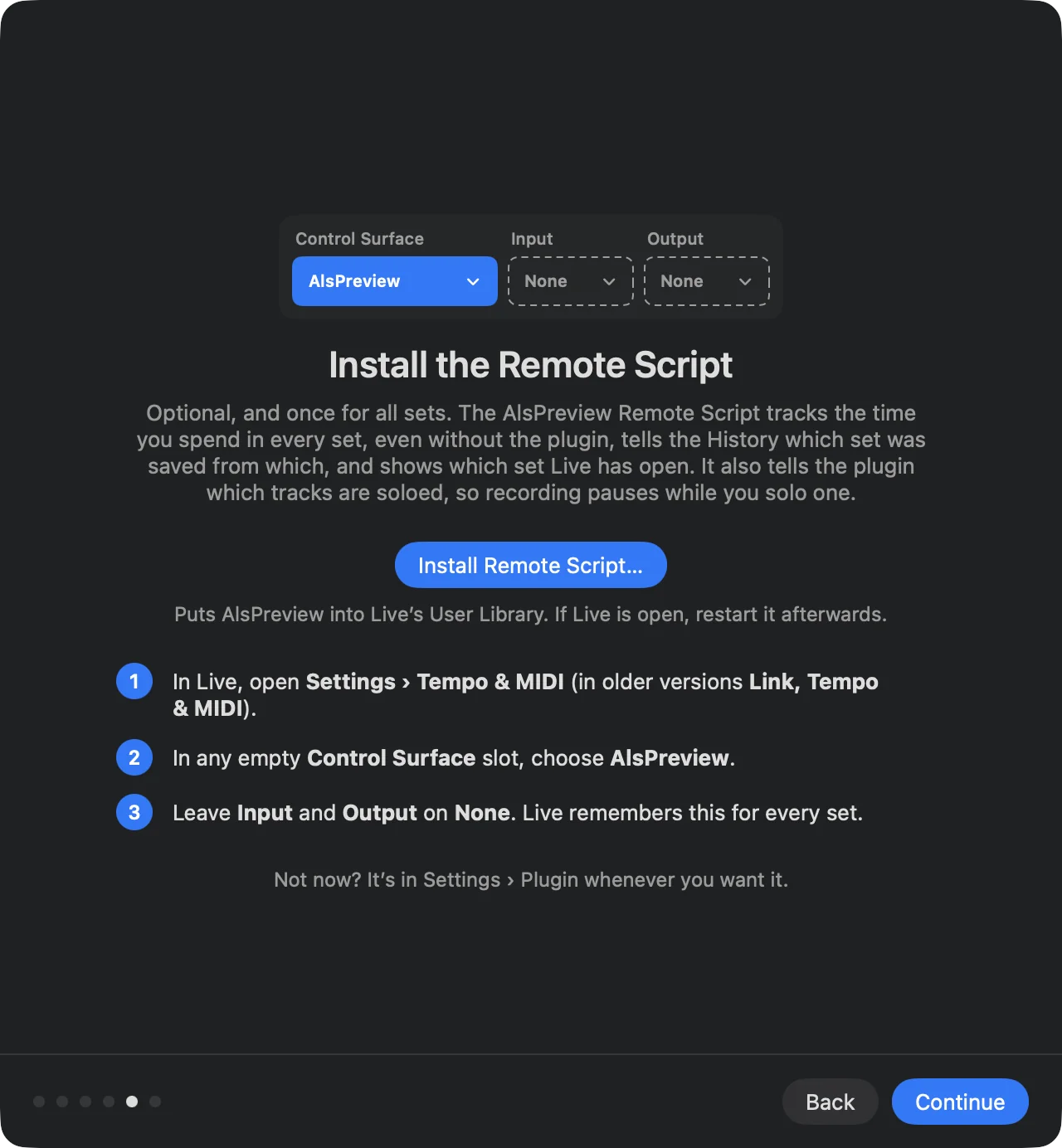
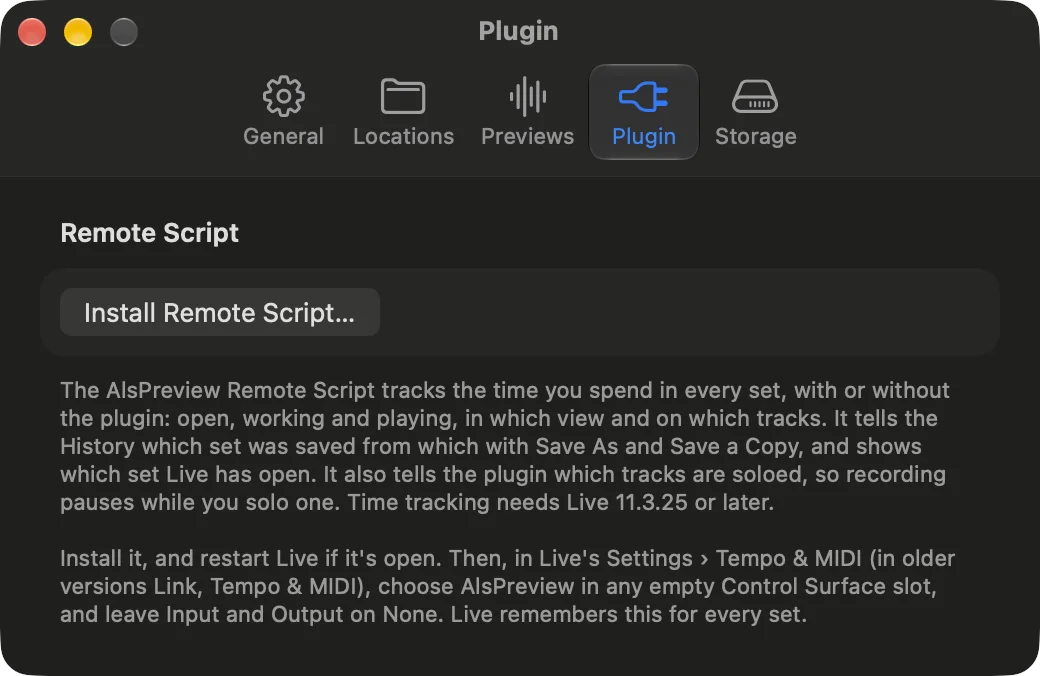
Als Preview asks for the folder because Mac App Store apps can only write where you point them. For the same reason, it remembers the folder, so it can read the time the script notes there. Installing again replaces an older copy, for example after an update, and keeps that time.
2. Choose it in Live
- In Live, open Settings › Tempo & MIDI. In older versions of Live the tab is called Link, Tempo & MIDI, or Link/MIDI in Live 10.
- In any empty Control Surface slot, choose AlsPreview.
- Leave Input and Output on None. The script needs no MIDI ports.
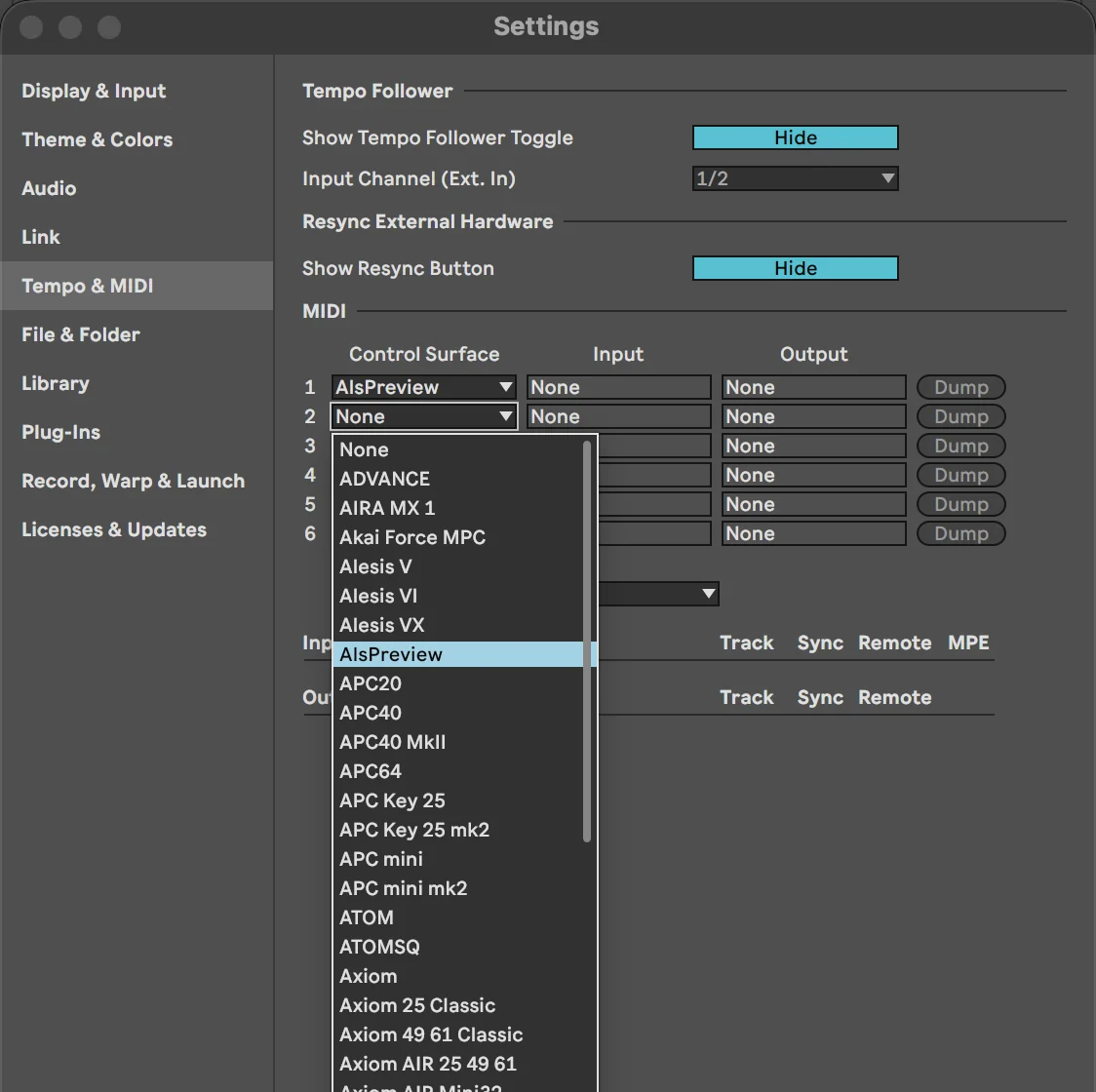
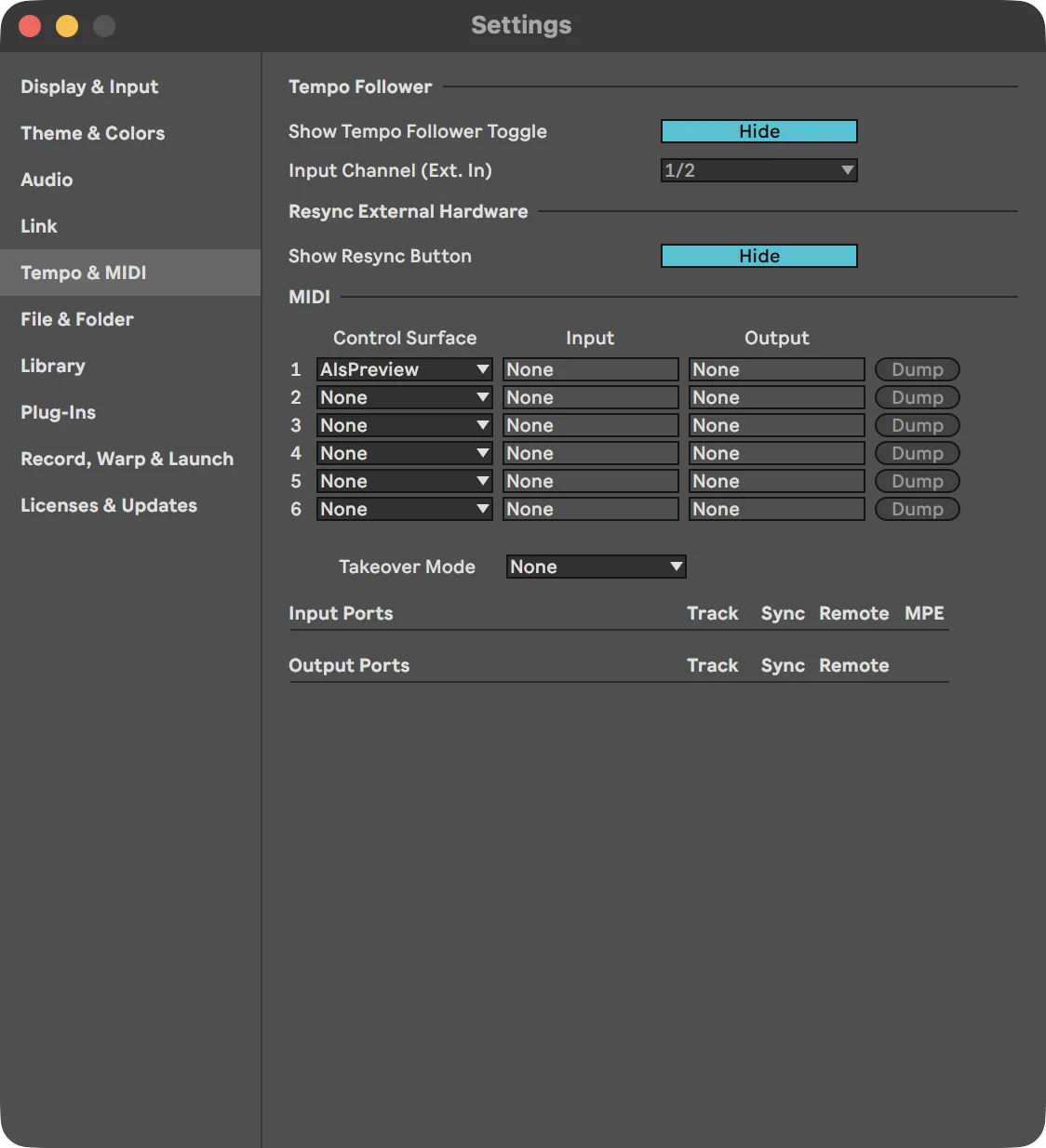
Live remembers this for every set, so you do it once. The script uses one of Live’s six control surface slots; your controllers keep working in the others.
3. Check that it runs
Once Als Preview has installed the script, Settings › Plugin shows Last Heard from Live under the button: when the script last wrote what Live did. Open a saved set in Live 11.3.25 or later and work in it for a moment, and it shows how long ago that was. Not yet means nothing has arrived: check that AlsPreview is chosen in Live’s settings, and restart Live once after installing.
With the plugin, its window tells you too. Open the window of the Als Preview plugin on a set’s Main track. On the right of the bar at the bottom it says Solo watch while the script is running. No solo watch means the plugin can’t reach it: check that AlsPreview is chosen in Live’s settings, and restart Live once after installing.
Solo a track while the set plays: the bar switches to Paused – track soloed. Turn the solo off and it goes back to Recording a moment later.
Installing by hand
The script is a folder named AlsPreview inside Als Preview. To install it without the button, for example on a Mac where your User Library is on another drive:
- In Finder, Control-click Als Preview in your Applications folder and choose Show Package Contents.
- Open
Contents/Resourcesand copy theAlsPreviewfolder into theRemote Scriptsfolder of your User Library. CreateRemote Scriptsif it isn’t there. - Restart Live and choose AlsPreview as a Control Surface, as above.
A copy made by hand watches solos and notes your time, but Als Preview can’t read that time until you show it the folder: click Install Remote Script… once and choose the same Remote Scripts folder.
Questions
- Does the script change anything in my sets?
- No. It only watches: the solo buttons of your tracks, which file a set is saved as, what you do in it and which view and track you’re on. It doesn’t control anything, send MIDI or save anything into your sets. What it notes goes into the
Sessionsfolder next to it. - Does it go online?
- No. It answers the plugin on a local port of your Mac (52817) that nothing outside your Mac can reach, and writes your time to files on your Mac, which Als Preview reads there.
- Which versions of Live?
- The script runs in Live 10.1.13 or later, the first Live that loads scripts from the User Library. It tells the plugin about solos, so that part matters where the plugin runs: in Live 11.2 or later. Tracking time and seeing Save As and Save a Copy needs Live 11.3.25 or later, which tells scripts which file a set is saved as.
- Do I still need the plugin?
- Not for time tracking. The plugin records what your sets play, so you can listen to them in Als Preview, and it measures playing time from the audio itself. Use both to get both.
- Settings › Plugin doesn’t say “Installed”.
- The mark shows for the copy Als Preview installed. No mark means the copy Live uses was copied by hand: click Install Remote Script… and choose the same folder to track time. The plugin window’s Solo watch tells you whether the script runs.
- How do I remove it?
- Set the Control Surface slot back to None in Live, then delete the
AlsPreviewfolder fromRemote Scriptsin your User Library. Als Preview keeps the time it has already read from sets Live closed.